Programming Grid
By selecting the "Campaigns" button, linked to the Programming grid, it becomes possible to include a Campaign linked to a grid structure. In this functionality, the user has the ability to define a period for displaying each Campaign included. If the period defined by the user is exceeded, the next slide will be automatically displayed, if it is available for display.
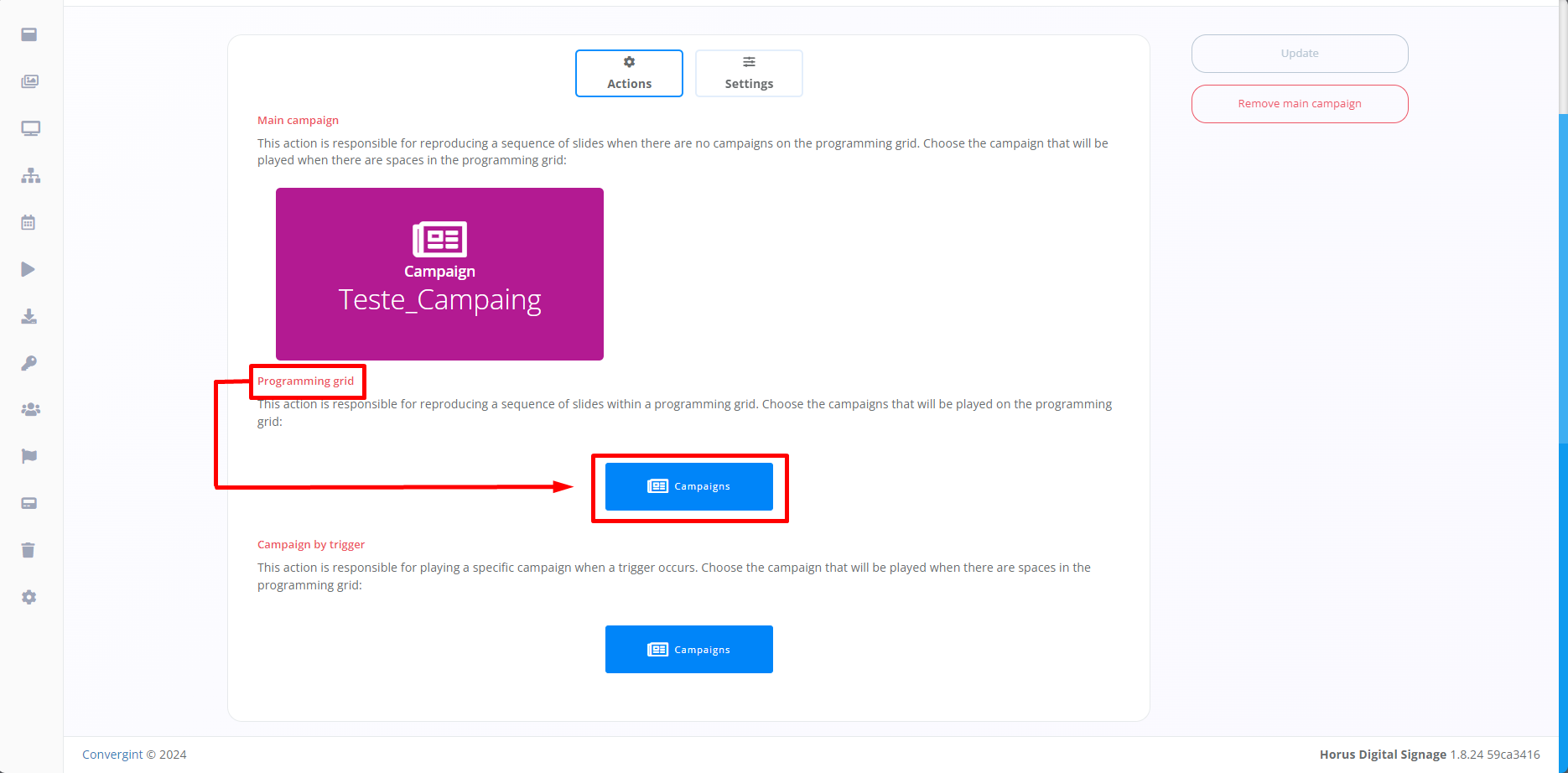
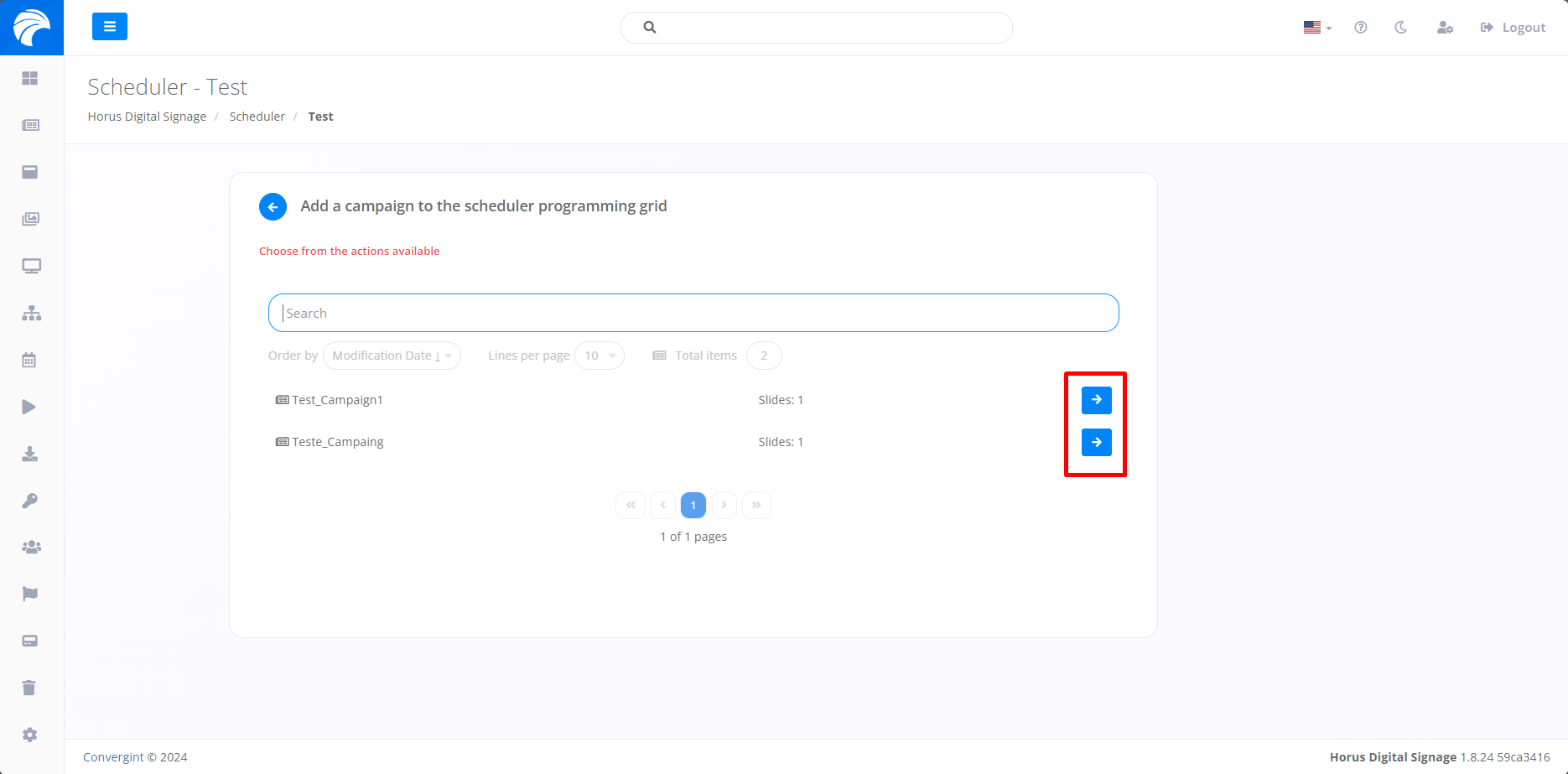
When you click on "Campaigns" marked in the image above, you will need to click on the "-->" button associated with the desired Campaign. This Campaign must contain the necessary Slide to be configured as a Programming Grid, according to your preference.
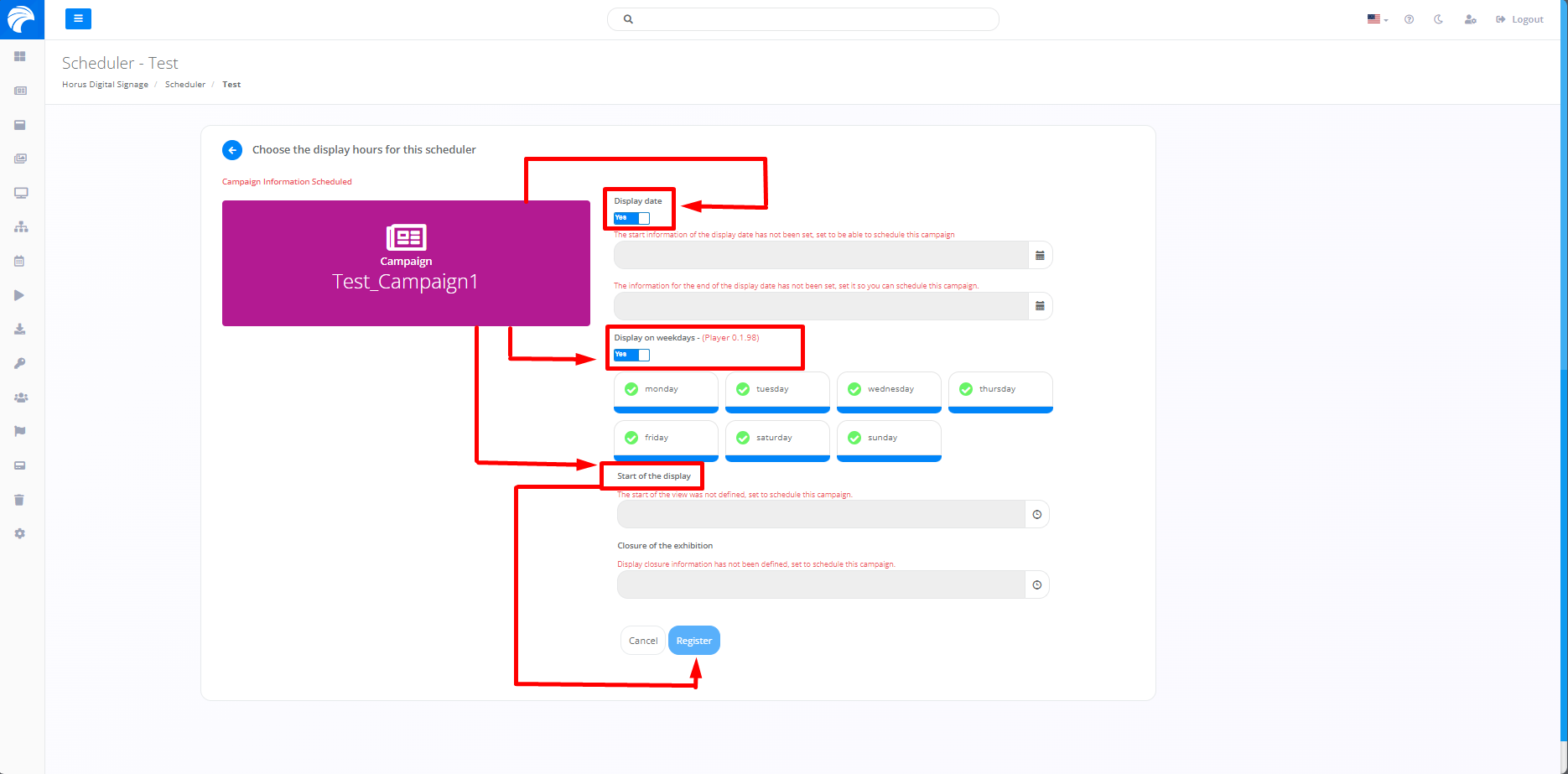
After selecting the Campaign you want, the screen will display various Template options. You can use them to set dates, times and days of the week for the chosen Slide to be shown. If you want to include a specific date for the display, you will need to enable the "Display date" option. If you prefer to select the days of the week for the Campaign to be displayed, enable the option "Display on weekdays". After customizing the Campaign's display period, click on "Register".
After selecting the desired Campaign and configuring the display period according to your preference, the Campaign will be added to the Scheduler as a Scheduling grid.
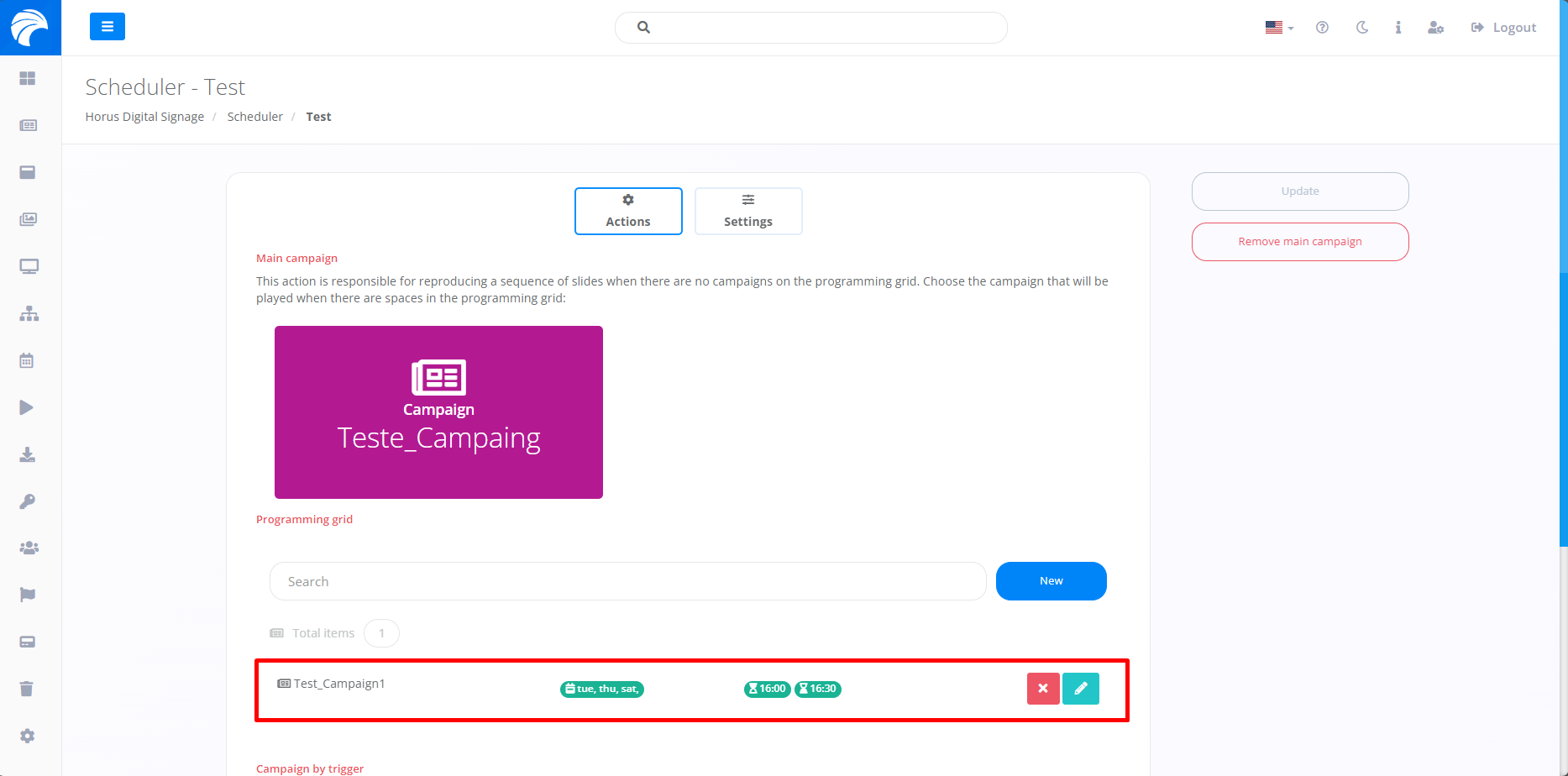
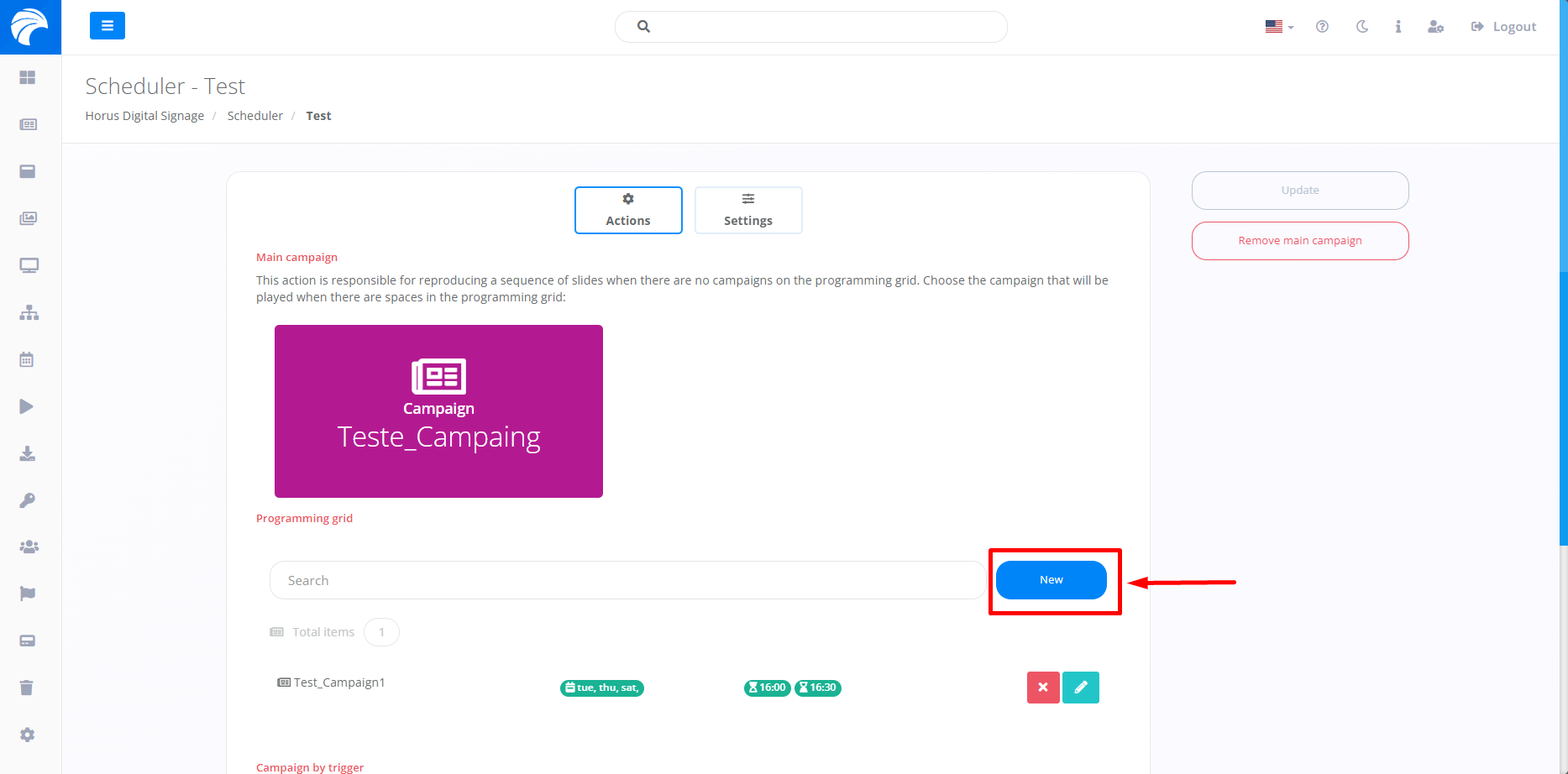
It is possible to add several Campaigns to the Programming Grid according to your preference by clicking on "New", then simply follow the same steps as above.