Scheduler Registration
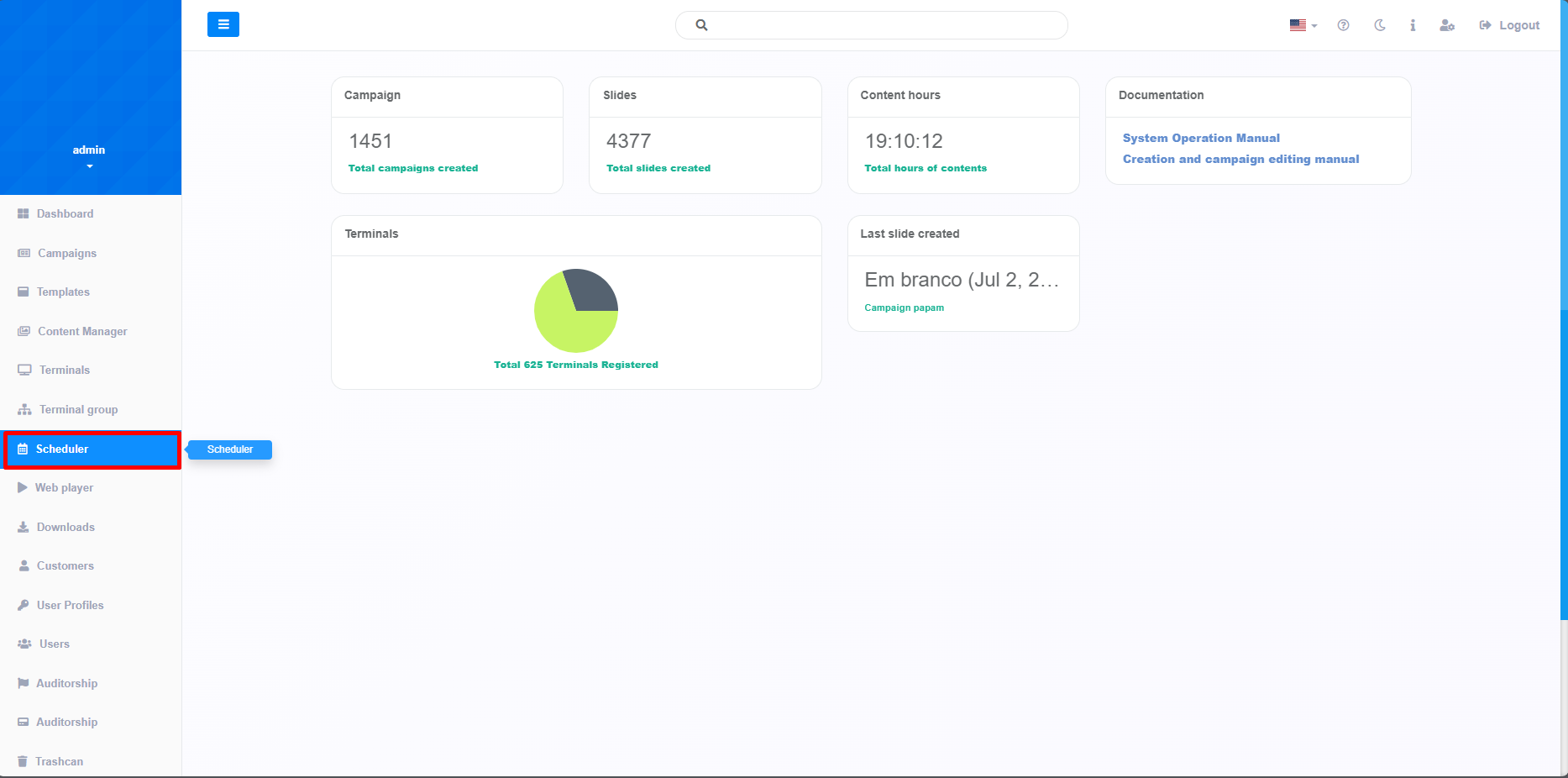
The first step in registering a scheduler is accessing the "Scheduler" tab. This function allows you to manage the playback of a sequence of Slides, giving you the flexibility to display the Slides at a time of your choosing.
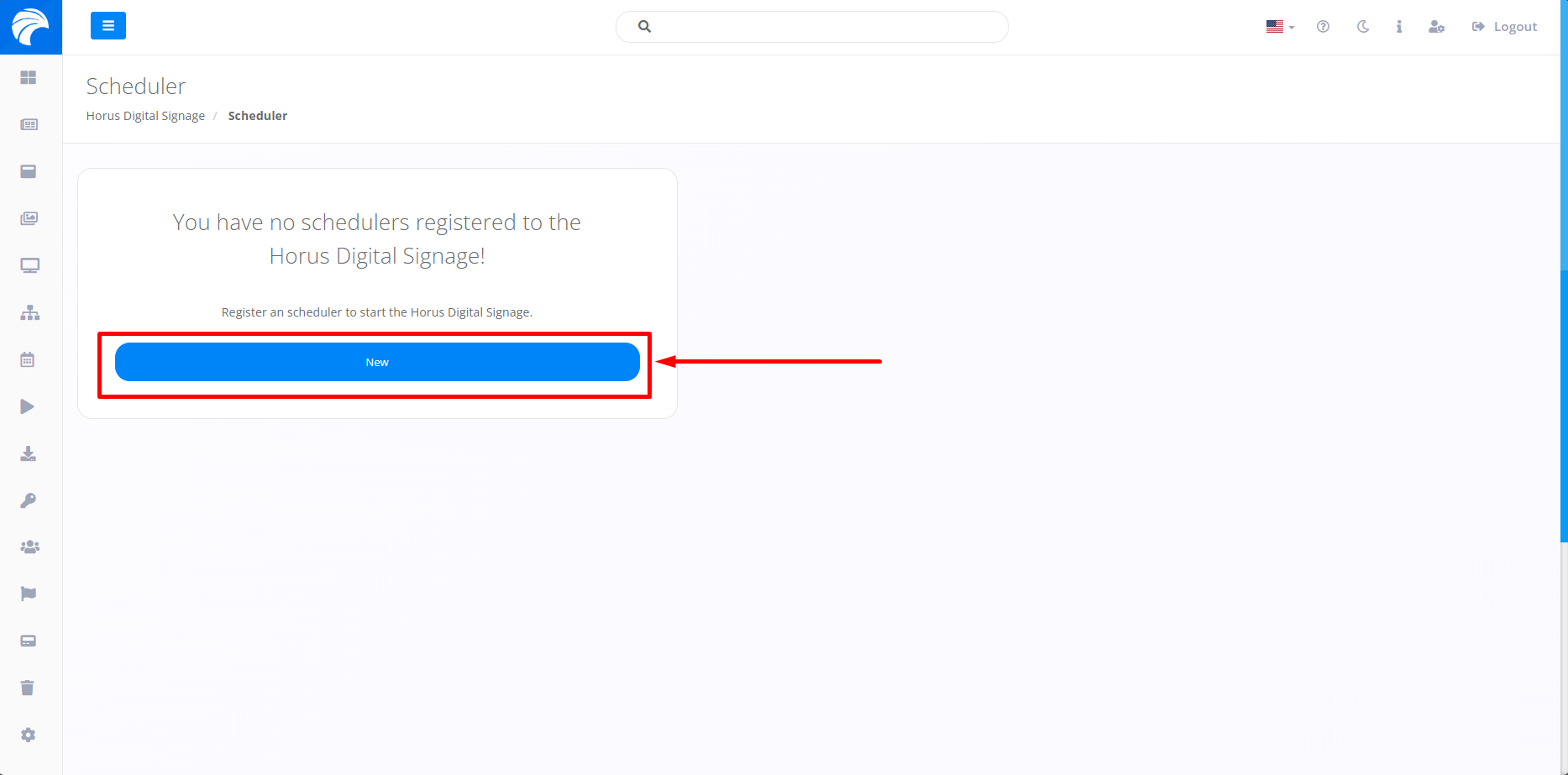
After clicking on Scheduler, the system will open the screen, where we will first define it by clicking on "New" which, if it already has a Campaign created, should be listed just below the search bar.
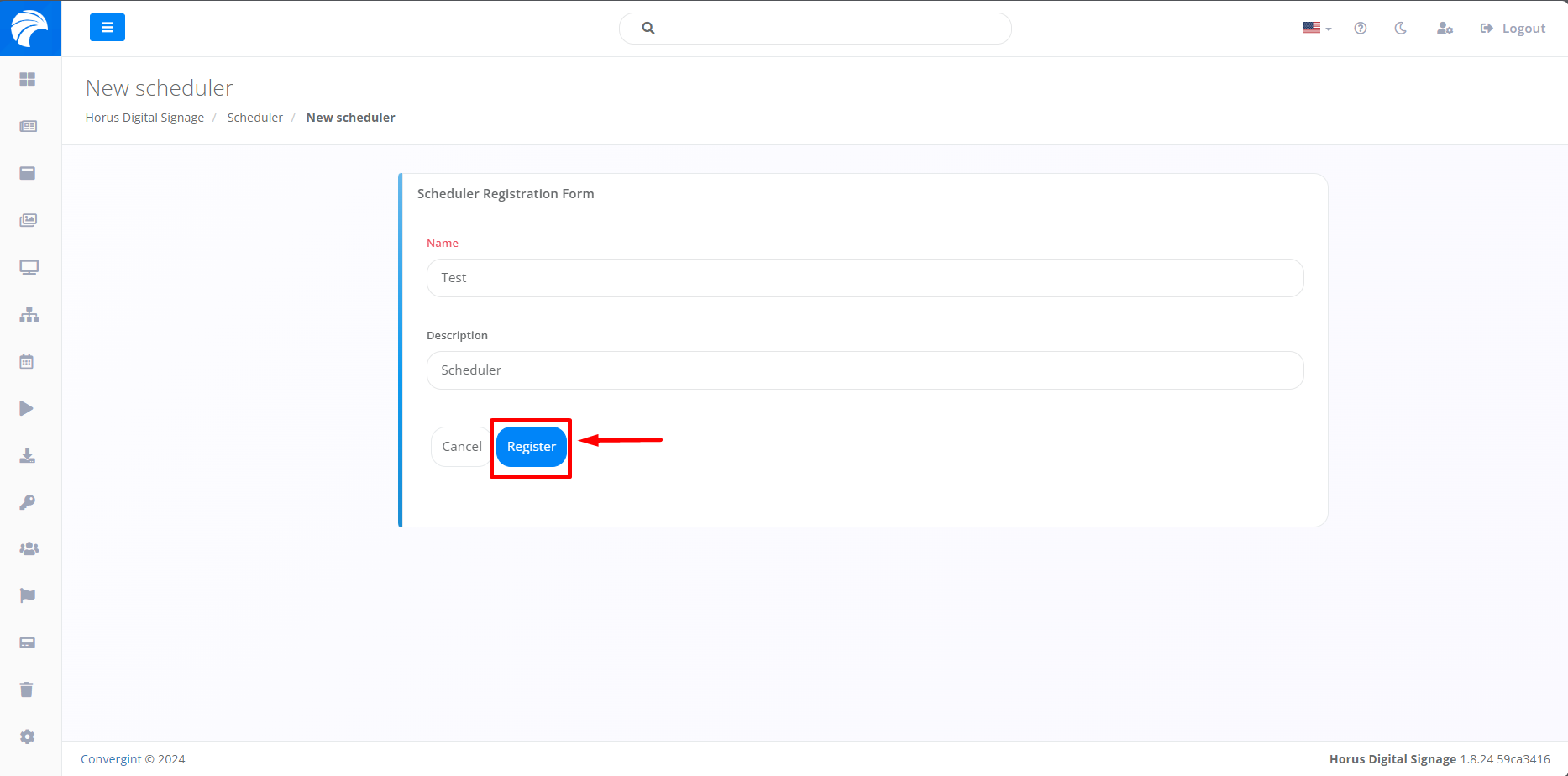
When you click on the New button, you will need to enter a name for the New Scheduler. If you need a description, there is a field available just below the "name" option. After completing the above steps, simply click on the "Register" button and the Campaign will be displayed below with your choices.
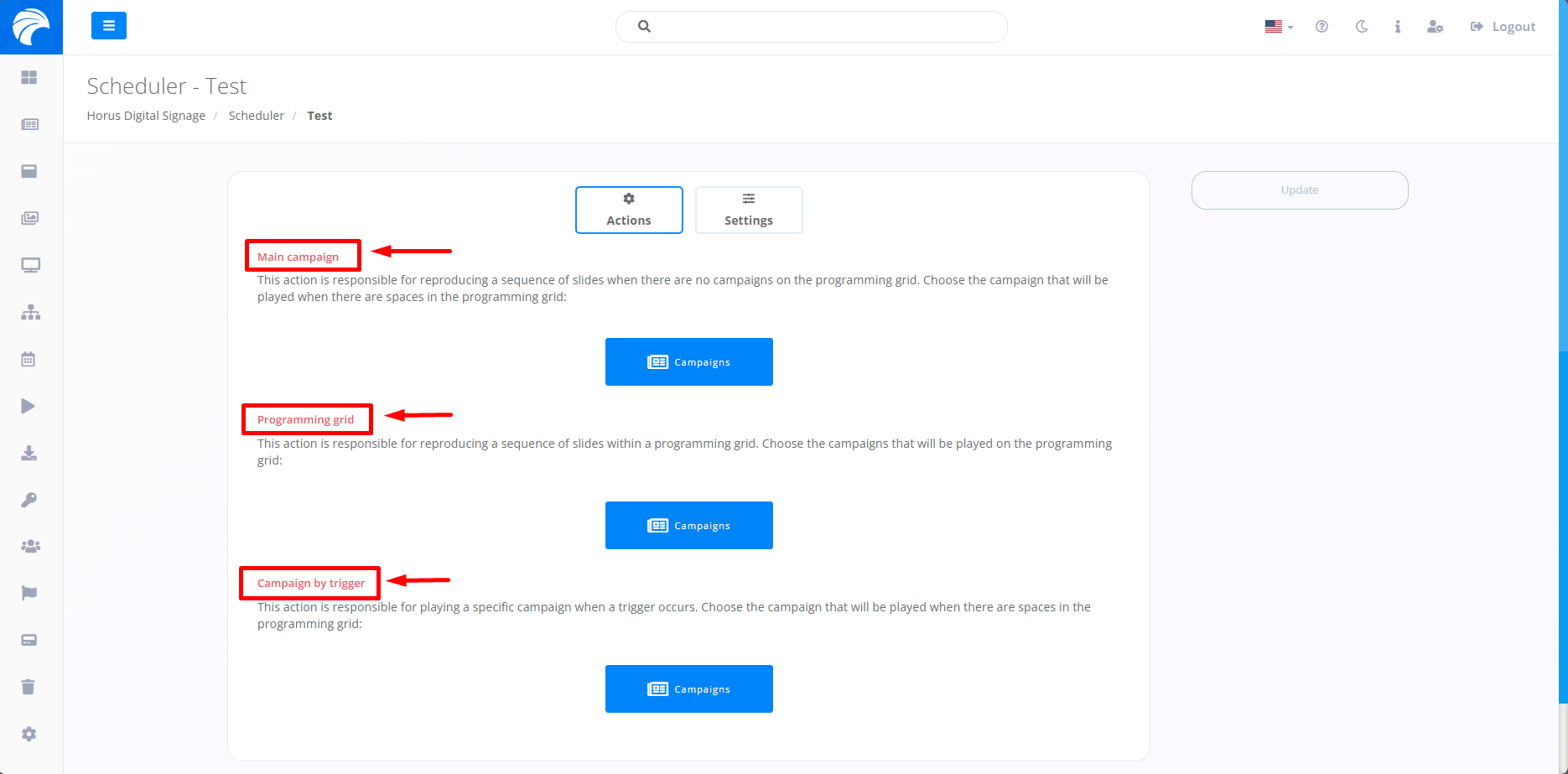
After completing the previous step, you will be redirected to the screen for adding Campaigns to the Scheduler. On this screen, you will have the option of adding a Main Campaign, Programming grid and a Campaign by trigger.