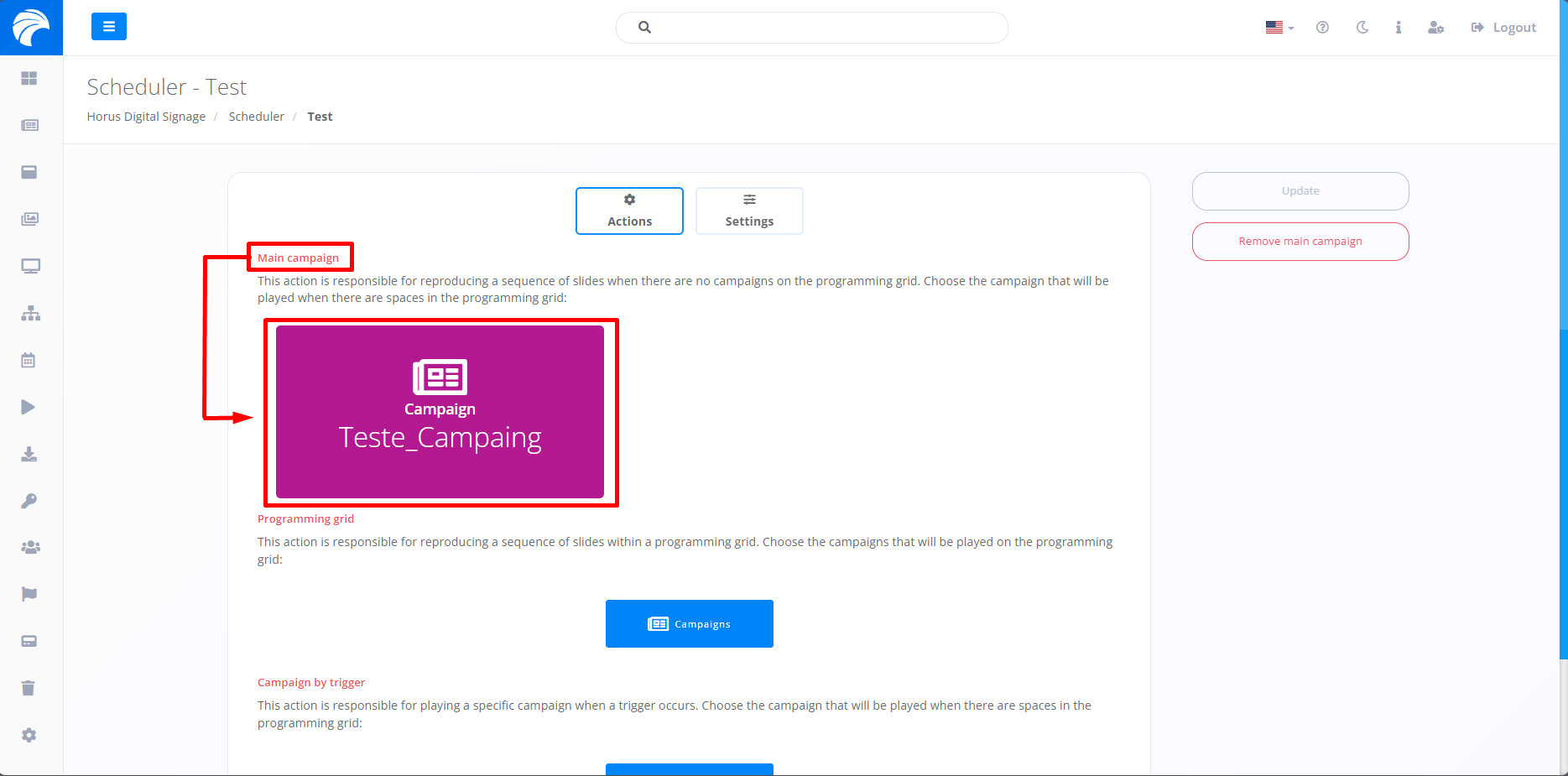
Main Campaign
By selecting the "Campaigns" button, linked to the Main Campaign, you can include a Campaign of your choice. This will allow a slide belonging to the included Campaign to be displayed continuously until a Campaign is scheduled in the programming grid or a trigger is activated. In other words, the Campaign added in the "Main Campaign" space will be displayed until the scheduled programming in the grid begins, and after this programming ends, the Main Campaign will be displayed again. The Main Campaign may also be affected if a trigger is activated.
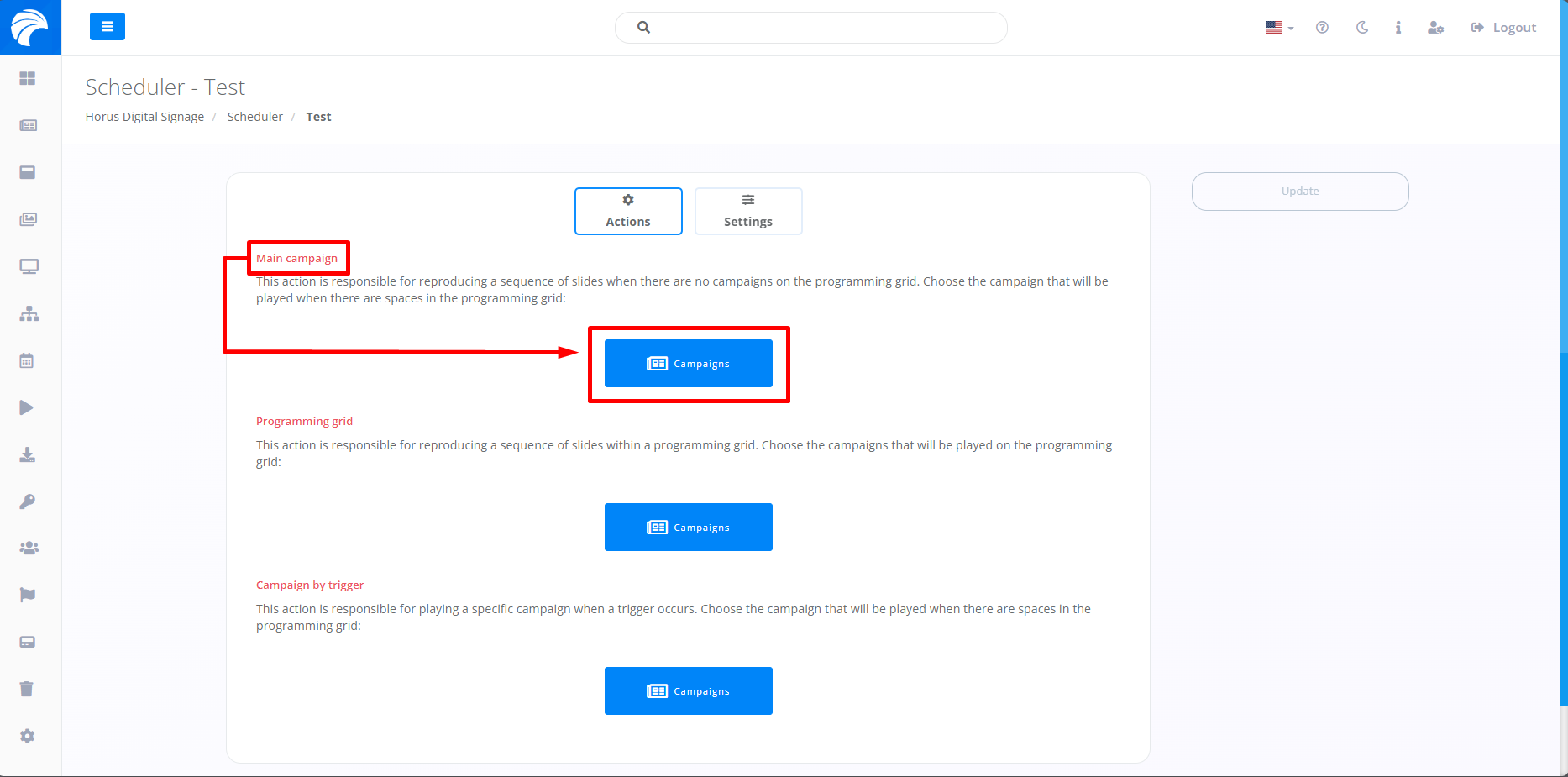
When you click on "Campaigns" marked in the image above, you will need to click on the plus icon associated with the desired Campaign. This Campaign must contain the necessary Slide to be configured as the Main Campaign, according to your preferenc
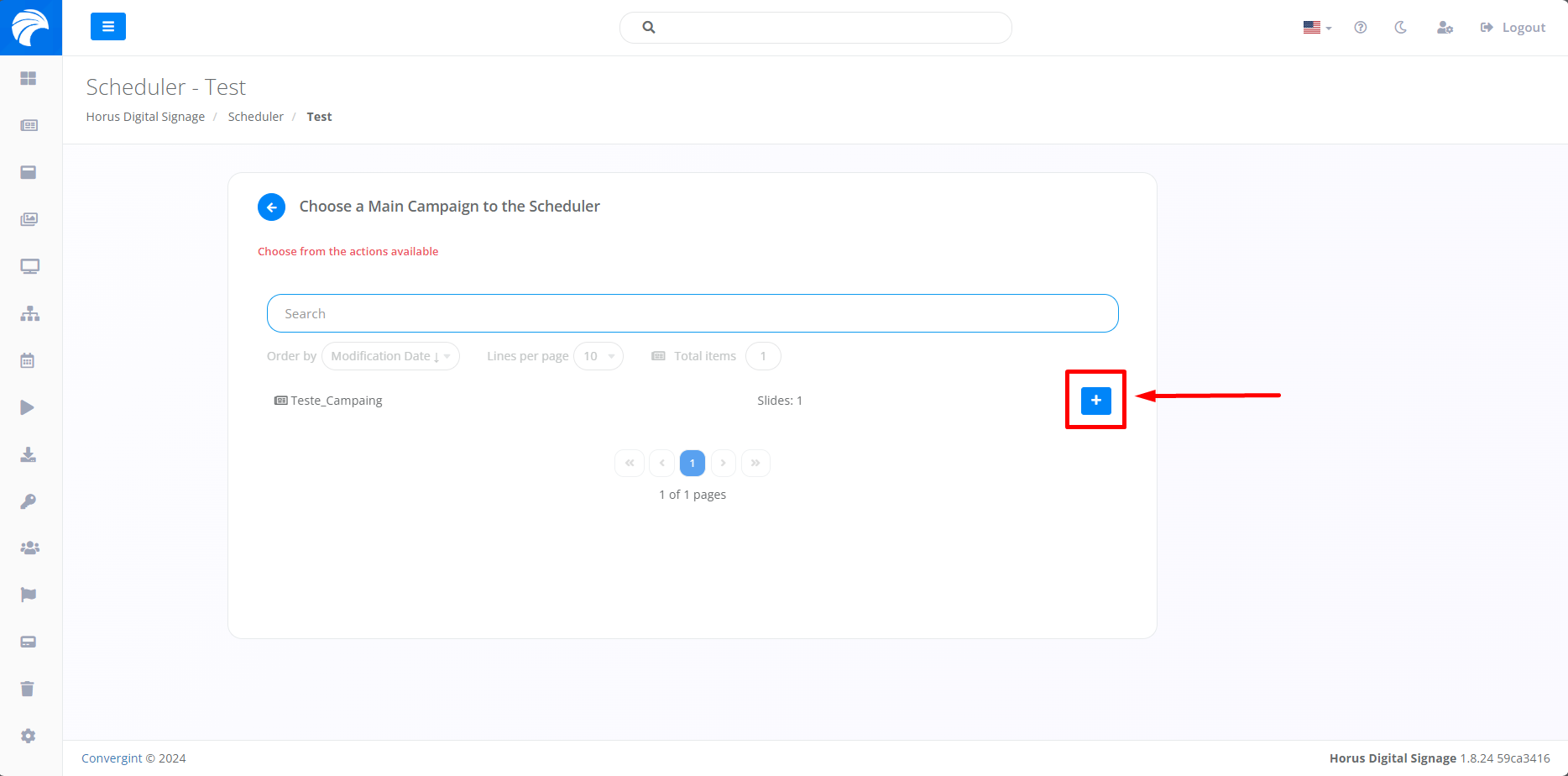
Once selected, the chosen Campaign will be added to the Scheduler as the Main Campaign.