Activation of Remote Power On and Power Off
⚠️ Warning: To use this function, you need access to On premise.
By following the topic described previously, the Terminal will be registered. To activate remote power on and power off, you must access a previously created Terminal that wants to activate this functionality.
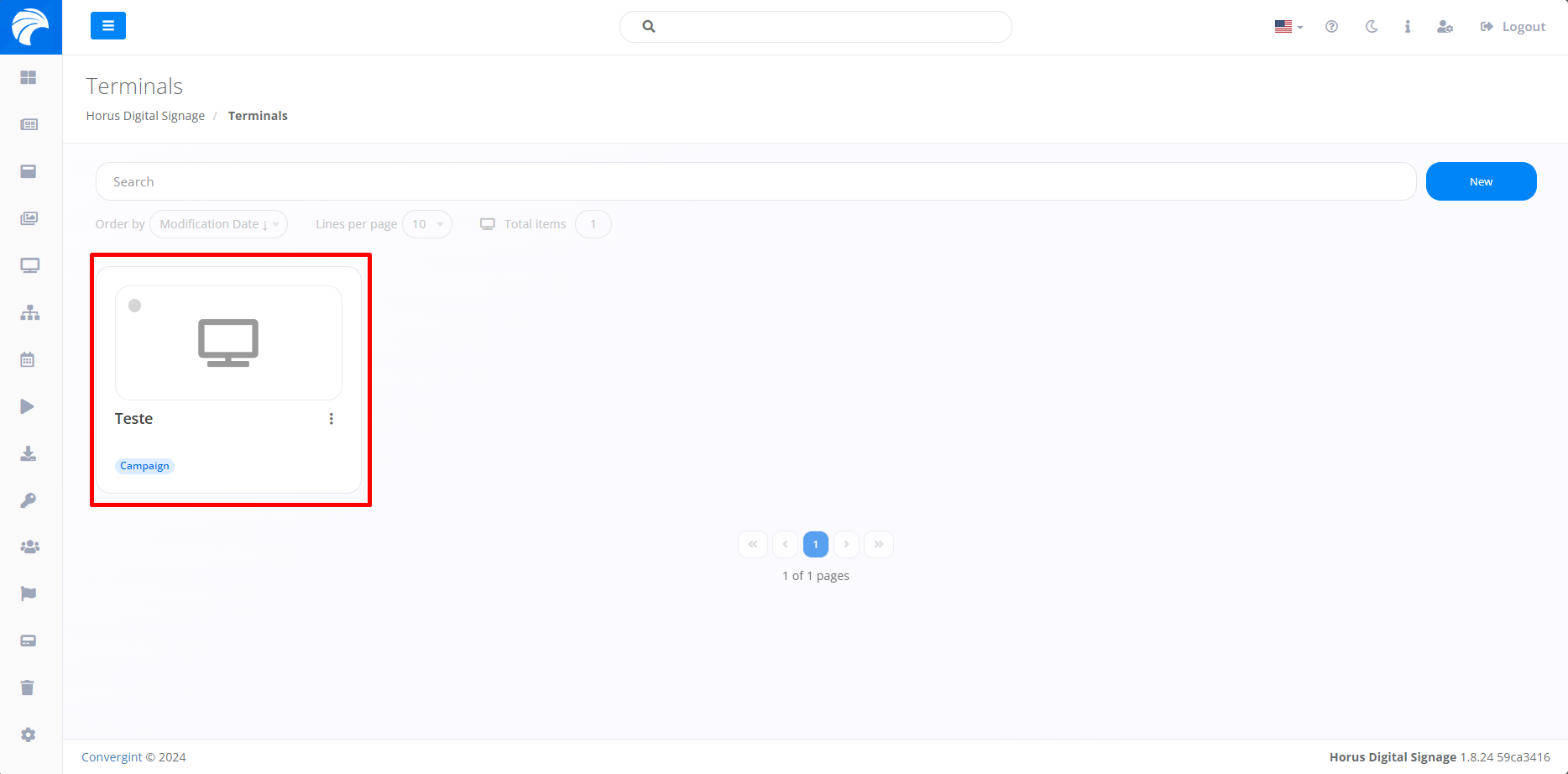
Note: To enable this functionality, the Player must be active on the machine.
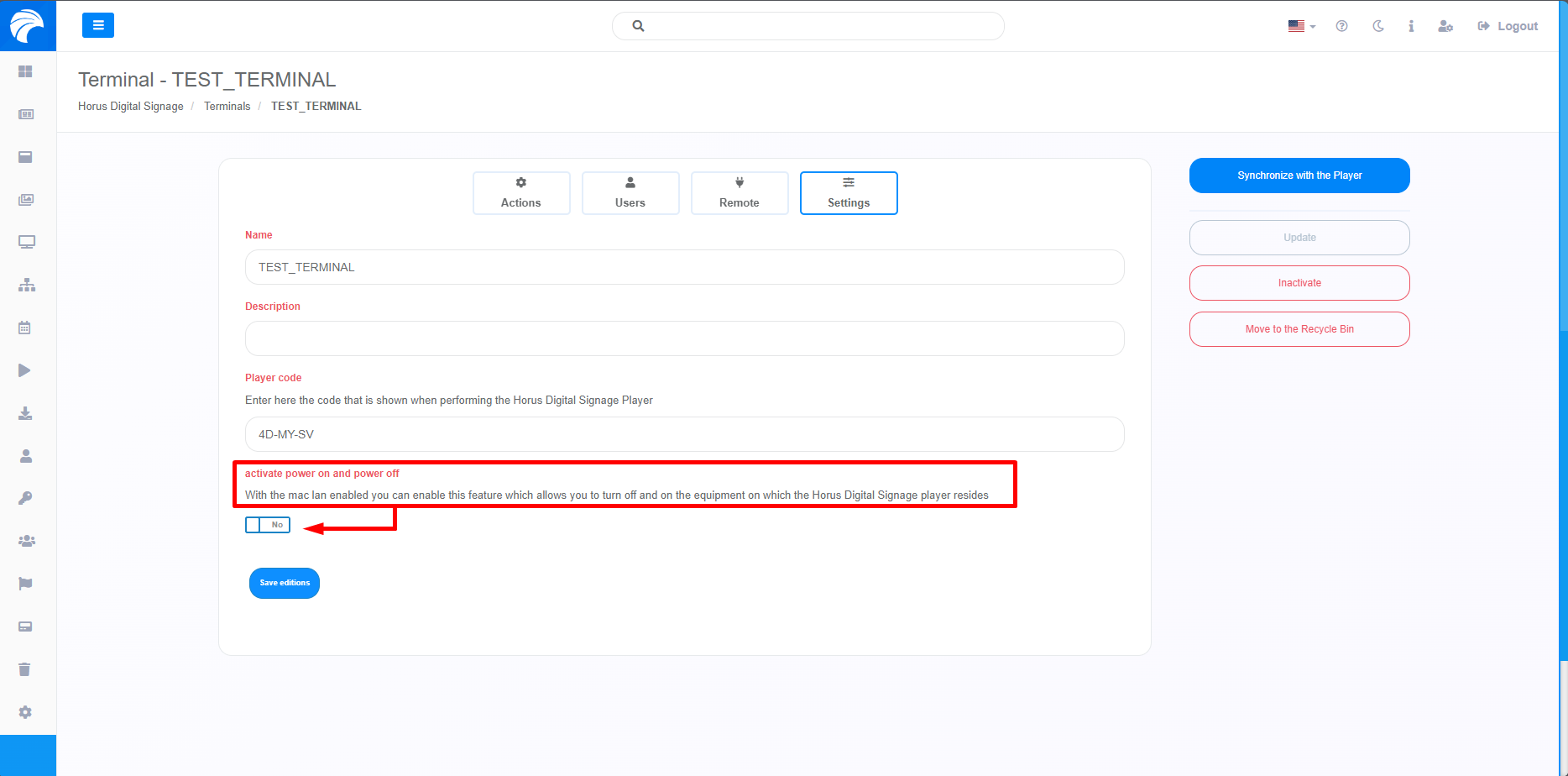
After creating or accessing a Terminal, it will be necessary to access the “Settings” option, when accessing the system, the Terminal Interface will be displayed, in which it will be possible to activate Power On and Power Off, by clicking on the functionality activation button.
When activating the functionality, it allows you to turn on and off the equipment on which the Horus Player resides. This is done through filtering based on the on and off time, allowing for a period of player presentation. Additionally, you must provide the address and IP to enable this functionality. After customizing, just click “Save editions” to save.
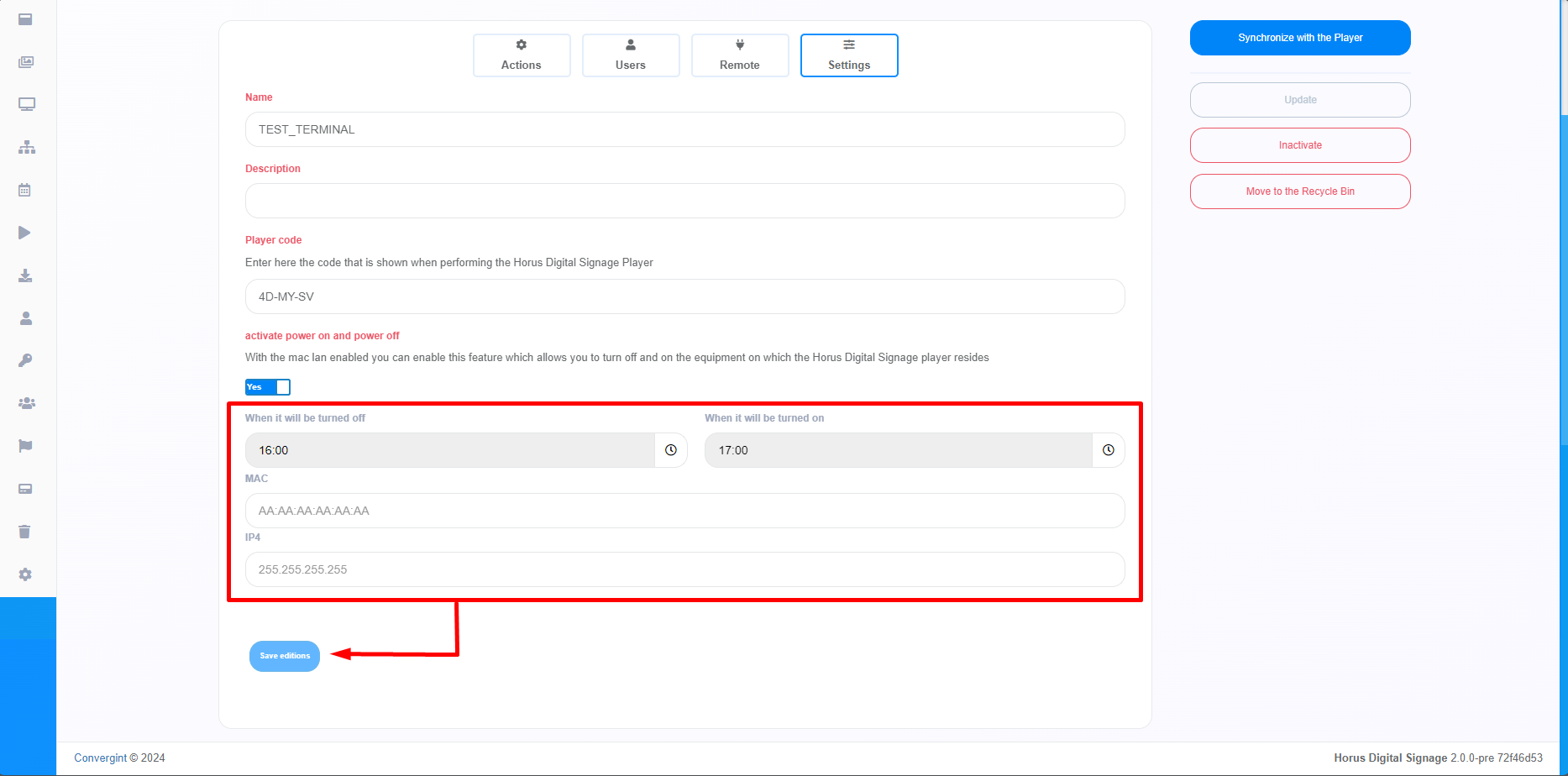
Note: Device Wake-on-Lan must be activated on the machine on which the Player is installed for the Remote Power On function to work correctly.