Scheduling and Changing Brightness and Contrast
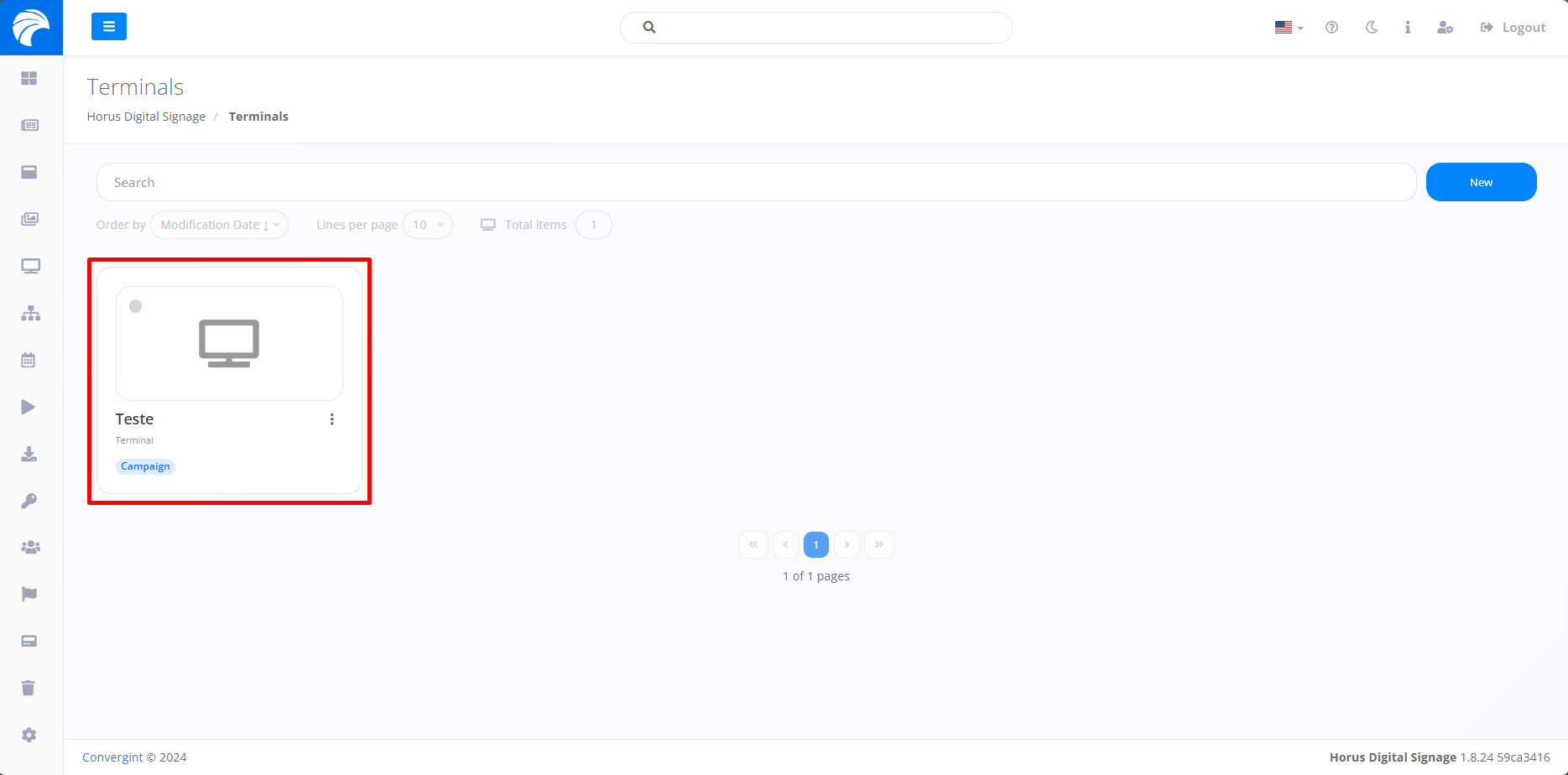
By following the steps described previously, the Terminal will be registered. To schedule or change the Brightness and Contrasts of the Player Application, you need to access a previously created Terminal in which you want to schedule or change the brightness and contrast, according to your preference.
Note: To enable this functionality, the Player must be active on the machine.
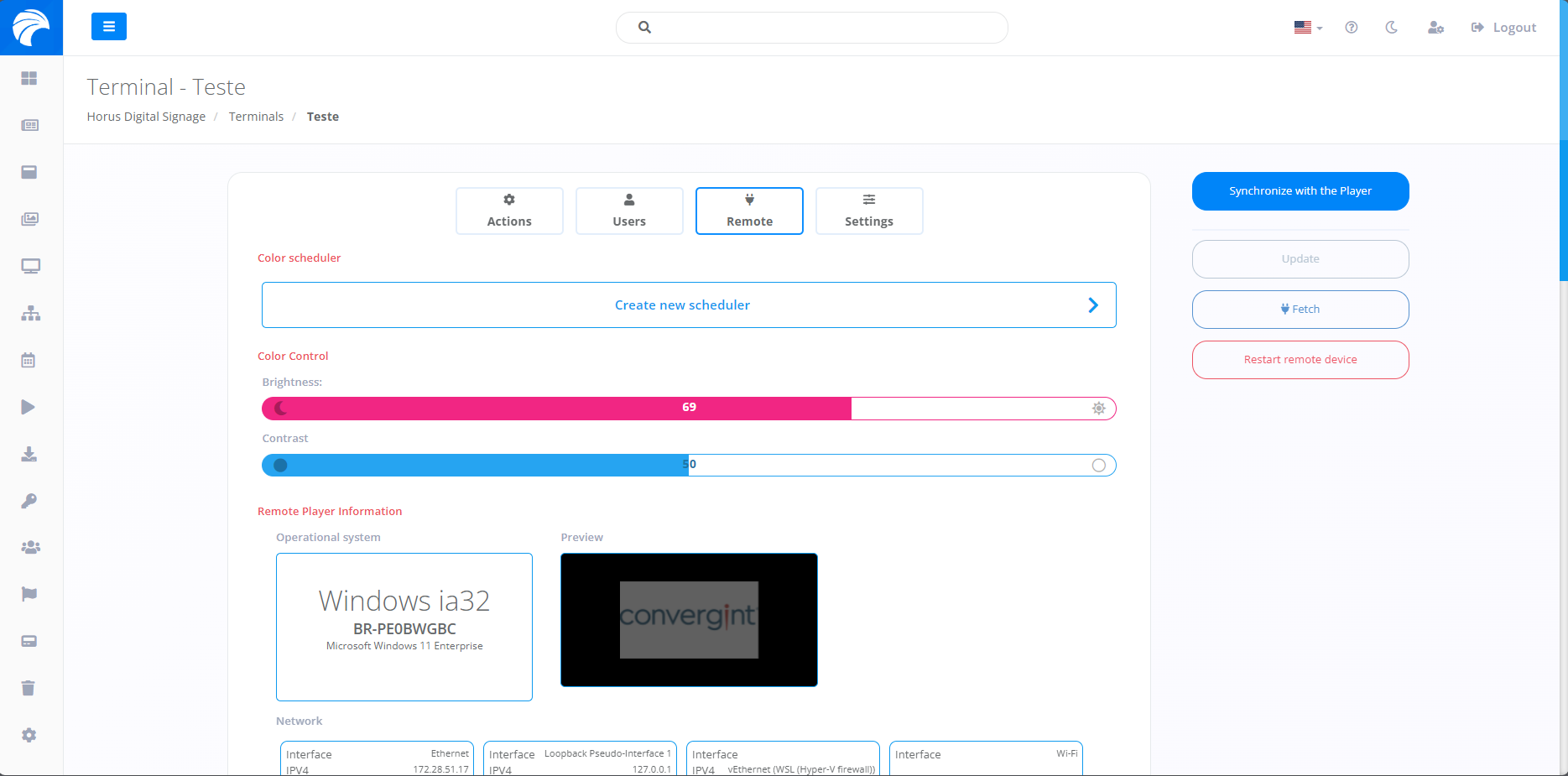
After creating or accessing a Terminal, you will need to access the “Remote” option, when accessing the system will display the interface, where you will see the remote Player's information and the Player's history statement. To change brightness and contrast, you need to go to the “Color Control” option and set the brightness and contrast of your choice.
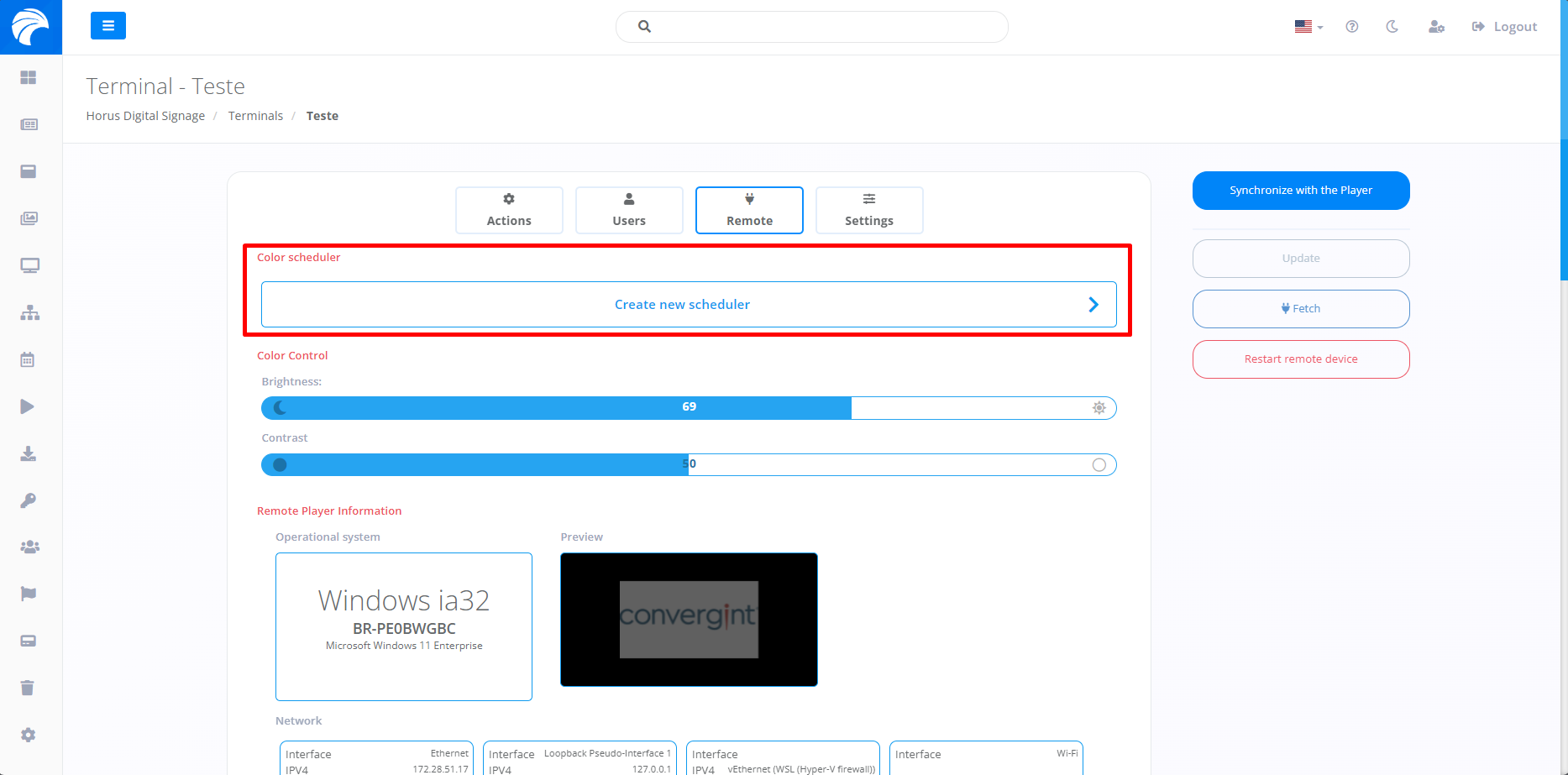
To schedule Brightness and Contrast changes, click “Create new schedule”. This option allows you to filter changes based on time, allowing specific adjustments to Brightness or Contrast during certain periods, differentiating between different times of day.
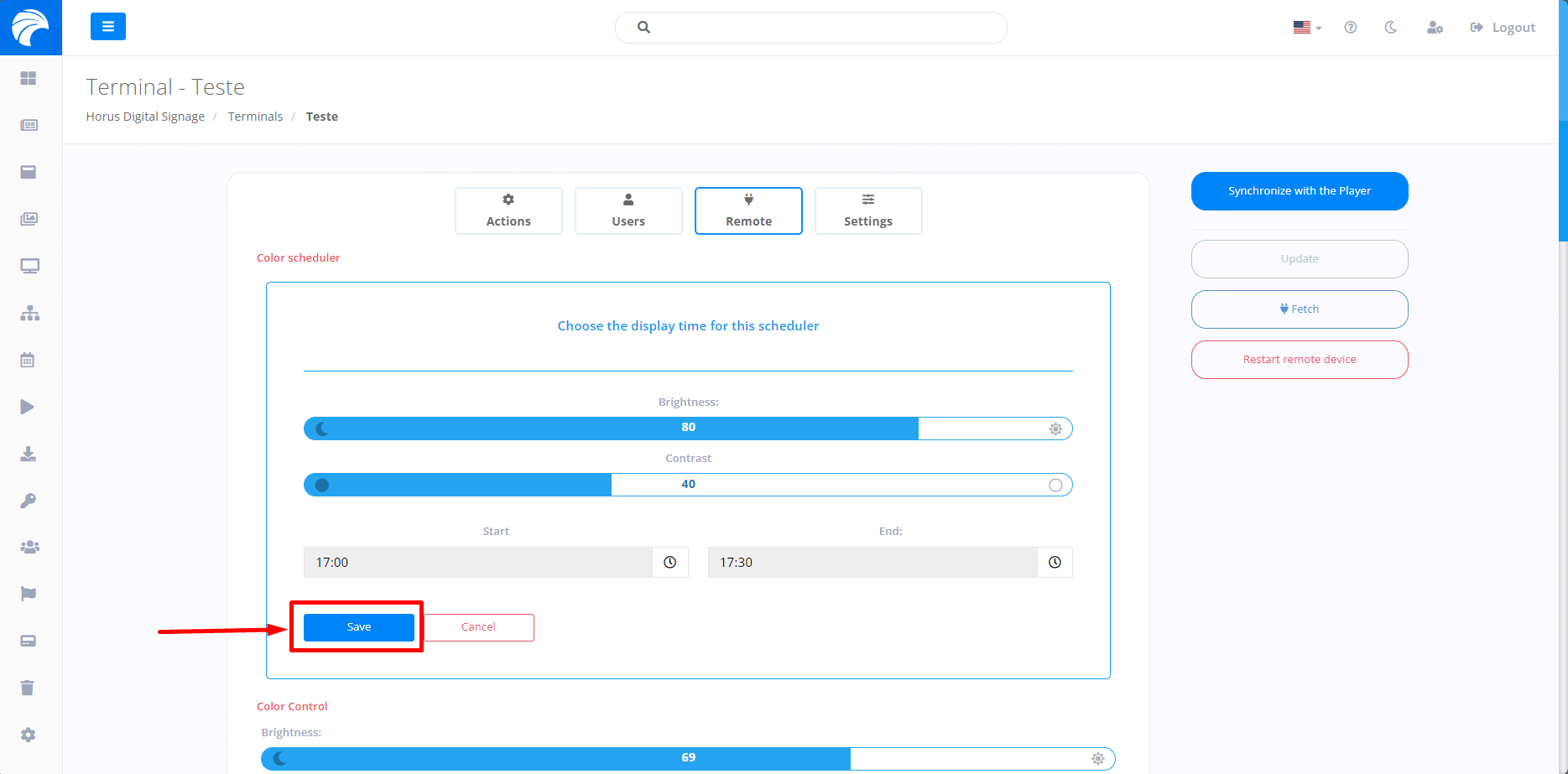
When you click Create New Schedule, you will be asked to provide the start time and end time during which you want the changes to occur. Before that, indicate the desired Brightness and Contrast for the specified period. Then, you need to click on “Save” to save.