Linking Users in the Terminal
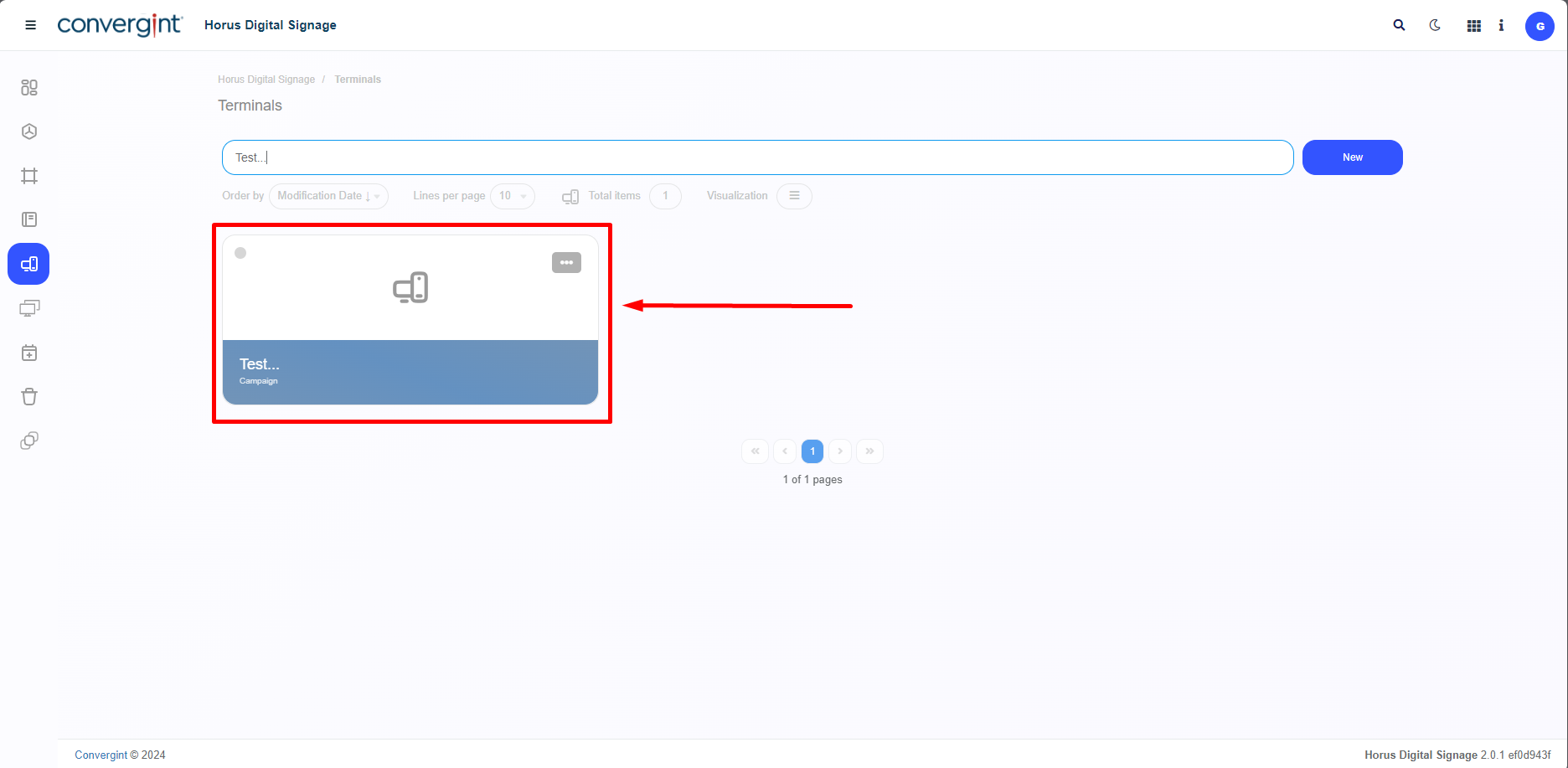
Following the previously mentioned process, the Terminal will be created. To continue the adjustment process within the Terminal according to your preference, we will Link Users. New users who only have permission to view and use the 'Terminal' section, if linked, will have the ability to use the Terminal assigned to them. The first step to Link a User is to access a previously created terminal where you wish to establish the link with the chosen User.
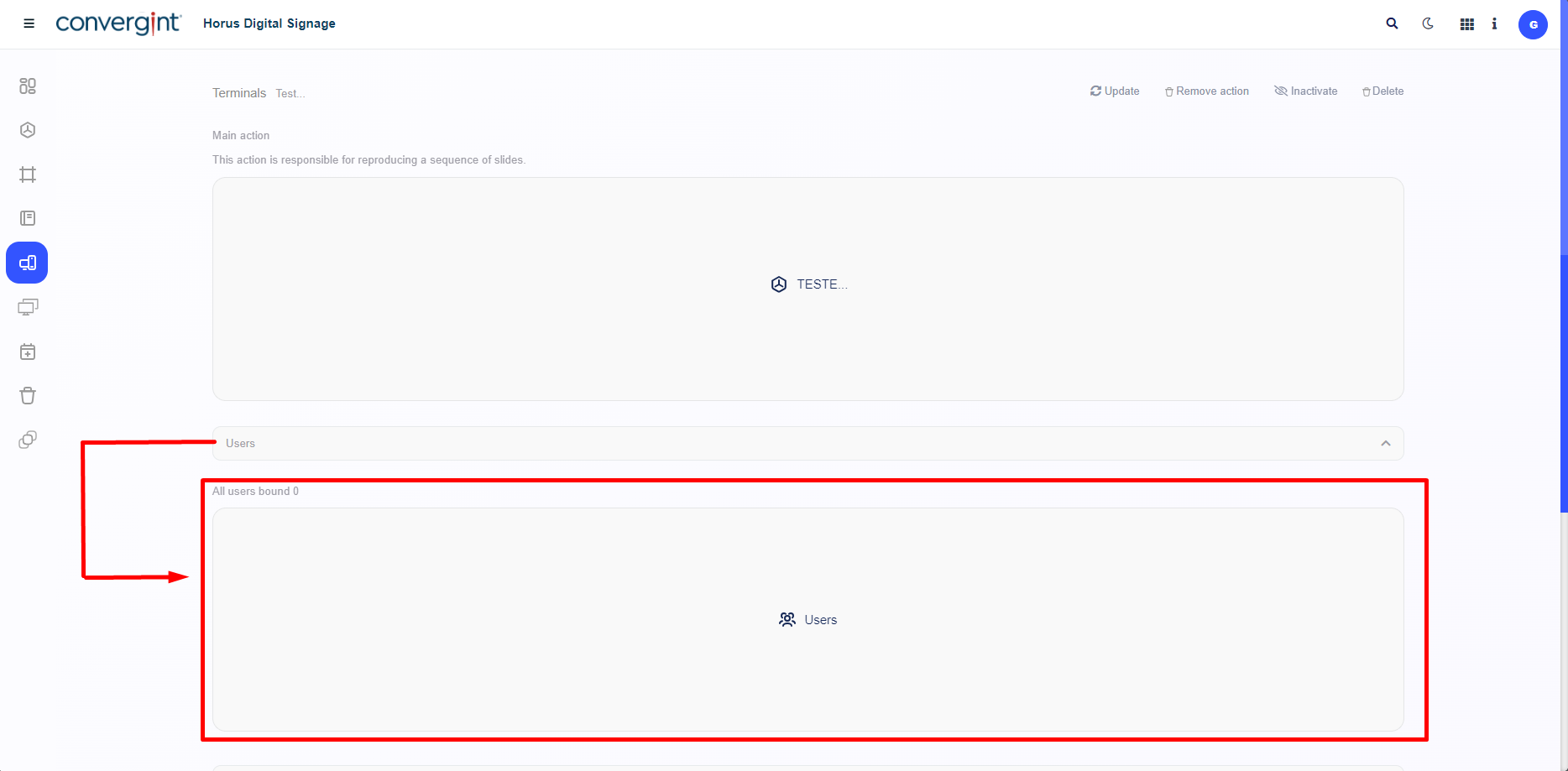
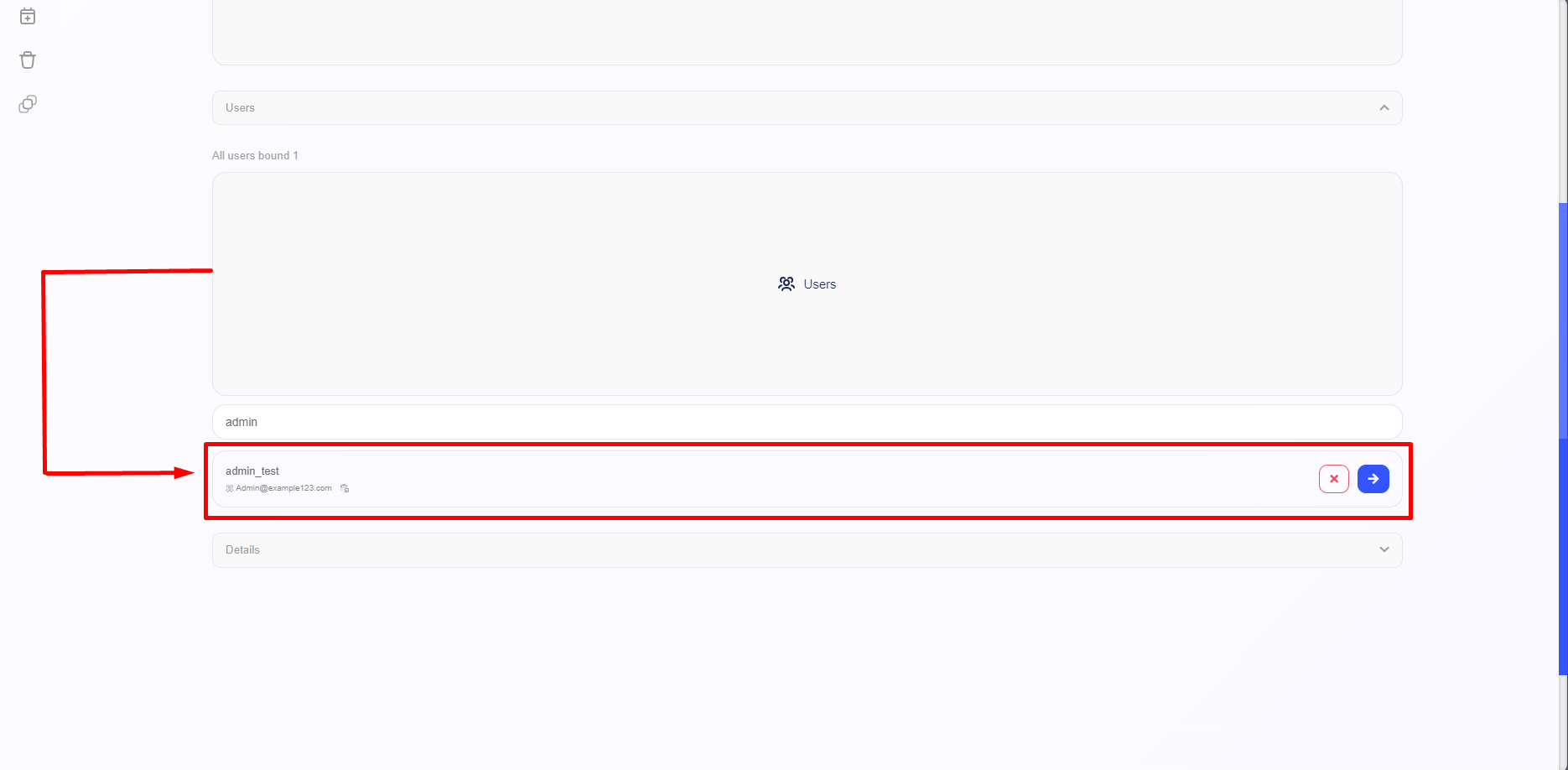
When you access a previously configured terminal, the system will display the Terminal interface, where you can link a User. To do this, simply access the “Users” field and then click on “Users” again to open the selection interface. From this screen, you can choose the Users you want to link to the terminal, according to your preference.
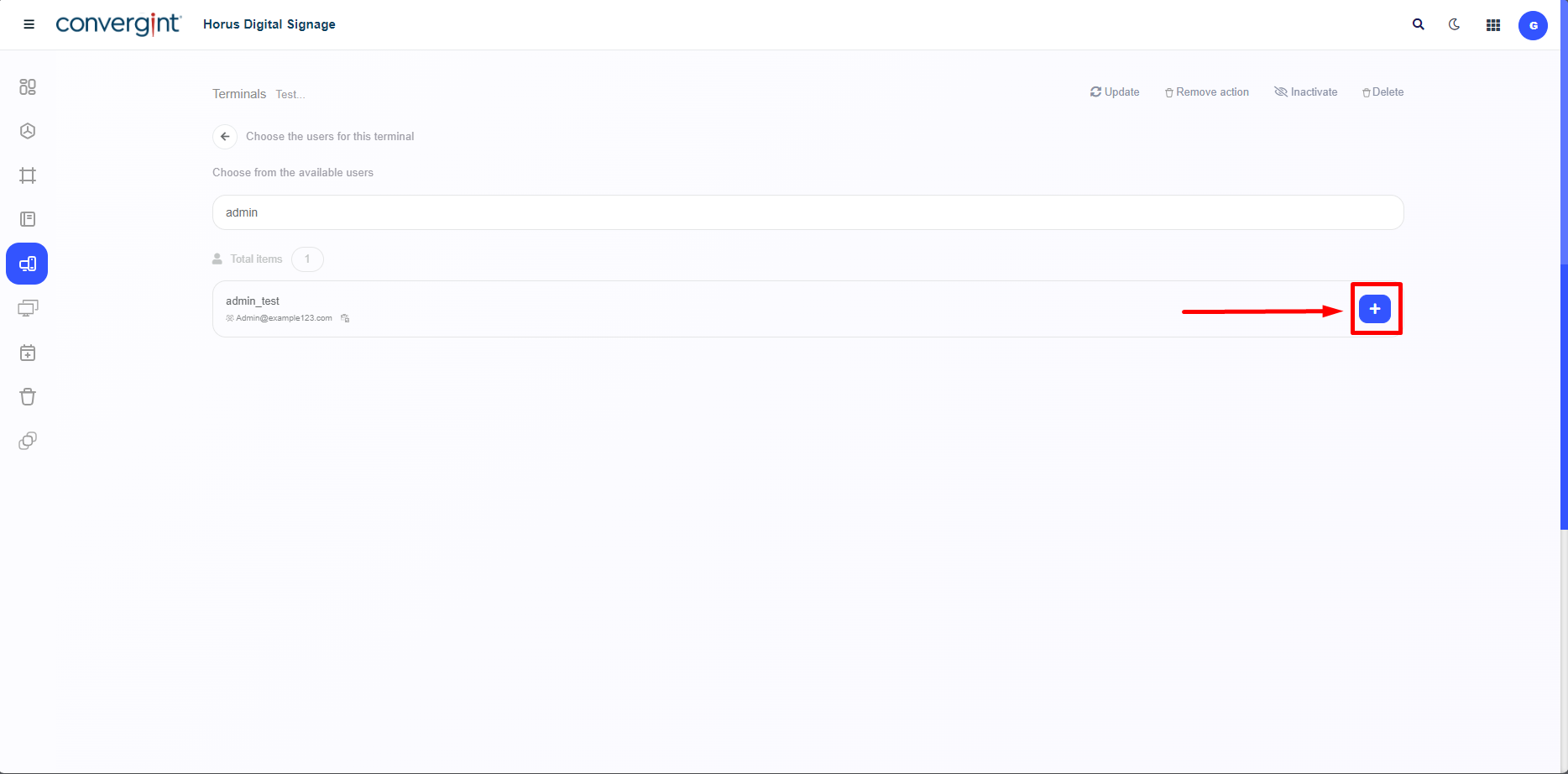
When accessing the user selection interface, in order to later link them to the terminal, to continue the process, click on the “+” button associated with the User of your choice. Remember that for Users with administrator permission, it is still possible to check terminals that have linked users, not preventing Users with more complex and complete permissions from being checked and viewed, but allowing Users who only have permissions related to the Terminal to check if they are linked.
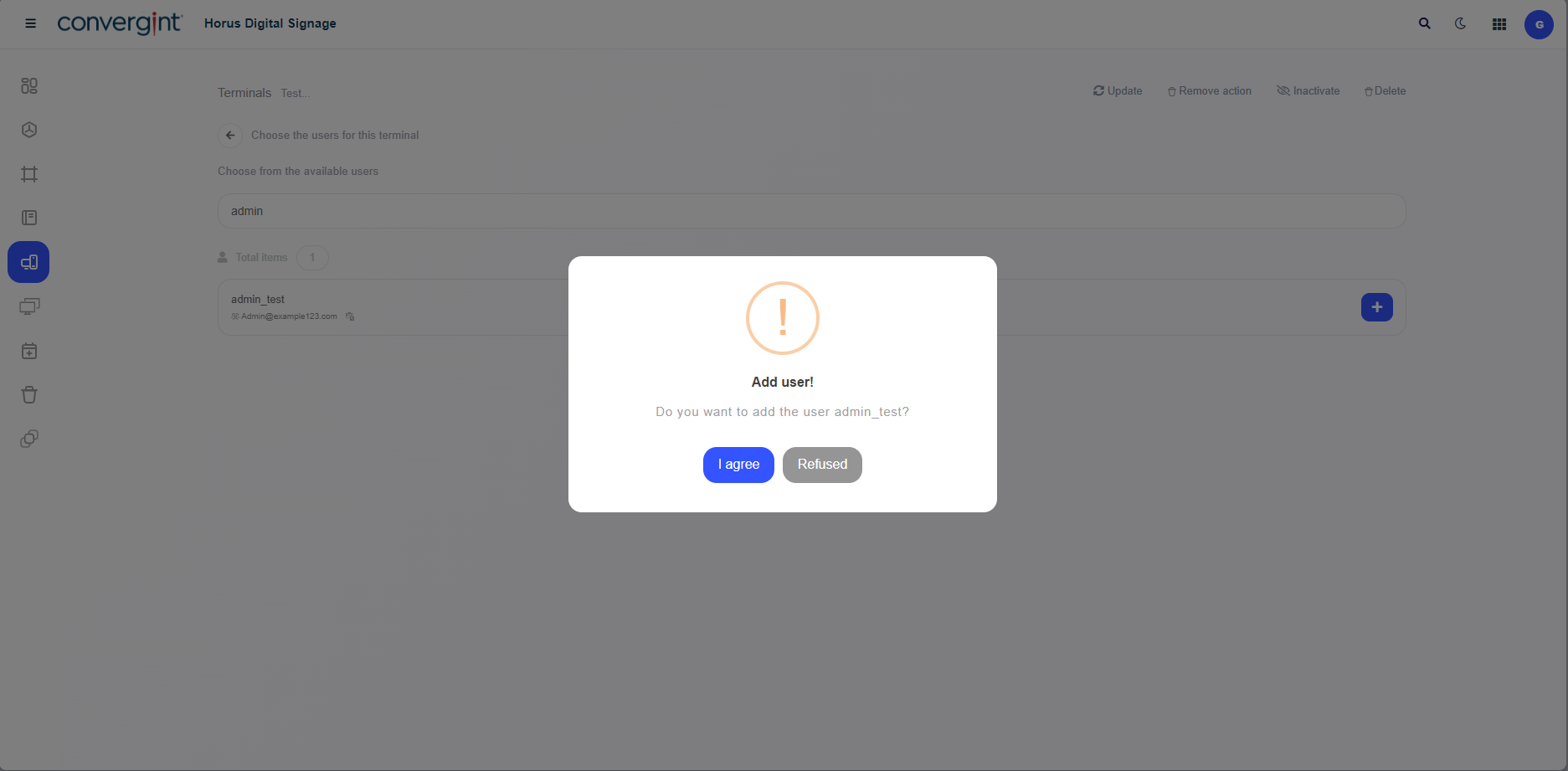
When you select a User, the system will display a pop-up asking you to confirm that the User is linked.
After confirming the User Link, depending on the user of your choice, the user will be linked within the Terminal. Remember that the system allows you to link several users to the Terminal, following the same process as above.
Note: To create Users with their appropriate permissions, according to the preference of the creating User, go to the topic “Users” and “User Profiles”.