Campaign Removal, Duplication and Deactivation
The first step for removing, duplicating, and deactivating a campaign is to access the "Campaigns" tab. This function allows for the creation of campaigns that involve adding slides for a customized display or presentation in Horus Digital Signage.
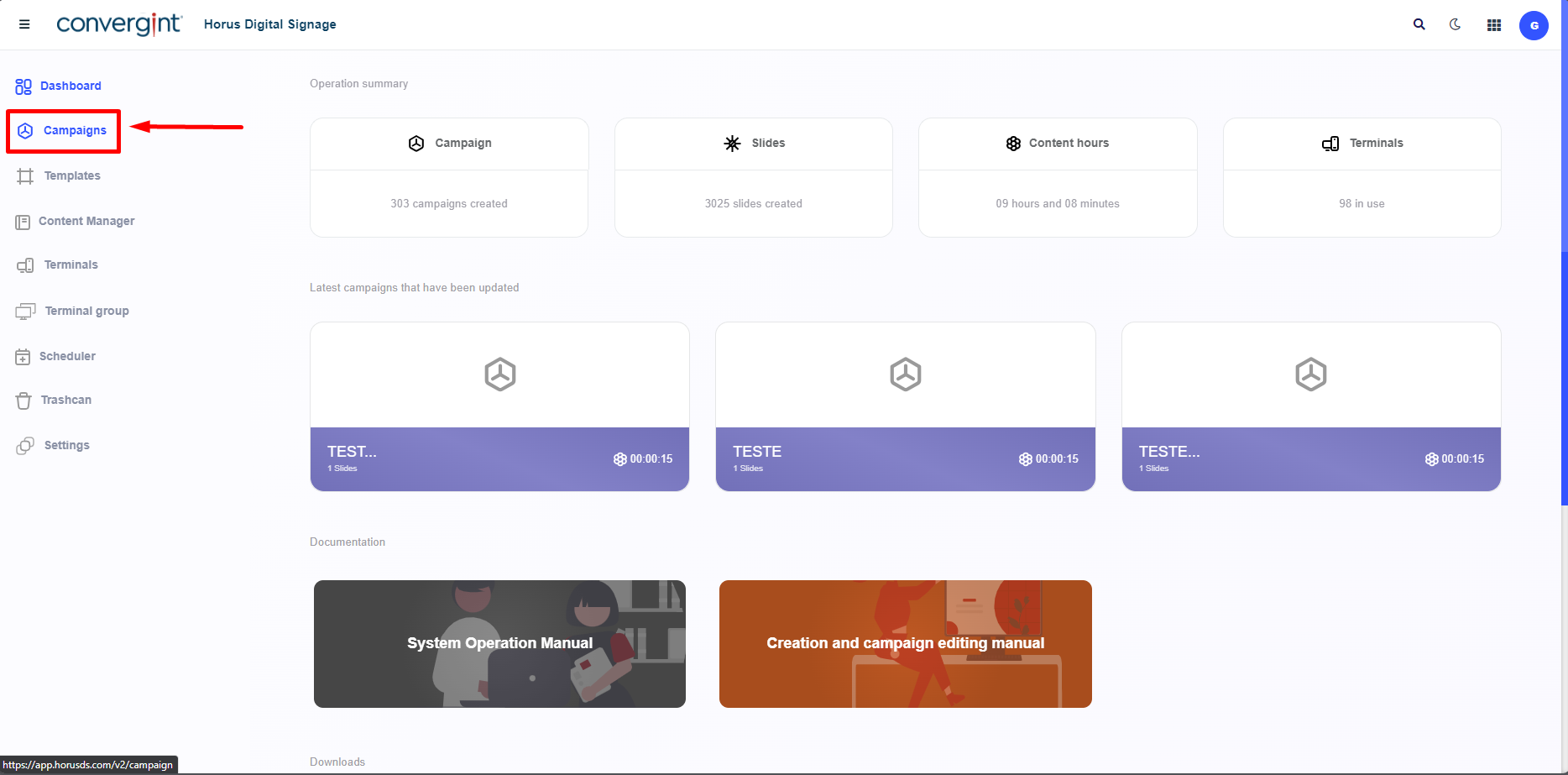
After following the steps described earlier, the campaign will be registered. To remove, duplicate, or deactivate a slide from the campaign, you need to access a previously created campaign that contains the slide you wish to delete.
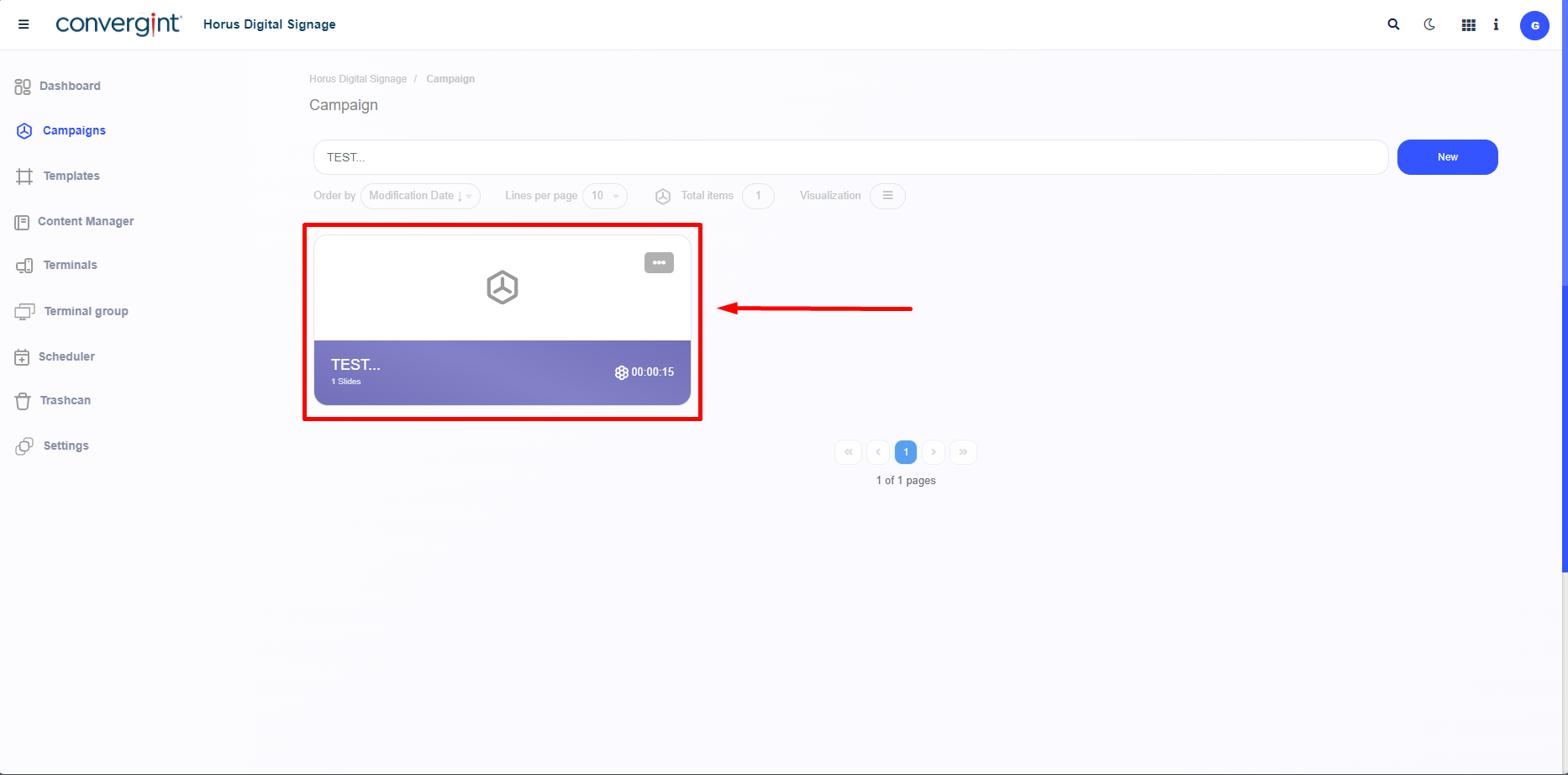
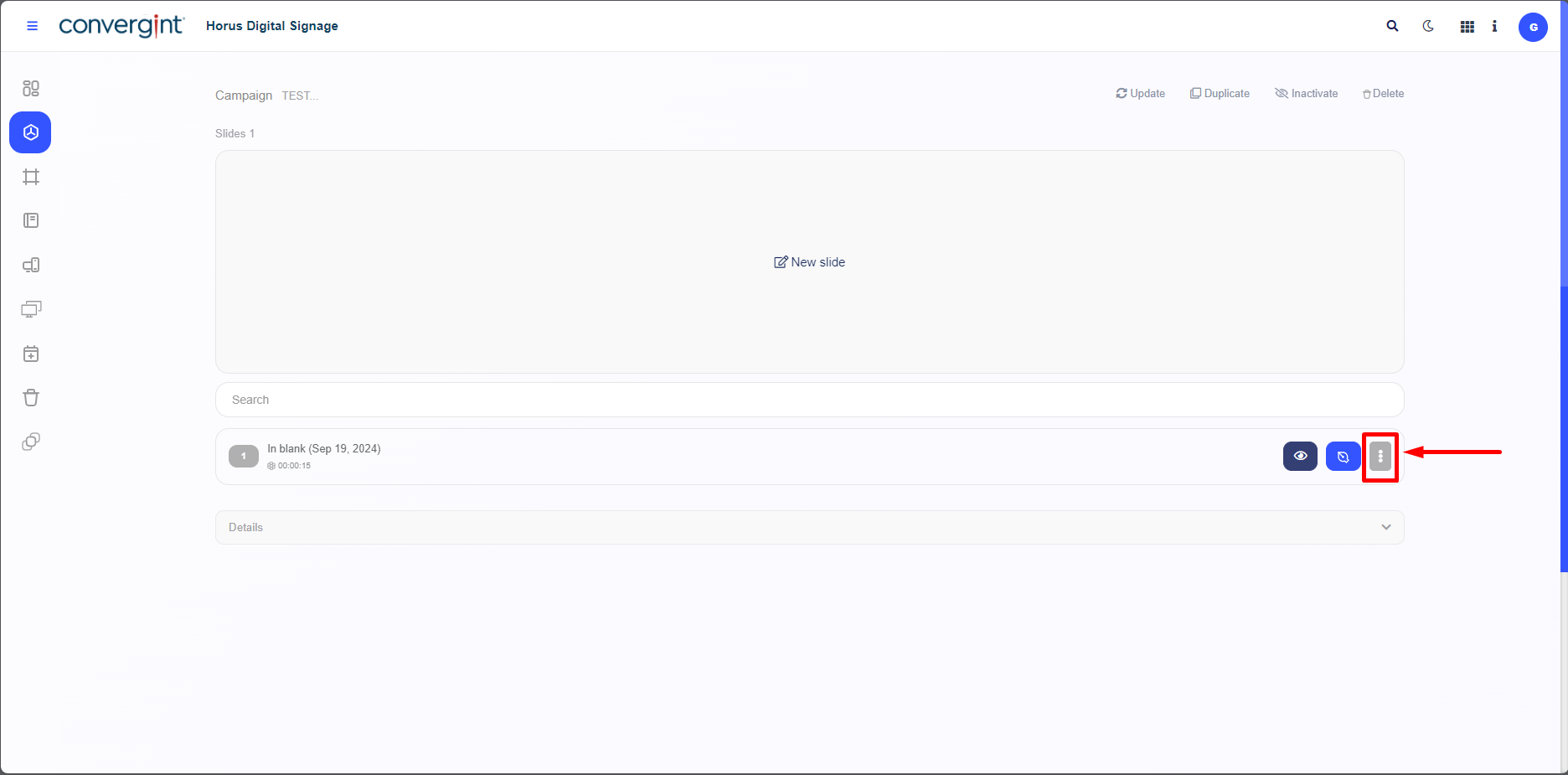
After accessing a campaign, the system will display the campaign interface, where you can remove a slide by clicking on the "three dots."
After clicking the highlighted "three dots," options will be displayed for Duplicating, Copying, Deactivating, and Removing, depending on your desired action.
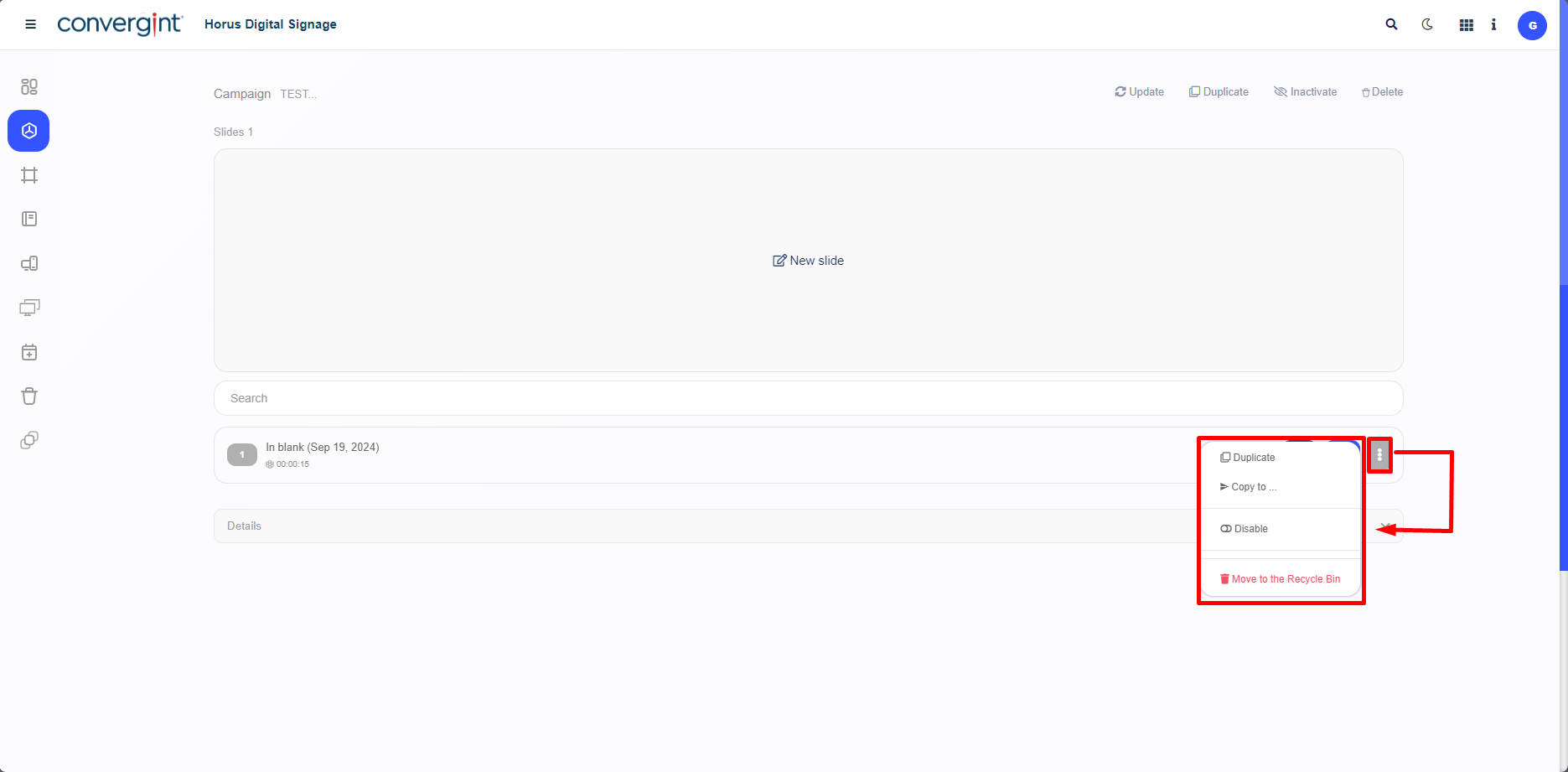
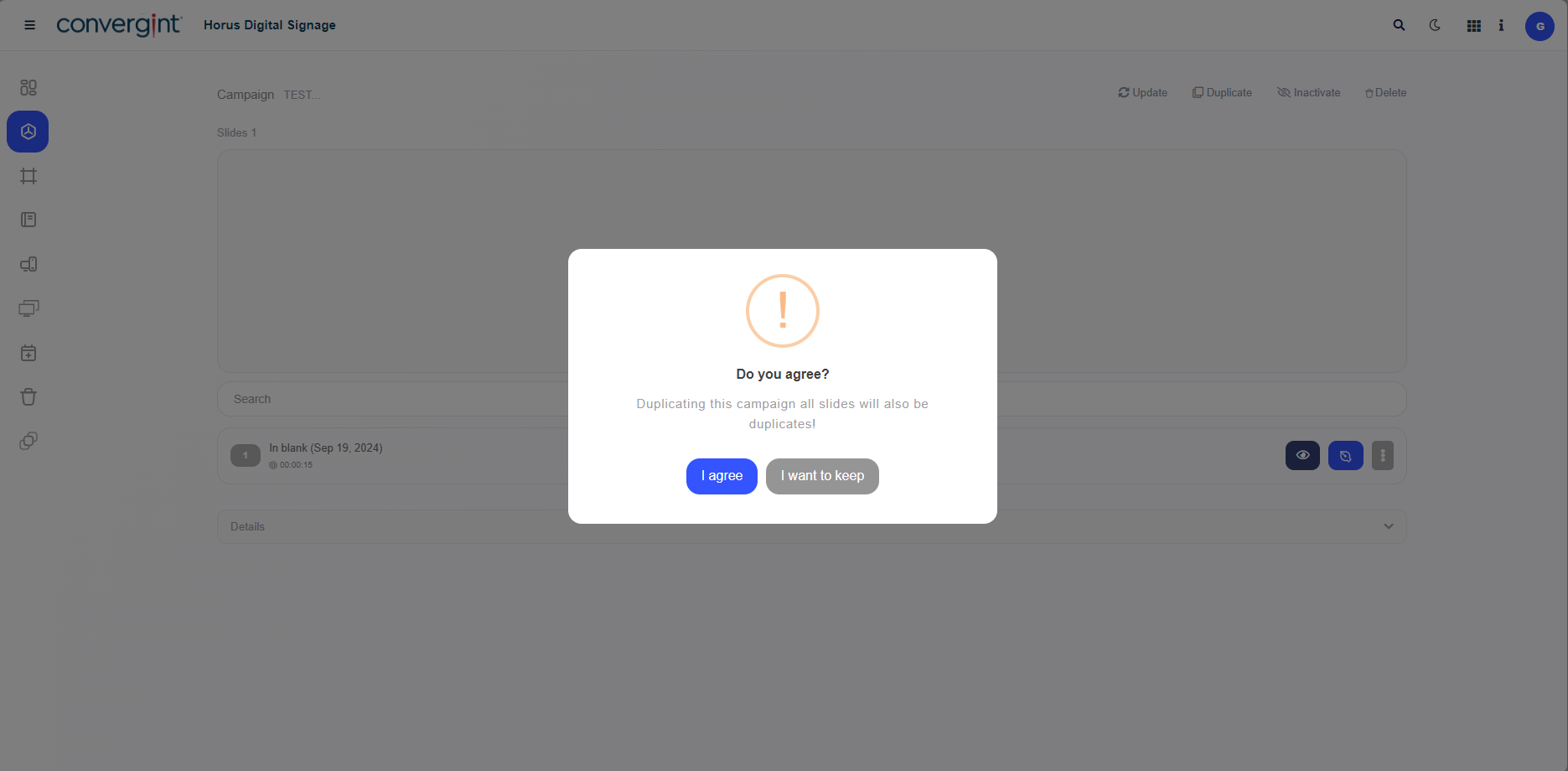
If you select any option on the right side of the interface, a pop-up will appear requesting confirmation before proceeding with each function. This applies to Duplicating, Deactivating, and Deleting the campaign.
Example of Campaign Deletion:
By clicking on the "Three Dots," there will also be the option to organize the slide according to your preference, with options to "Move to Beginning," "Move to End," "Move Up" or "Move Down."
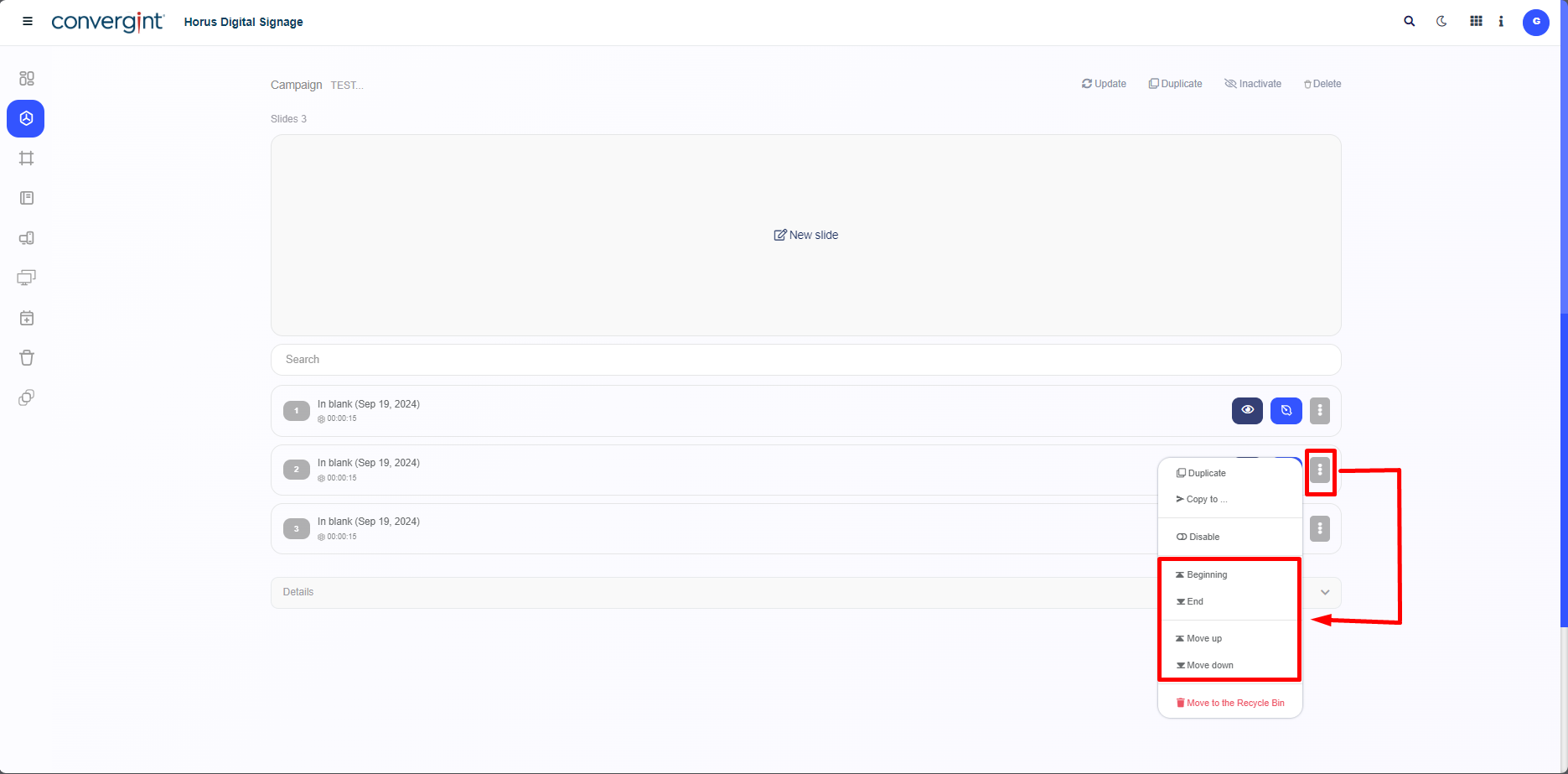
Note: This option will only be available if there is more than one slide registered and not just a single slide.