Campaign Registration
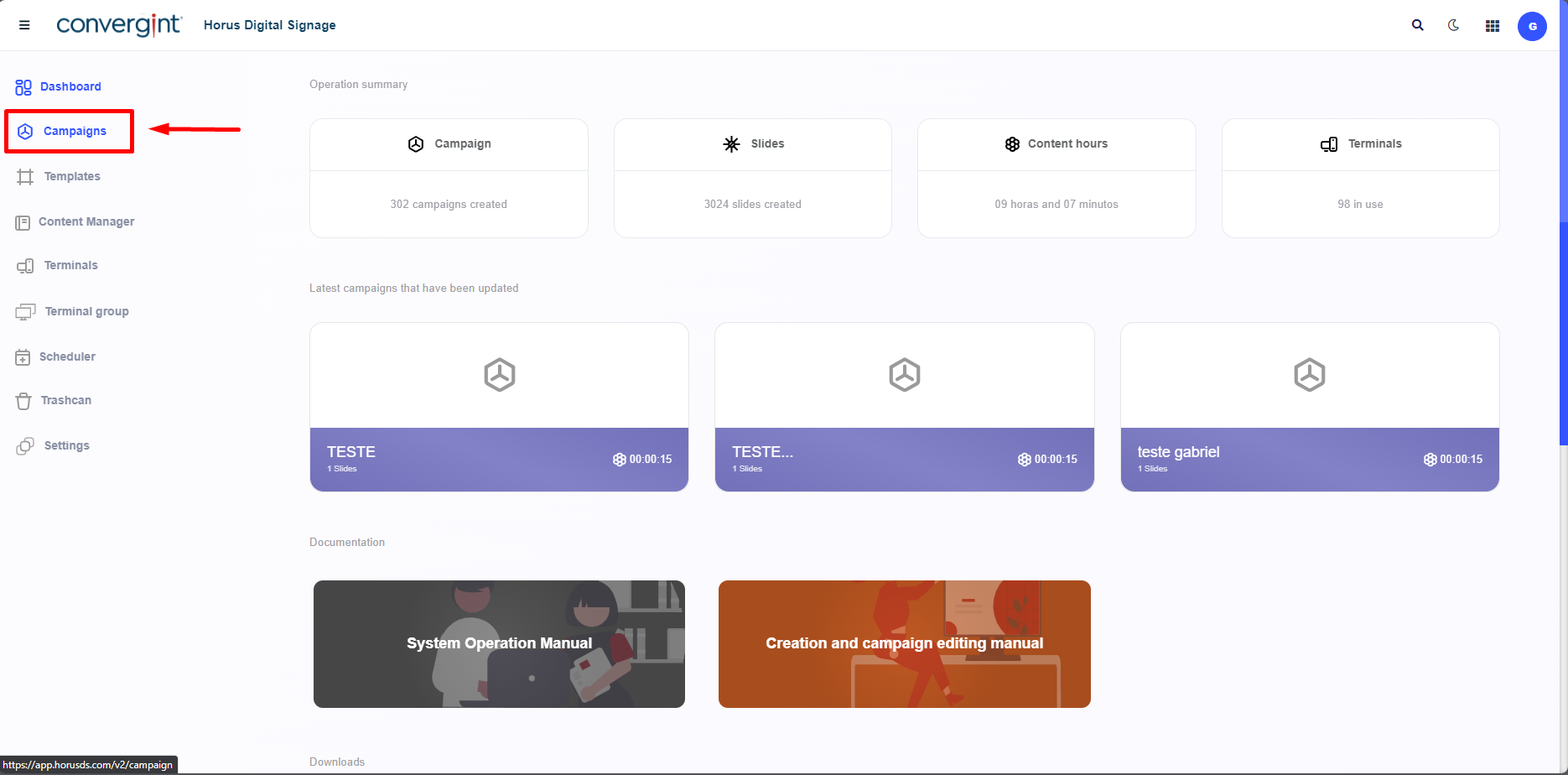
The first step to register a campaign is to access the "Campaigns" tab. This function allows for the creation of campaigns that involve adding slides for a customized display or presentation in Horus Digital Signage.
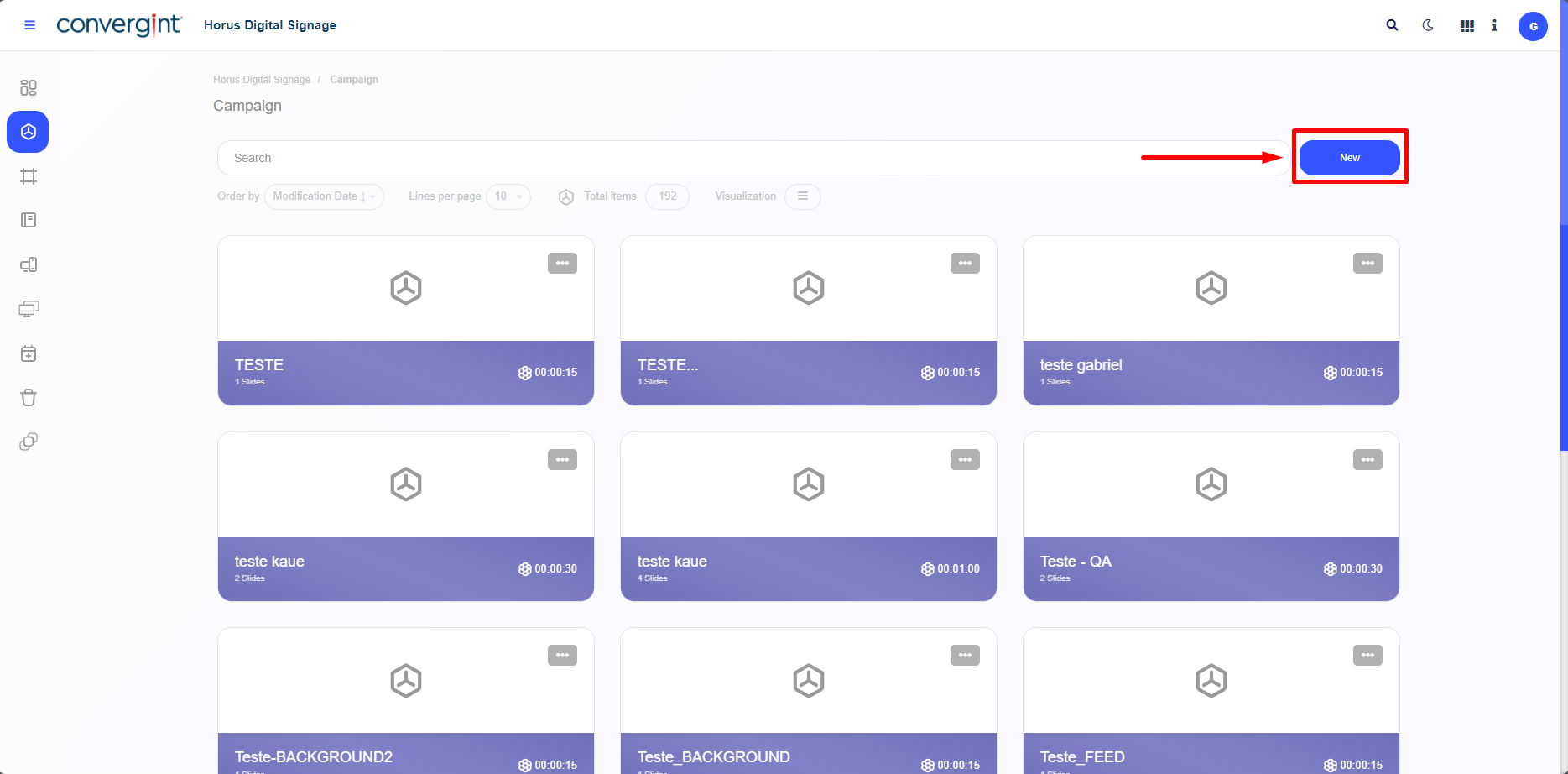
After accessing the "Campaigns" tab, the system will open the screen where we will first click on "New." If there are any previously created campaigns, they will be listed just below the search bar.
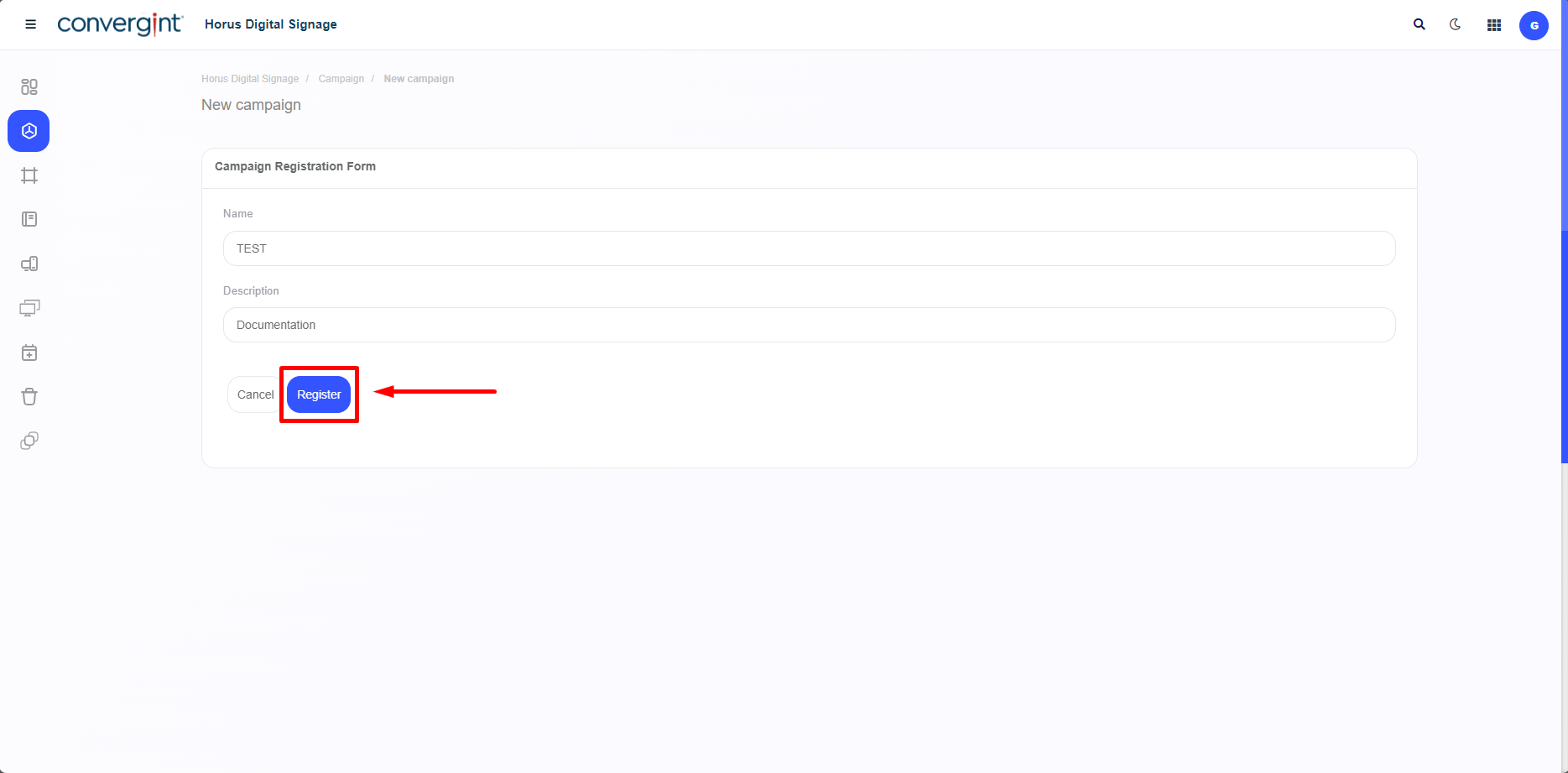
Upon accessing the "New" option, it will be necessary to enter a name for the new campaign. If a description is needed, there is a field labeled "Description" available. Next, to create the new campaign, simply click on "Register," which will register the campaign based on the information provided earlier.
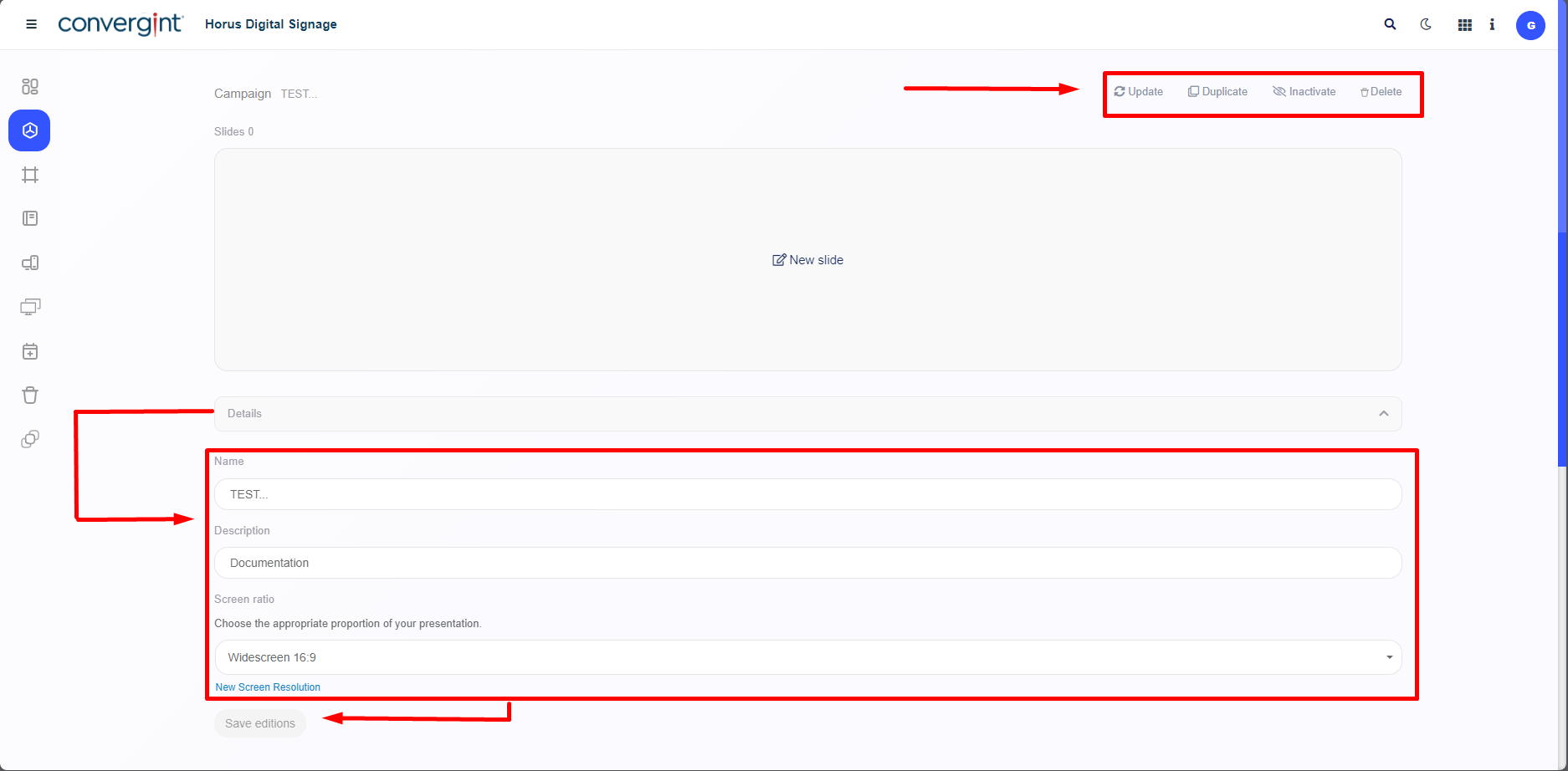
Then, the system will be updated, redirecting you to the slide addition interface, allowing you to make adjustments to the created slides according to your preferences. It will be possible to add components provided by the Horus Digital Signage system, including static and analytical visual representations, as well as audiovisual elements.
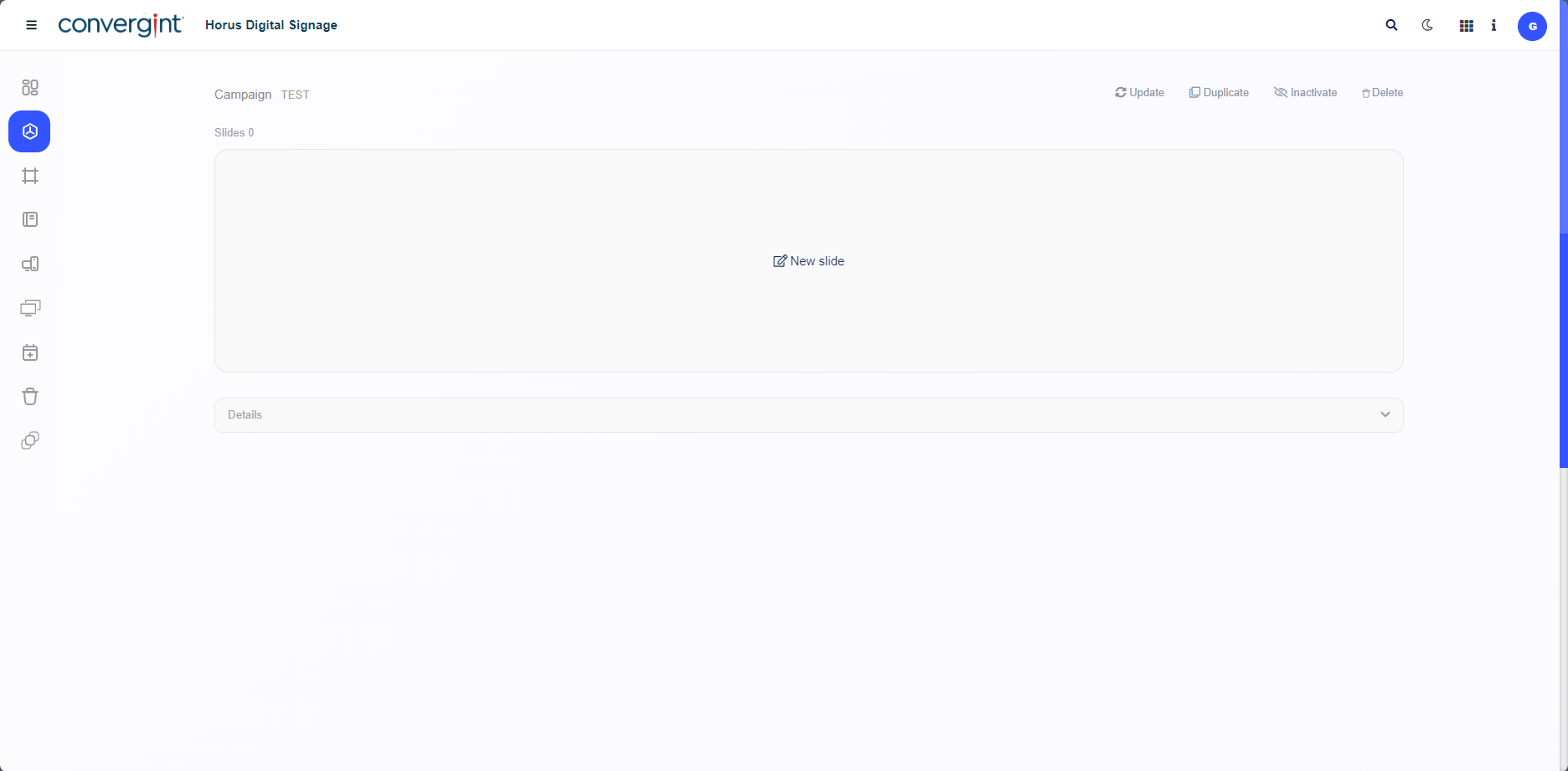
Additionally, it will be possible to adjust the appropriate aspect ratio for your presentation by clicking on "Details" below the slide creation option. If you make any changes, click on "Save Changes" to ensure your information is saved according to your preferences. In the upper right corner of the screen, you will also find functionalities that allow you to update, duplicate, deactivate, and delete the campaign, providing flexibility and options for different scenarios.