Campaign Registration
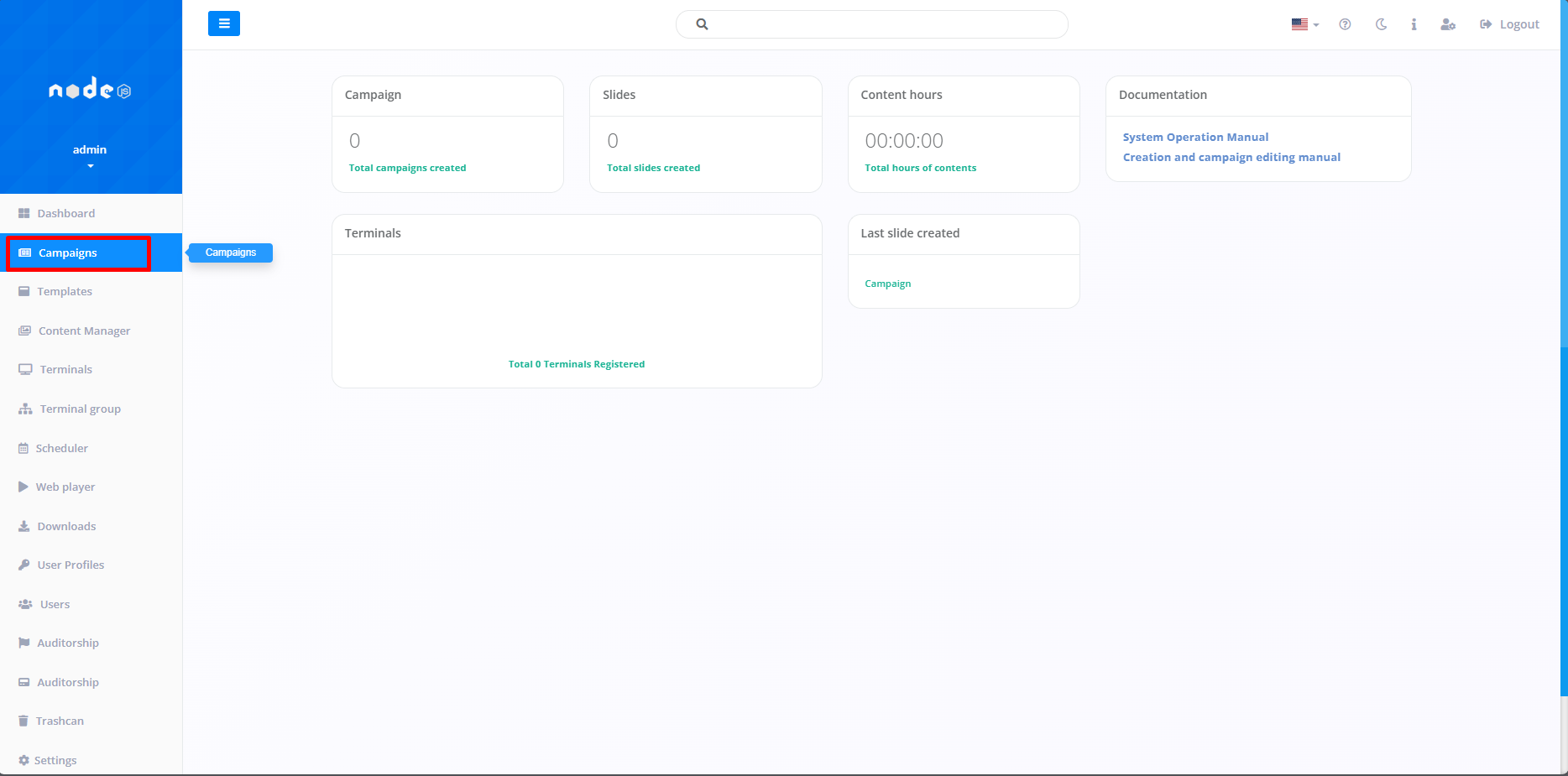
The first step in registering is to access the "Campaigns" tab. This function allows you to create Campaigns that involve adding Slides to a personalized display or presentation.
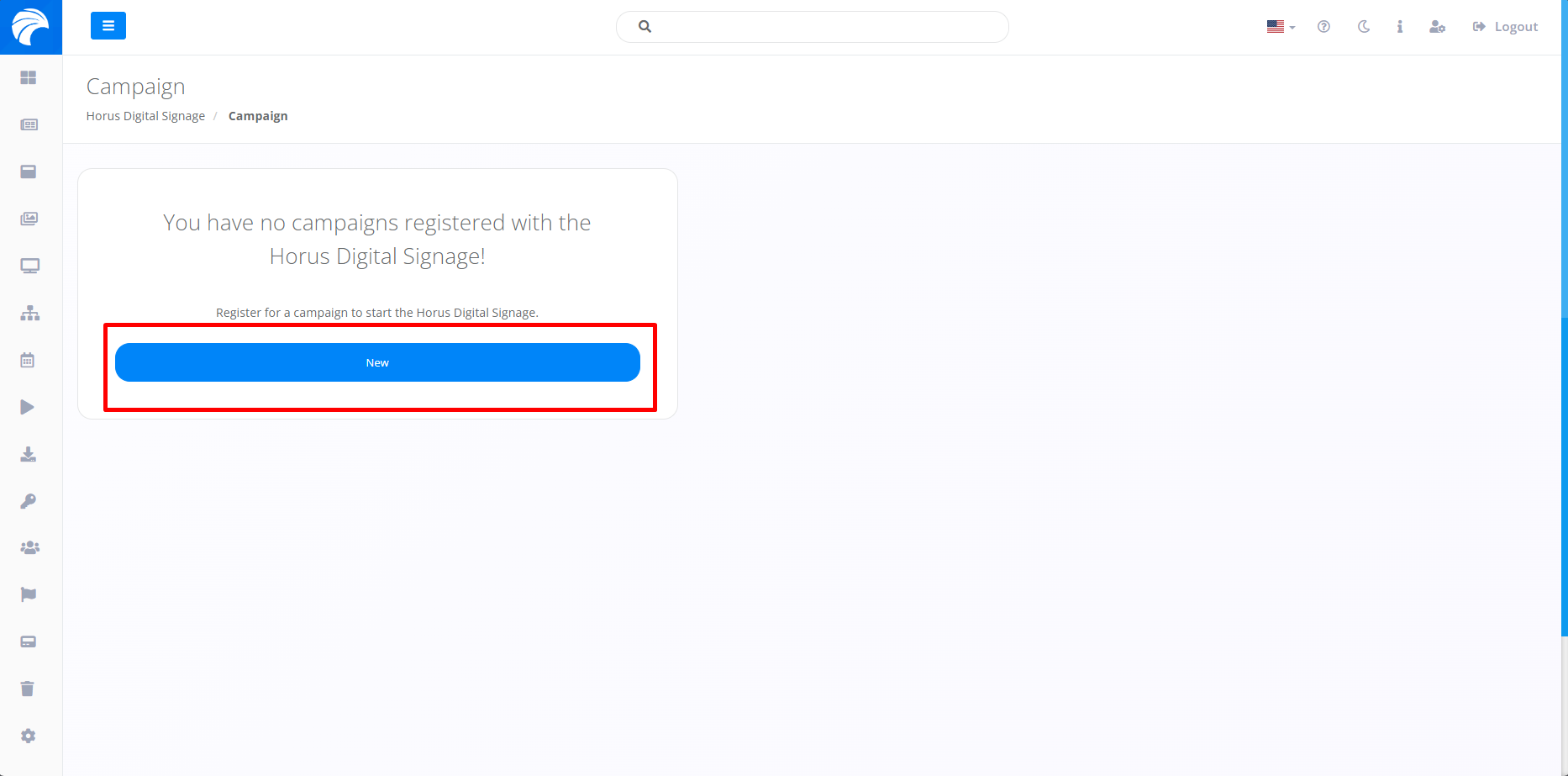
After clicking on Campaigns, the system will open the screen, where we will first define the Campaign by clicking on "New", which, if you already have a previously created Campaign, should be listed just below the search bar.
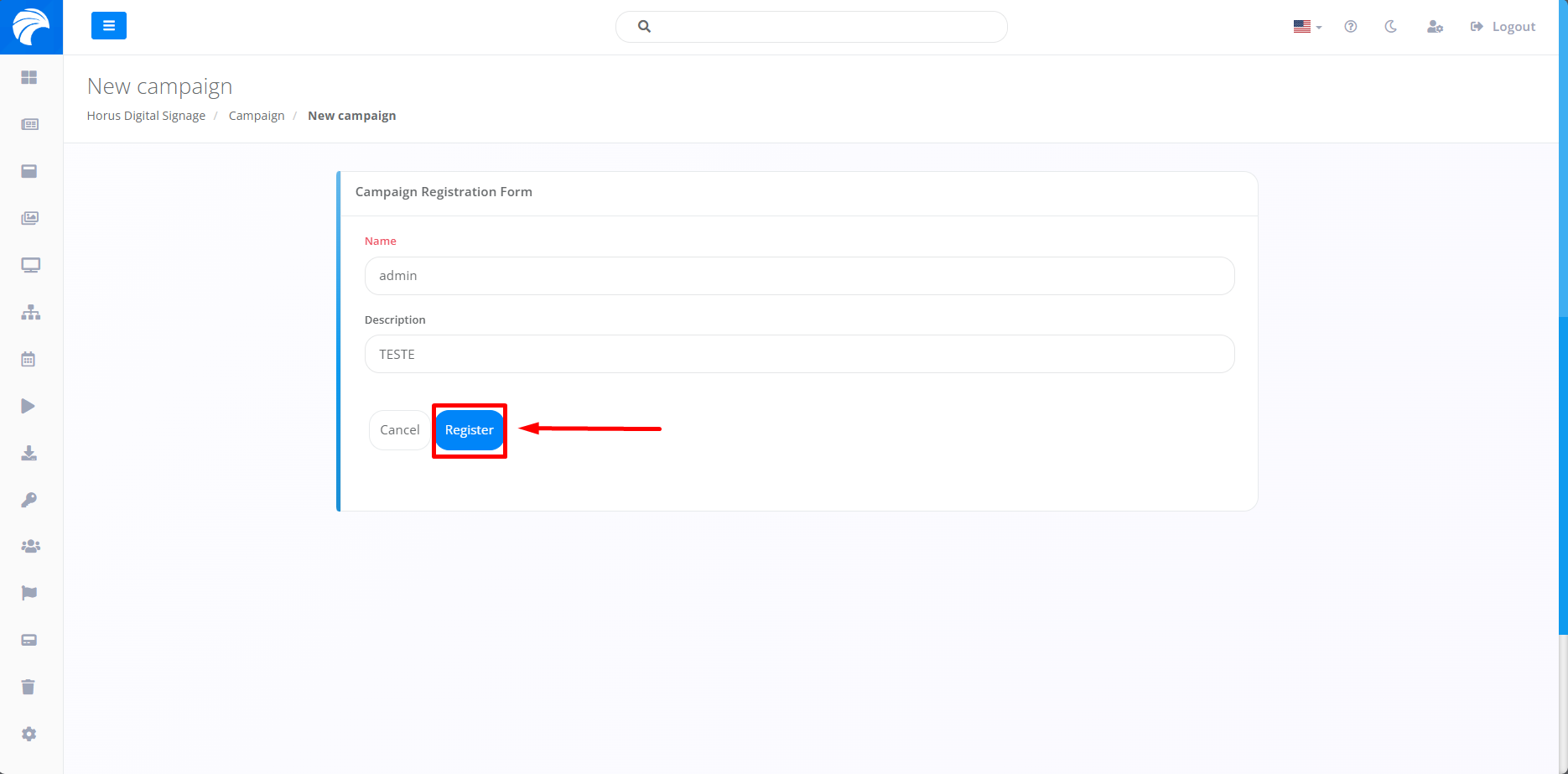
When you click on the Register Campaign button, you will need to enter a name for the New Campaign. If you need a description, there is a field available just below the "name" option. After completing the above steps, simply click on the Register button and the Campaign will be displayed below with your choices.
After completing the previous step, you will be redirected to the screen for registering specific Slides for the campaign in question. On this screen (Slides), you will have the option of adding or customizing the Slides according to your preferences, using the function provided below "Slide".
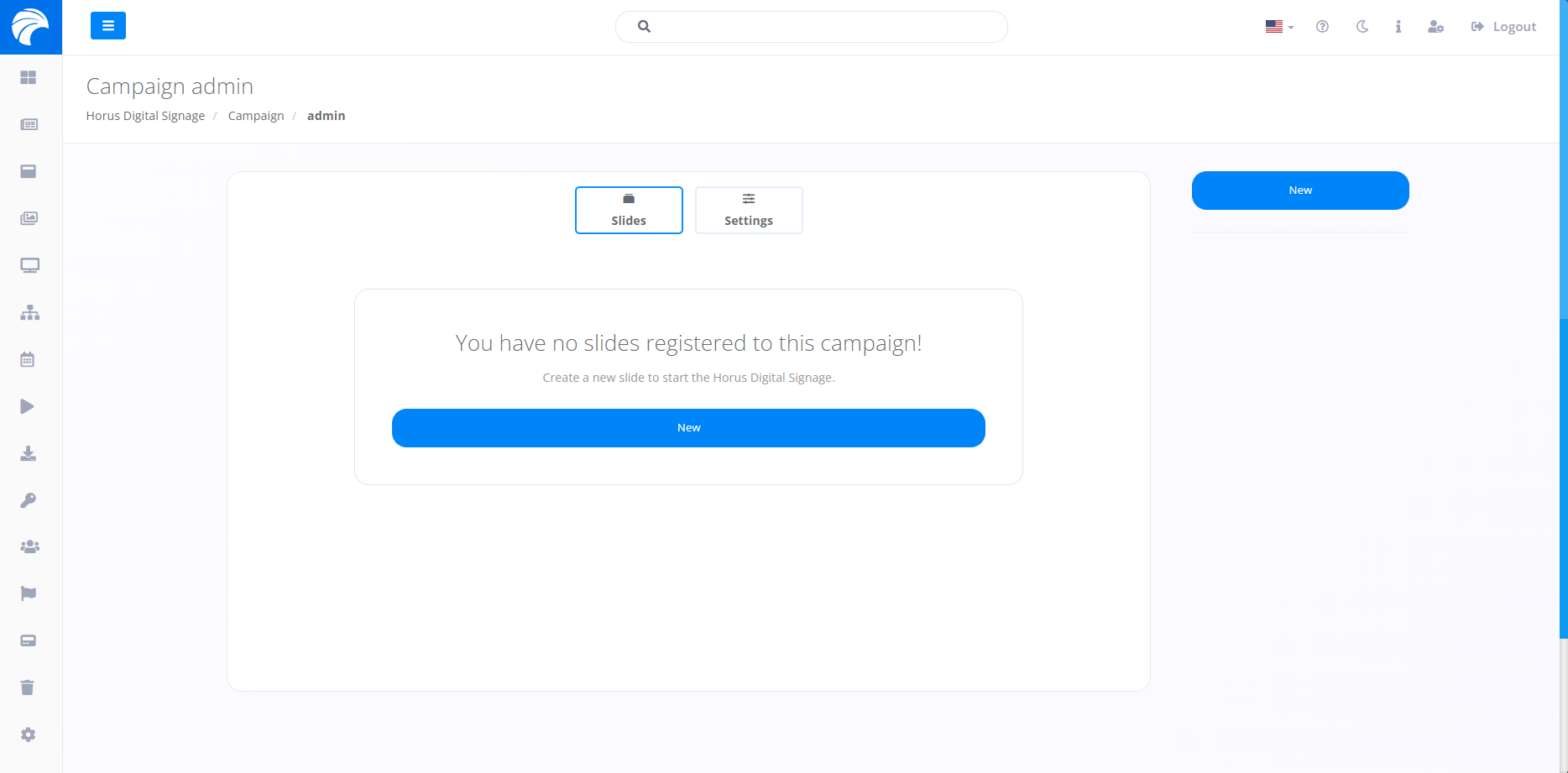
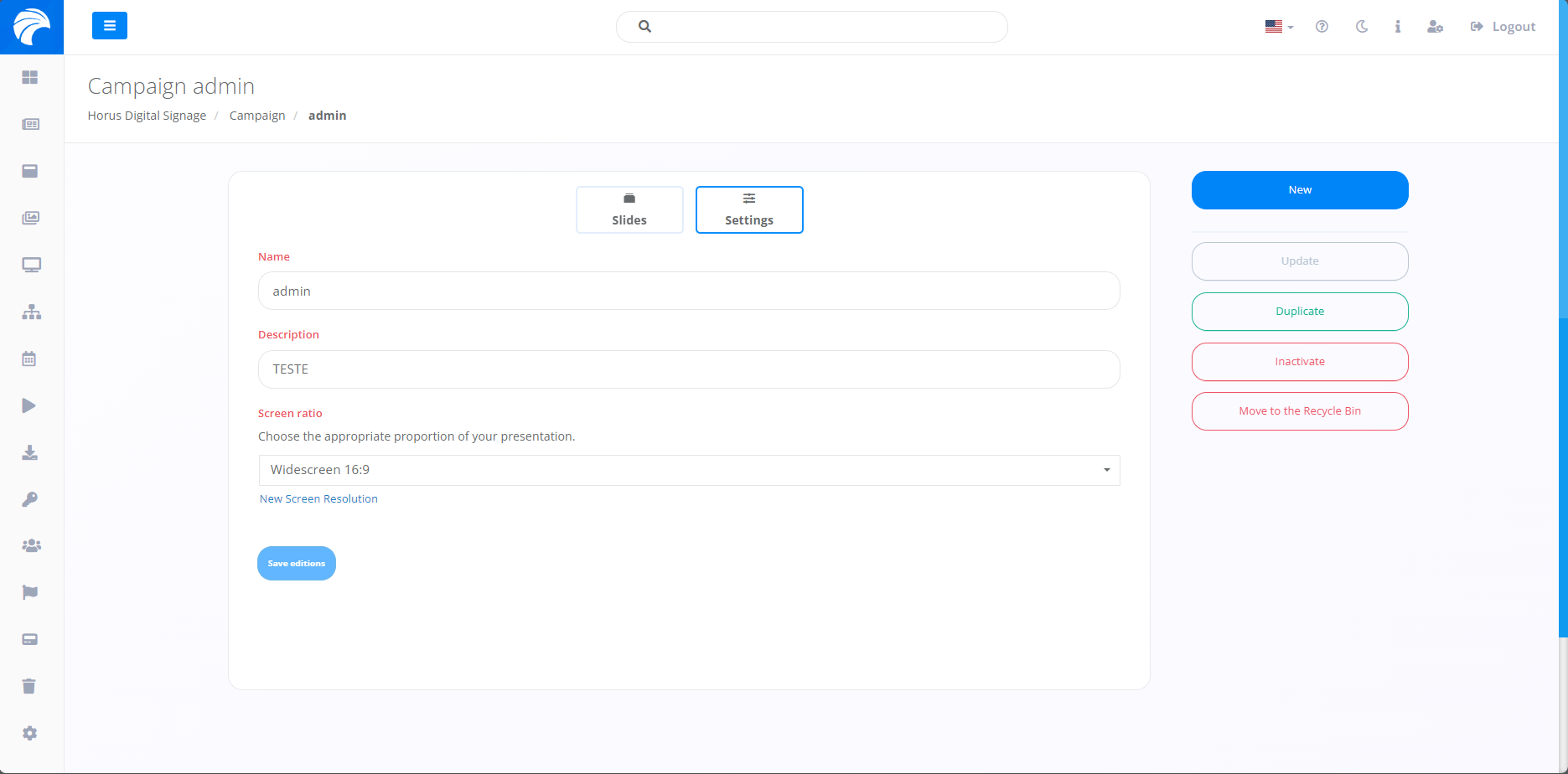
In another option, "Settings", you will have the option of modifying both the name and the description of the Campaign. You can also adjust the appropriate aspect ratio for your presentation. On the right-hand side of the screen, you'll find features that allow you to duplicate, inactivate and delete the Campaign, offering flexibility and options for different scenarios, respectively.