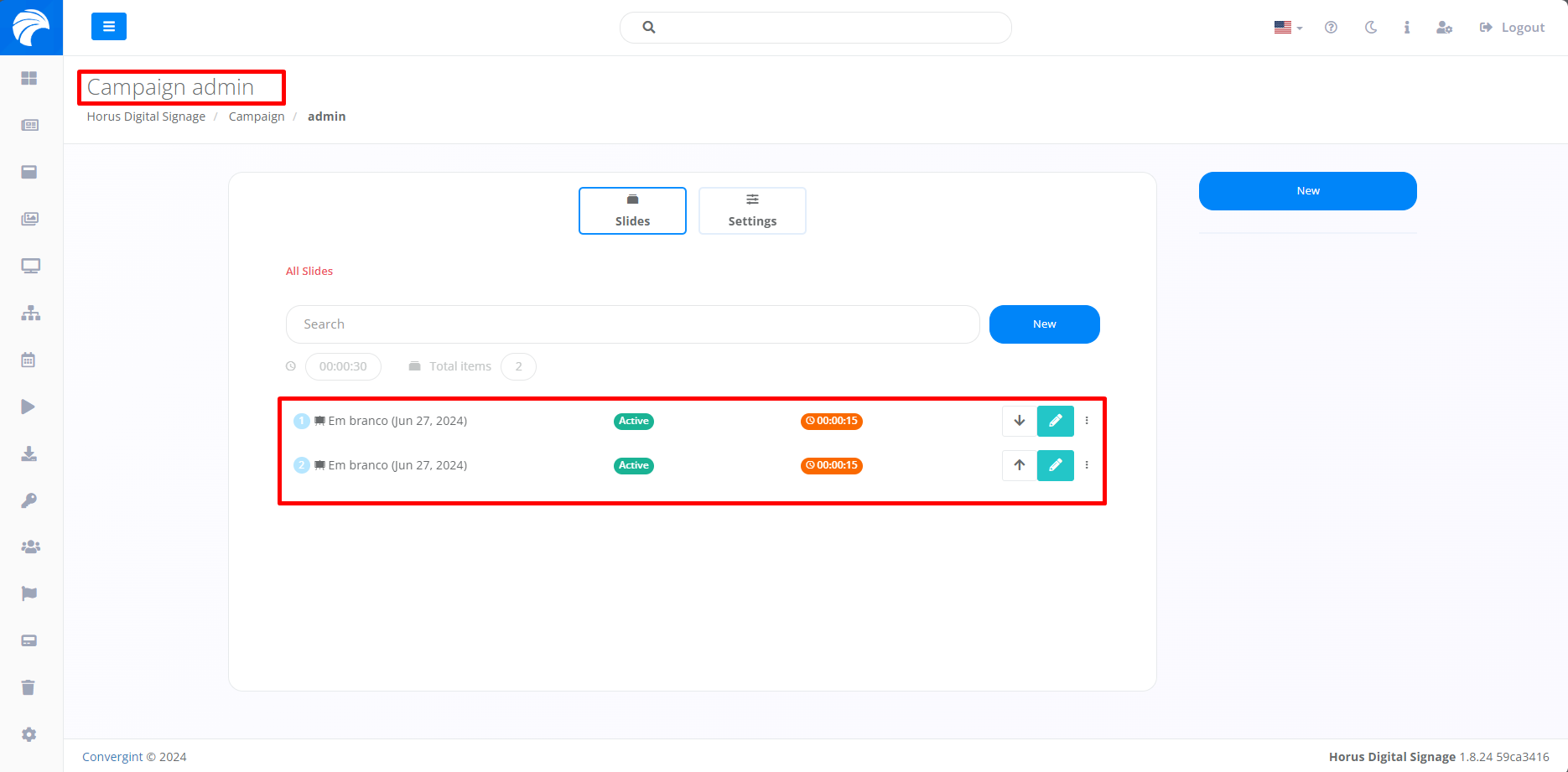
How to Copy a Slide?
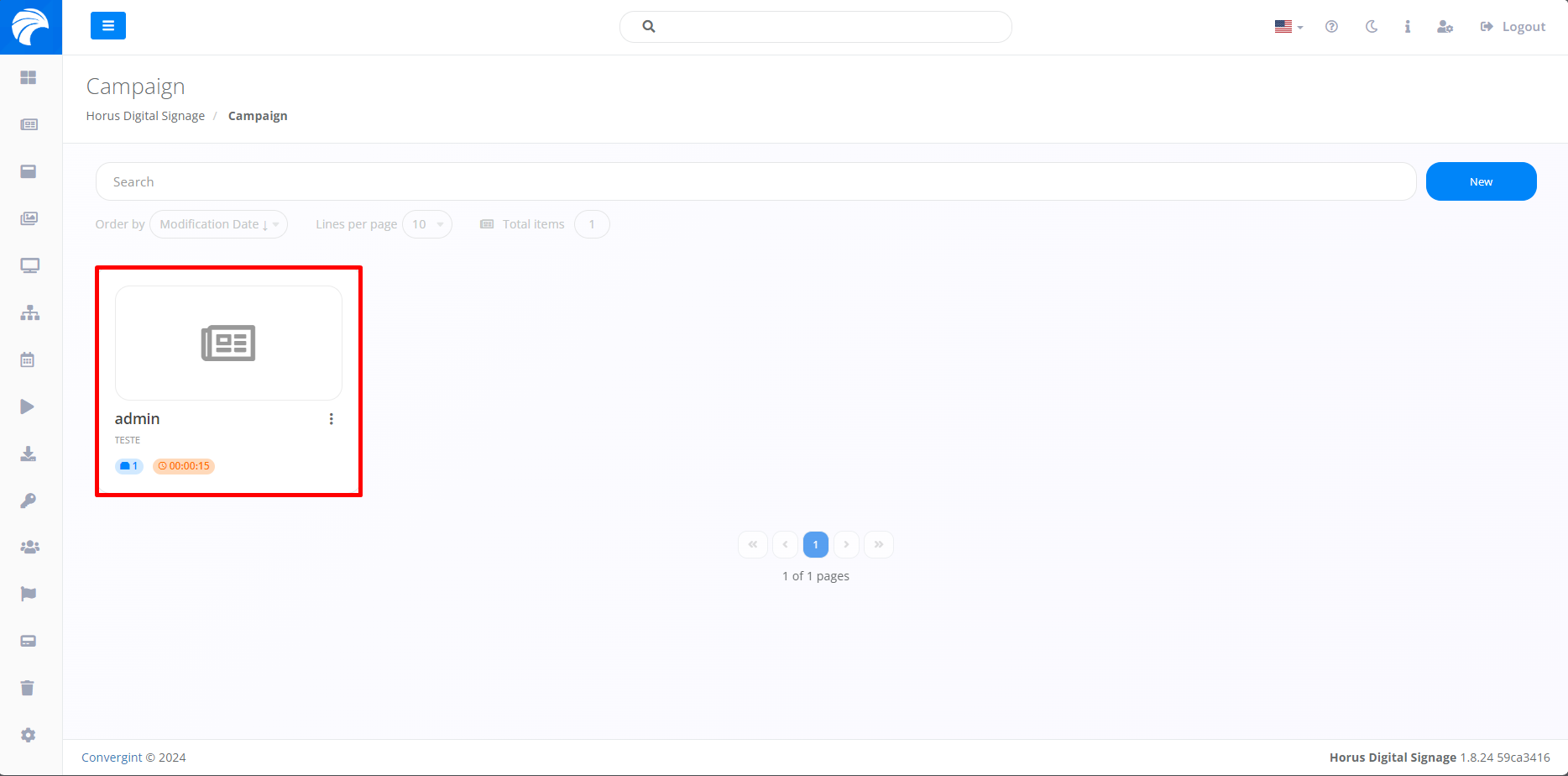
By following the steps described above, the Campaign will be registered. To copy a Slide from the Campaign, you need to access a previously created Campaign containing the Slide you want to copy.
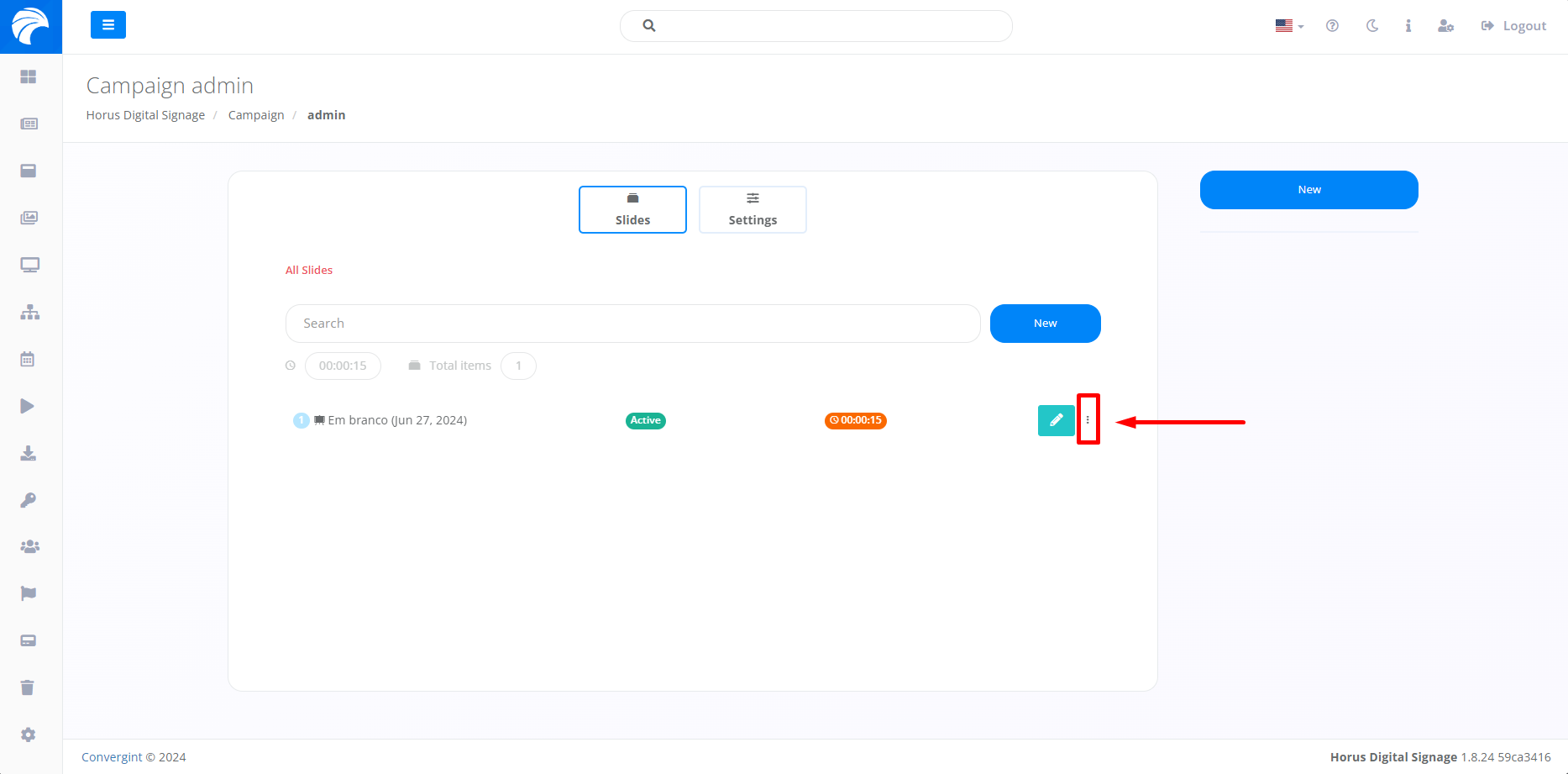
After accessing a Campaign, the system will display the Campaign Interface, where you can copy a Slide by clicking on the button in the three dots.
After clicking on the three dots highlighted in the image above, you will need to select the "Copy to..." option to transfer the Slide to a specific Campaign or even to the same Campaign you are using.
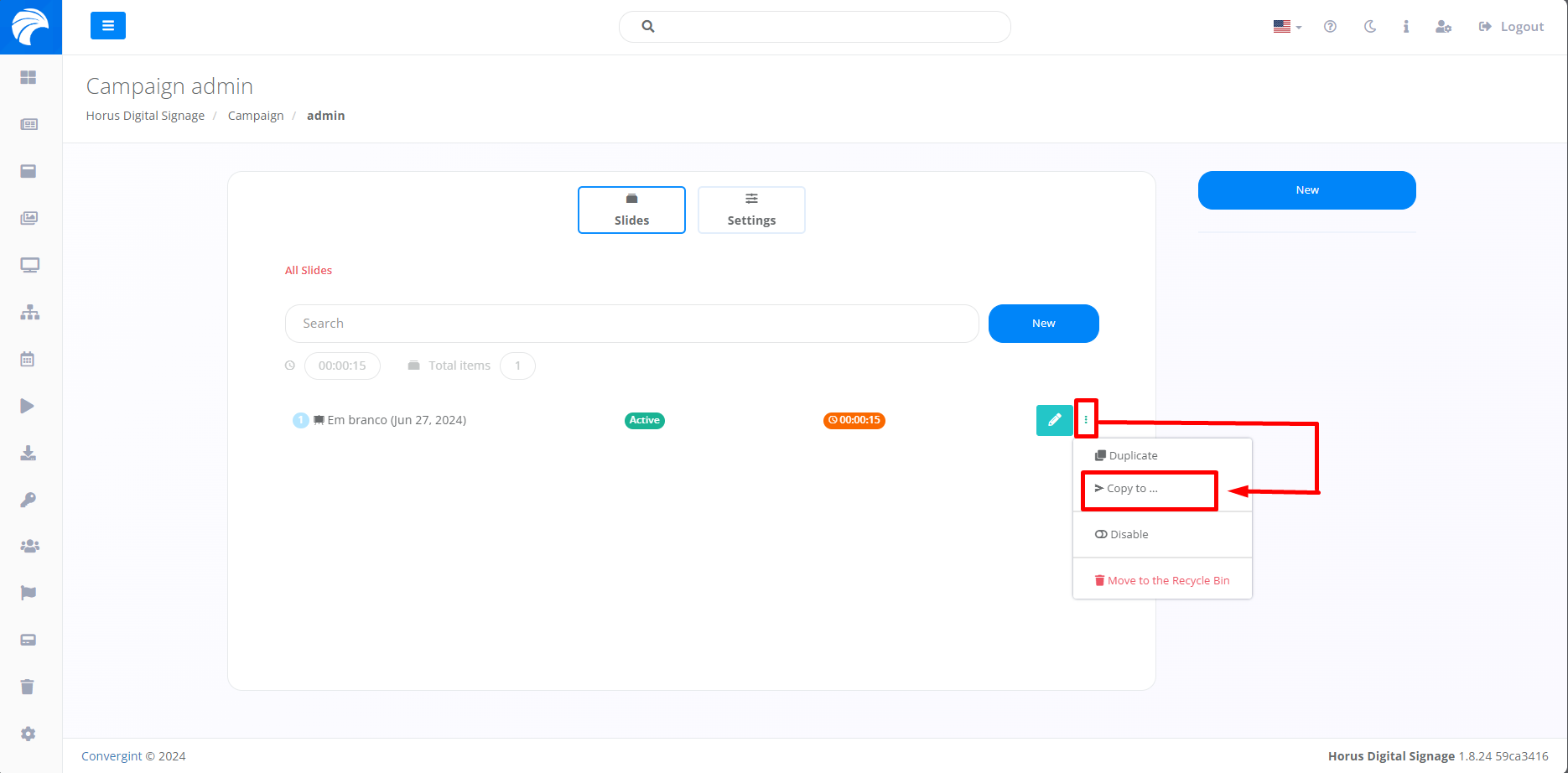
By clicking on this option, all you have to do is select the Campaign you want to insert the Slide into, giving you remarkable flexibility and ease when adding Slides with a similar look or purpose by clicking on the "+" symbol.
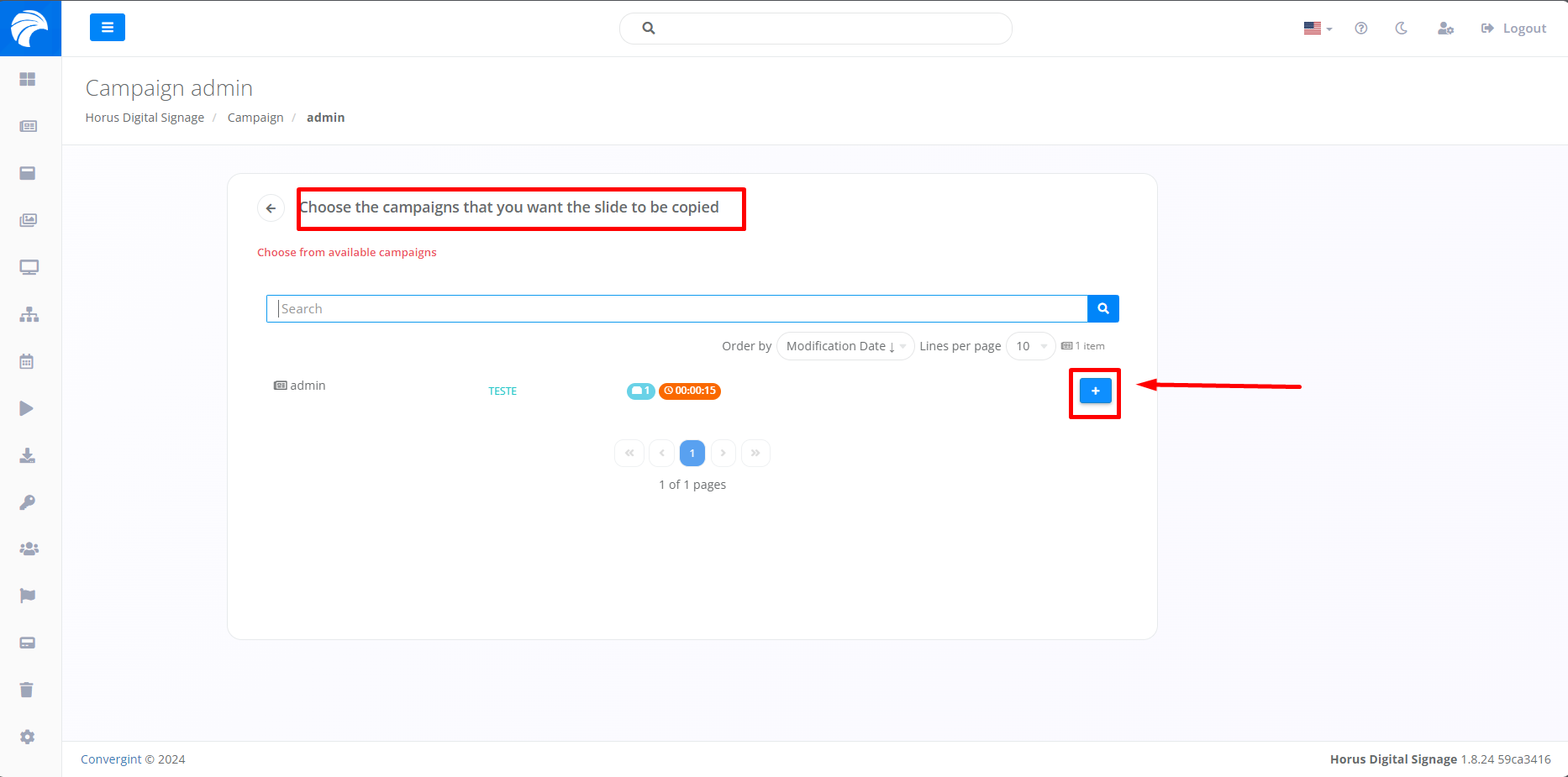
After selecting a Campaign of your choice, the copied Slide will be transferred to the location of your choice.
Example: