Campaign Configuration
Once you have followed the steps described above, your Campaign will be registered. To configure a Campaign, you need to access a previously created Campaign in which you want to configure it.
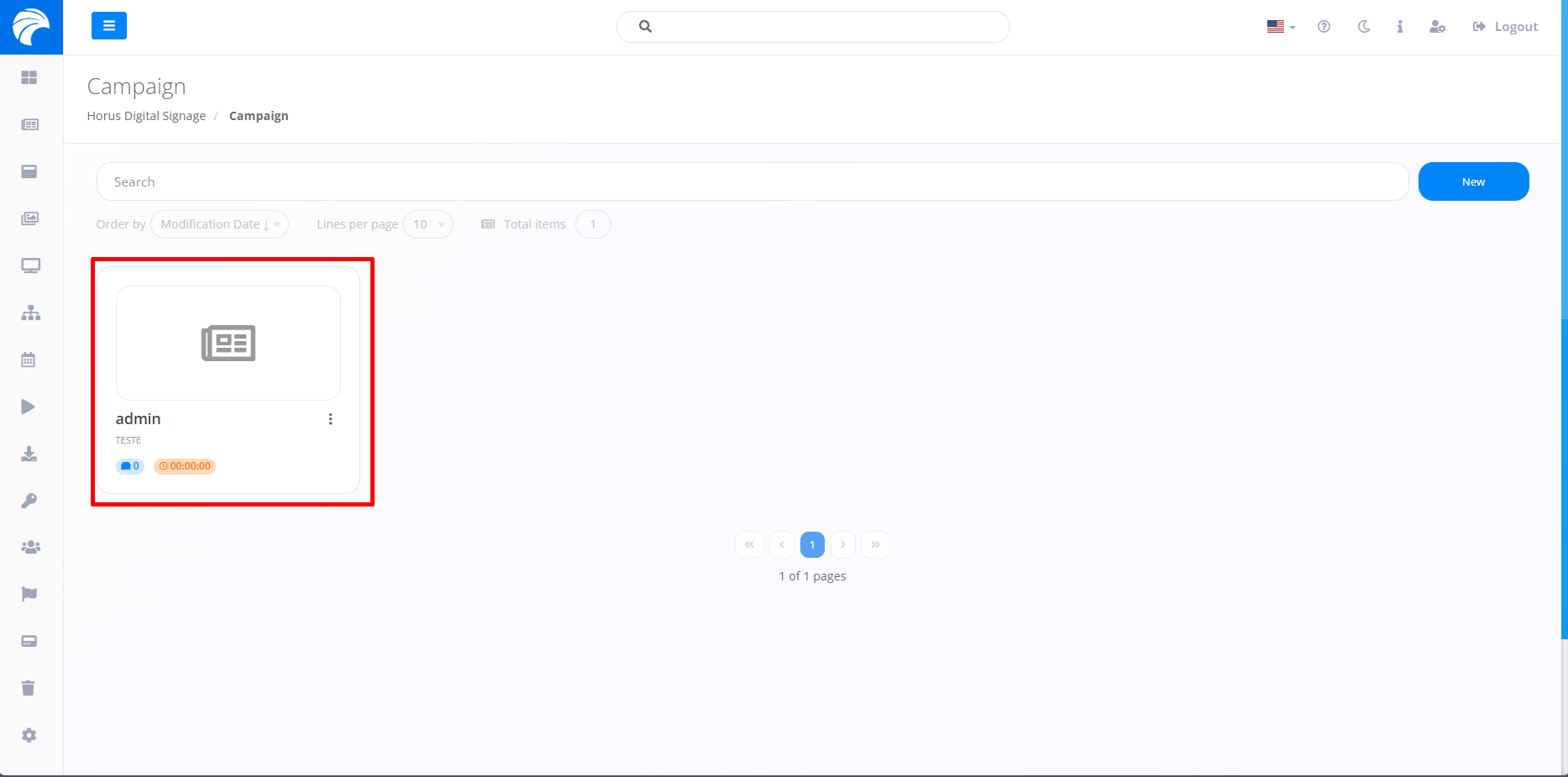
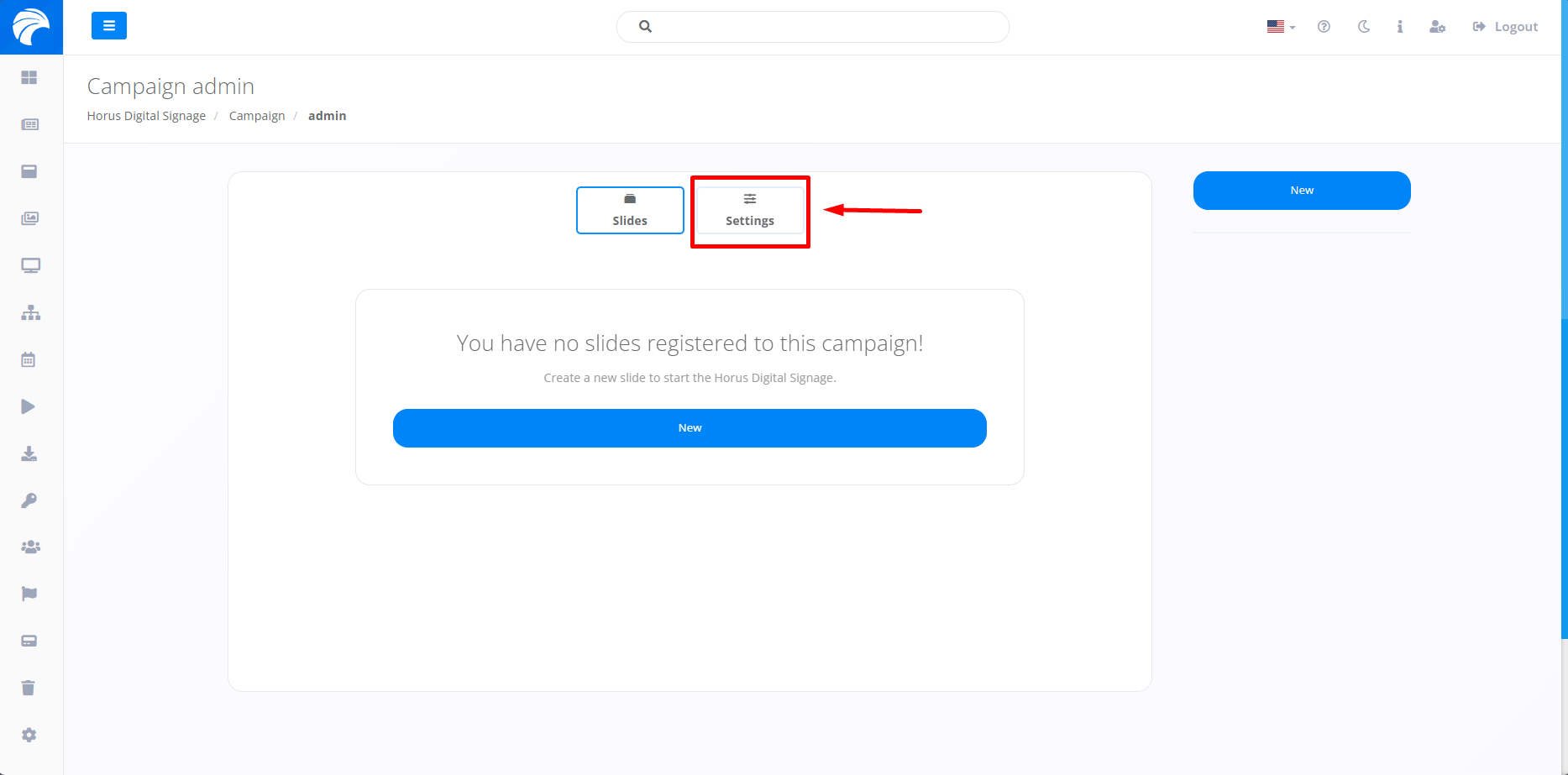
After creating or accessing a Campaign, the system will display the Campaign interface, where you can configure the Campaign by accessing the "Configuration" option
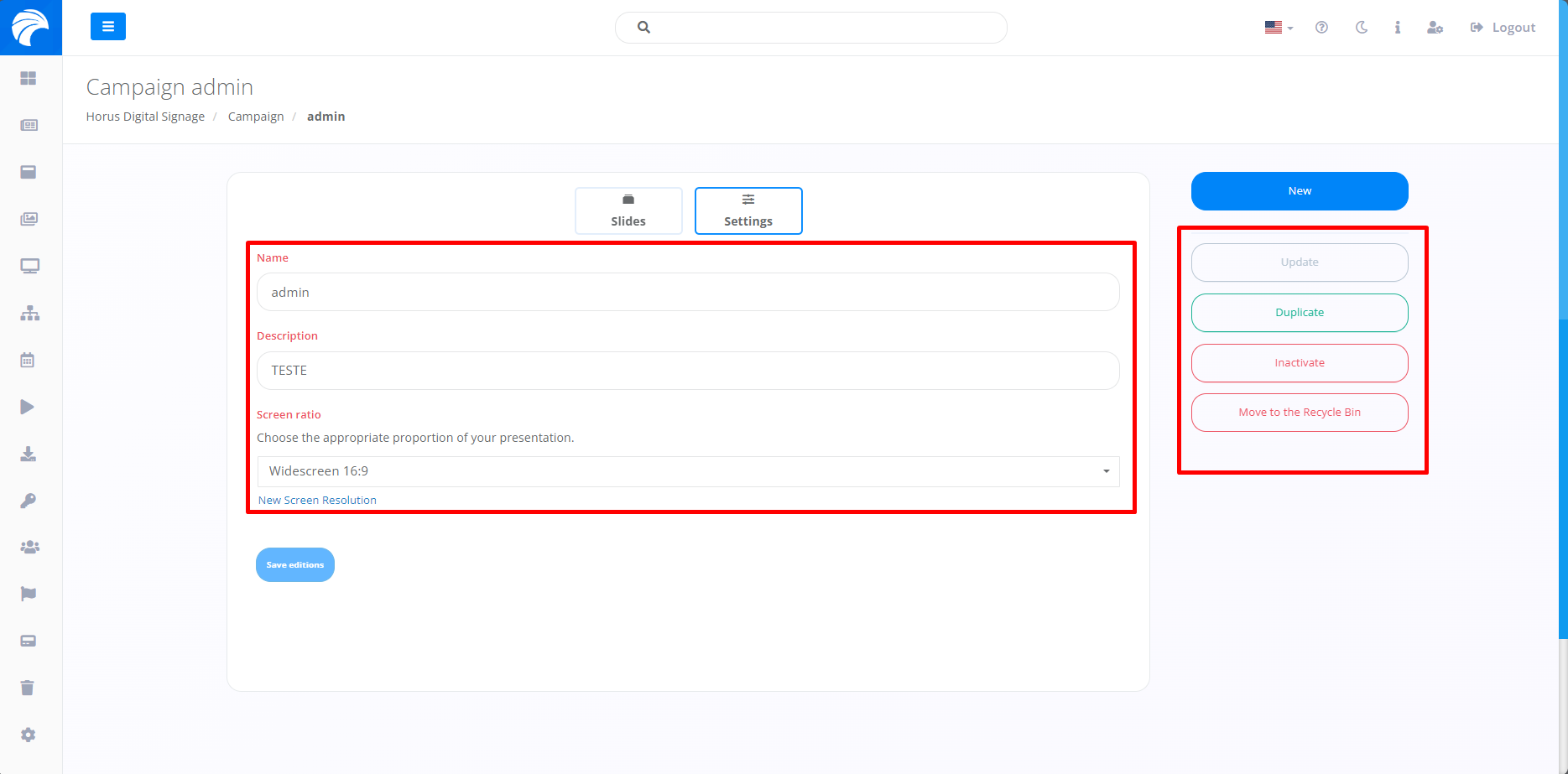
When you access the "Configuration" option, it gives you the option of changing the name, description and the appropriate screen ratio for your particular presentation. In addition, you'll find functionalities that allow you to duplicate, inactivate and delete the Campaign, offering flexibility and options for different scenarios, respectively, on the right-hand side of the interface.
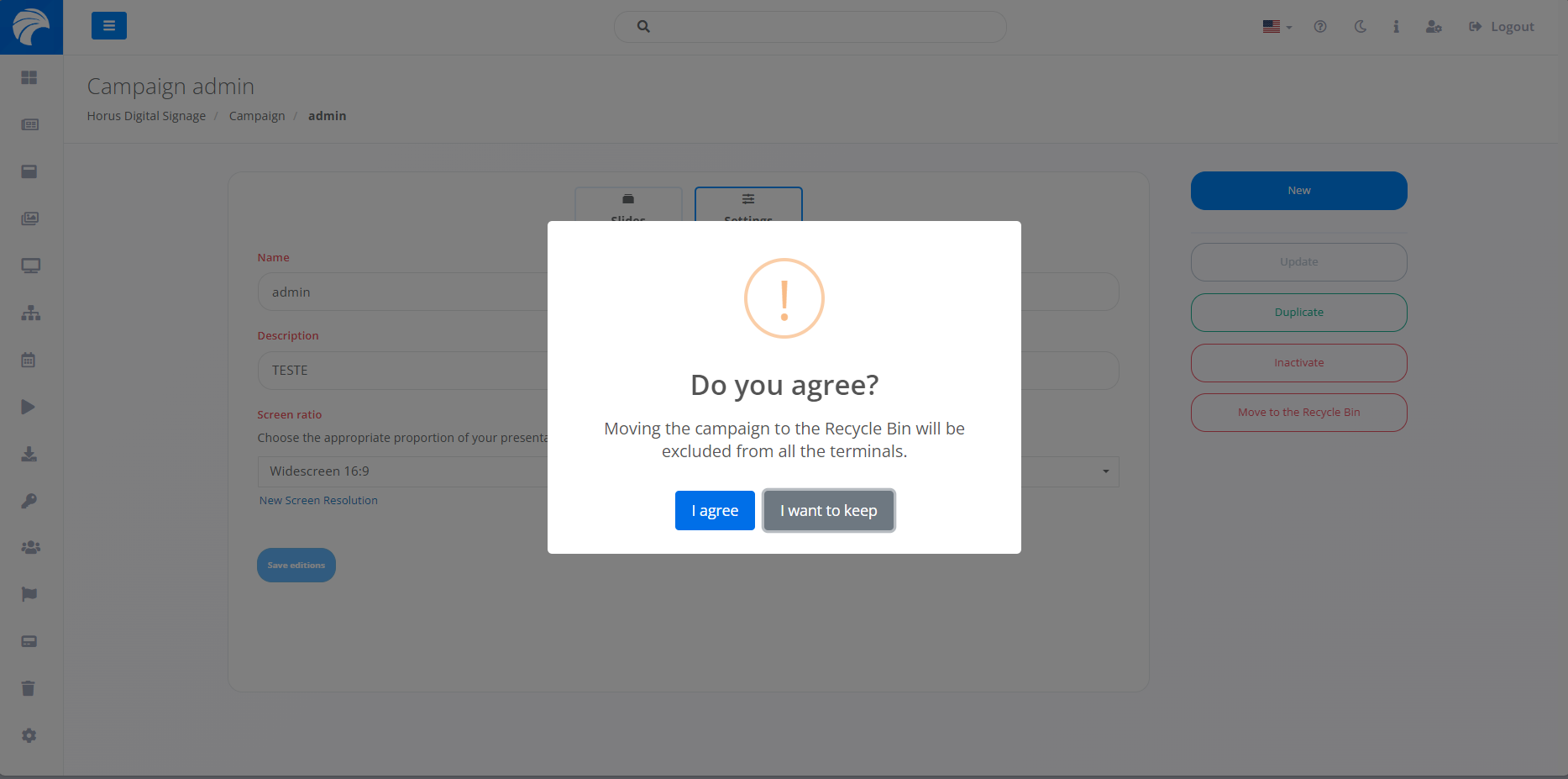
If you select an option on the right-hand side of the interface, a pop-up will appear asking you to confirm it before proceeding with each function. This applies to duplicating, inactivating and deleting a Campaign. Example of Campaign deletion:
Once you have made the changes you prefer, simply click on "Save editions" to save the changes you have previously made.
