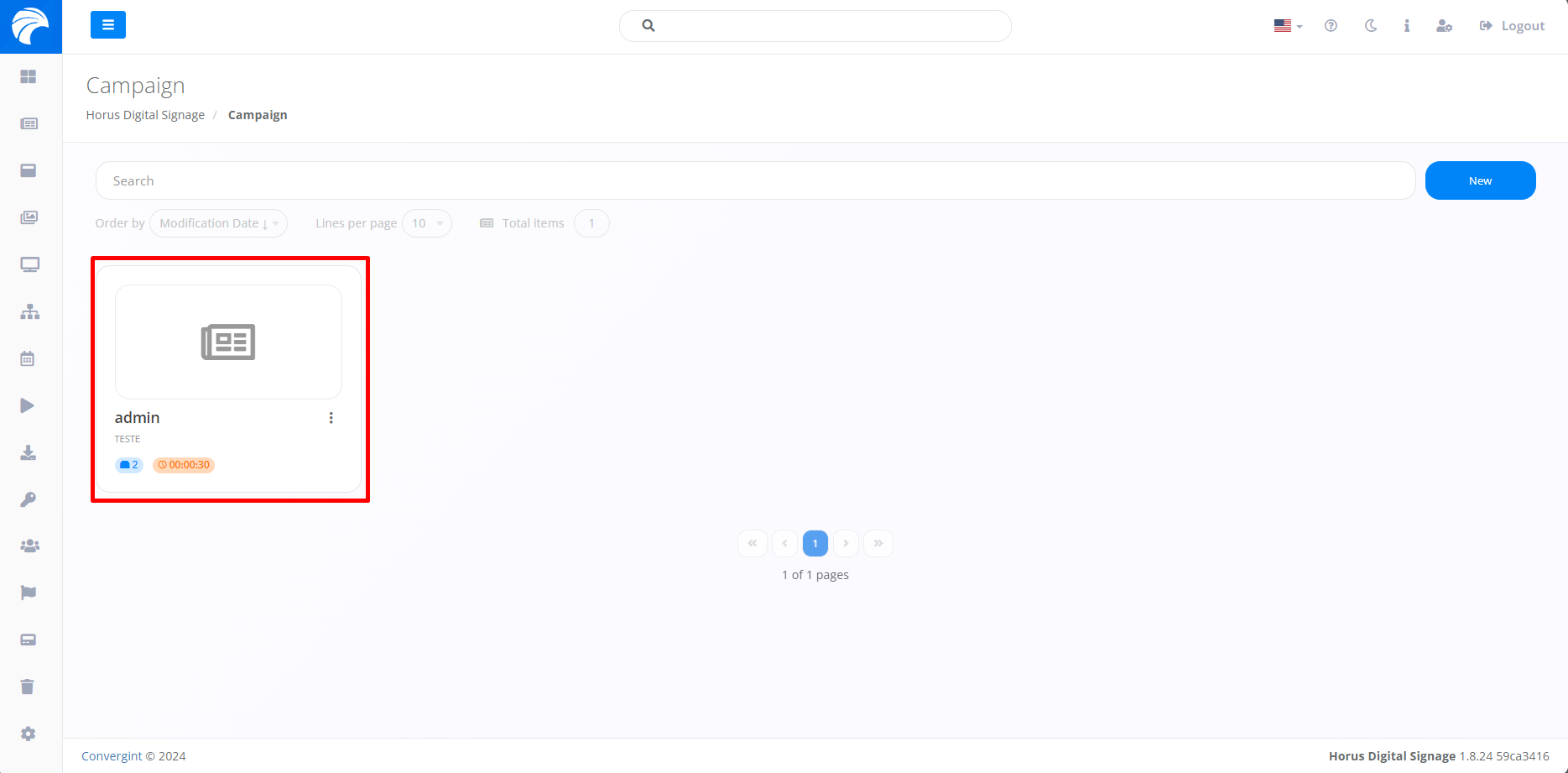
Campaign Removal, Duplication and Deactivation
By following the steps described above, the Campaign will be registered. To remove, duplicate or inactivate a Slide from the Campaign, you need to access a previously created Campaign containing the Slide you want to delete.
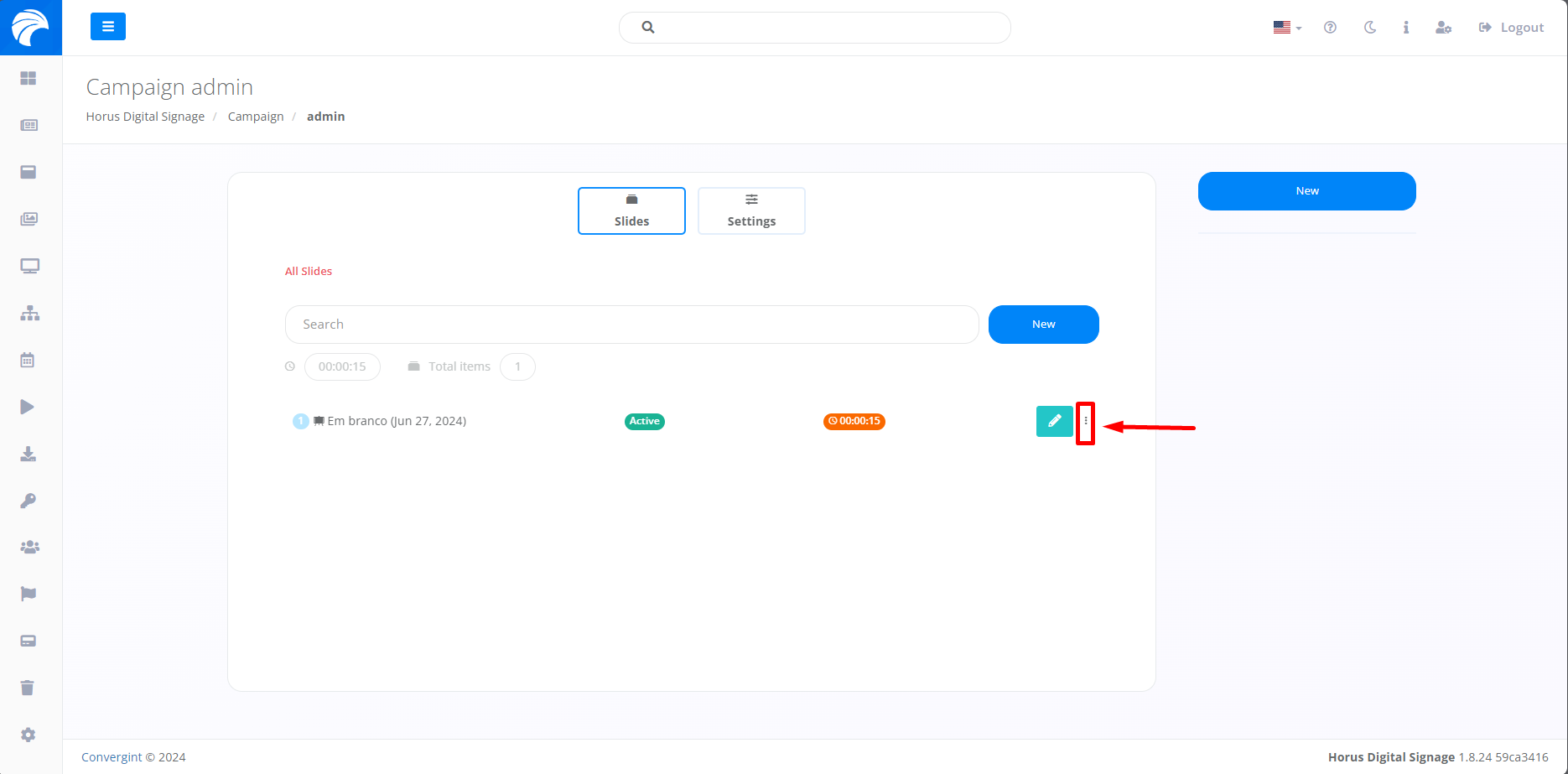
After accessing a Campaign, the system will display the Campaign Interface, where you can remove a Slide by clicking on the three dots.
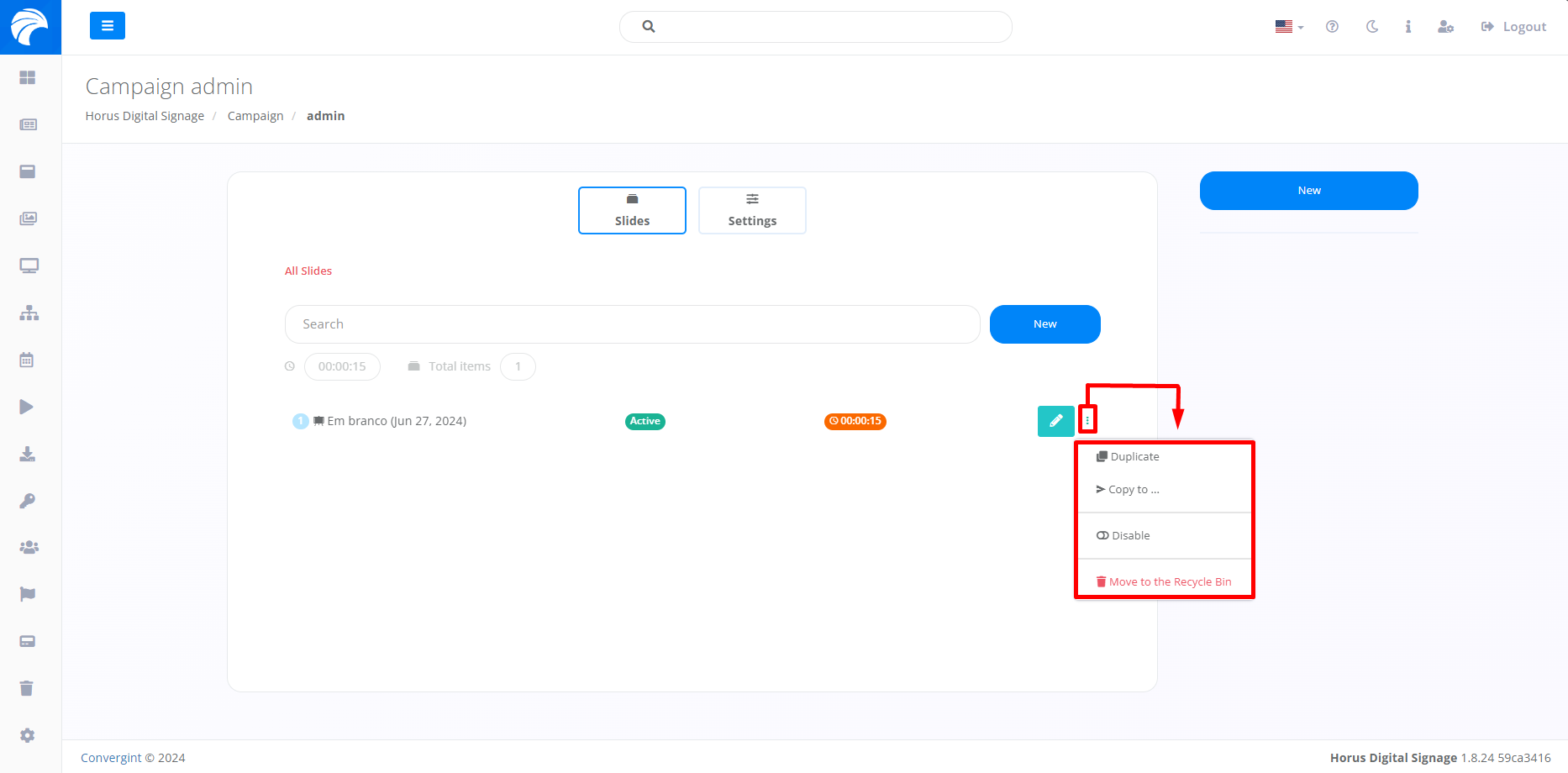
After clicking on the three dots marked in the image above, the Duplicate, Copy, Deactivate and Remove options will be displayed, providing ease and alternatives to meet various objectives.
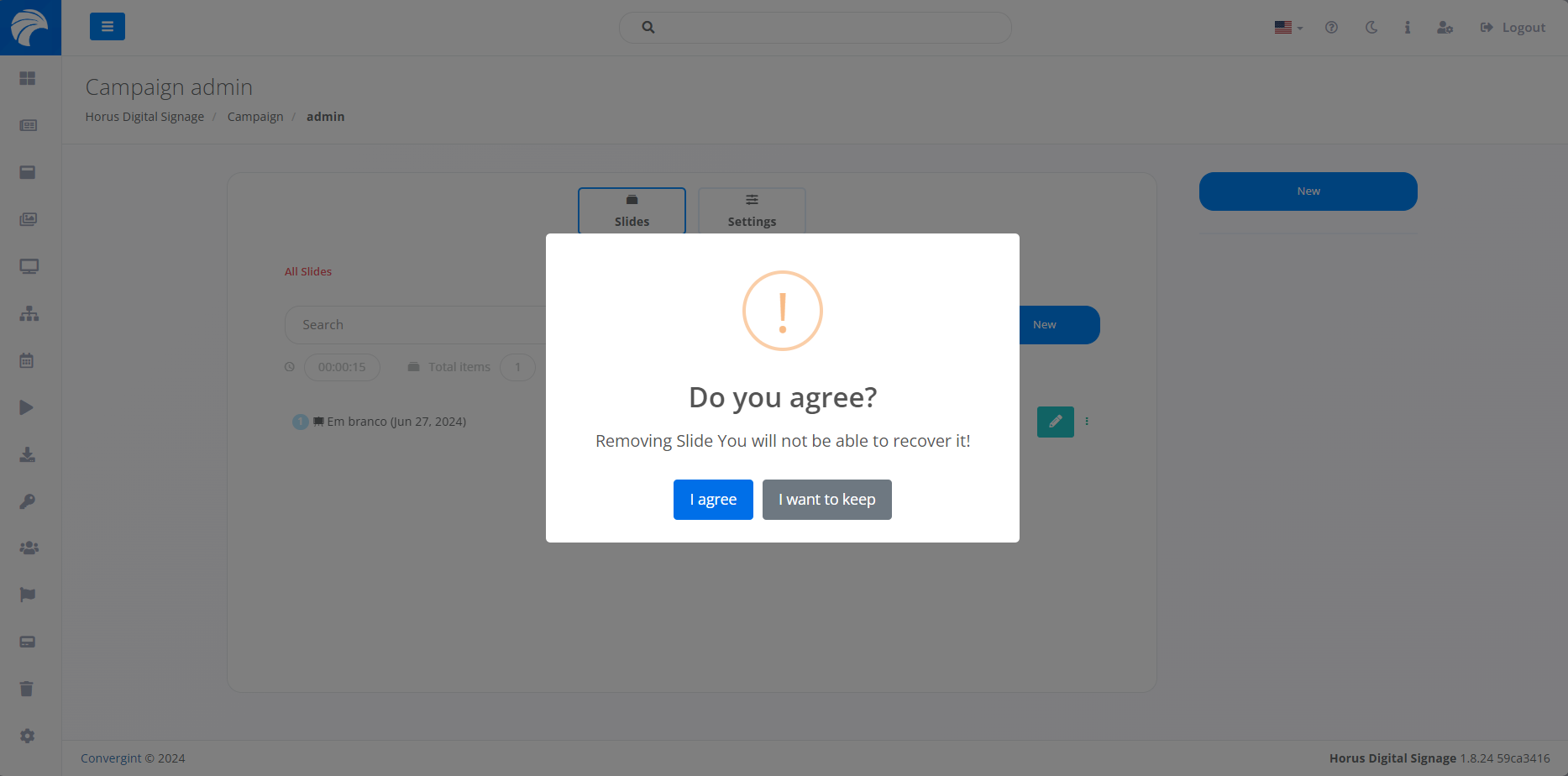
If you select an option on the right-hand side of the interface, a pop-up will appear asking you to confirm it before proceeding with each function. This applies to duplicating, deactivating and deleting a Campaign.
Example of campaign deletion: