How to Copy a Slide?
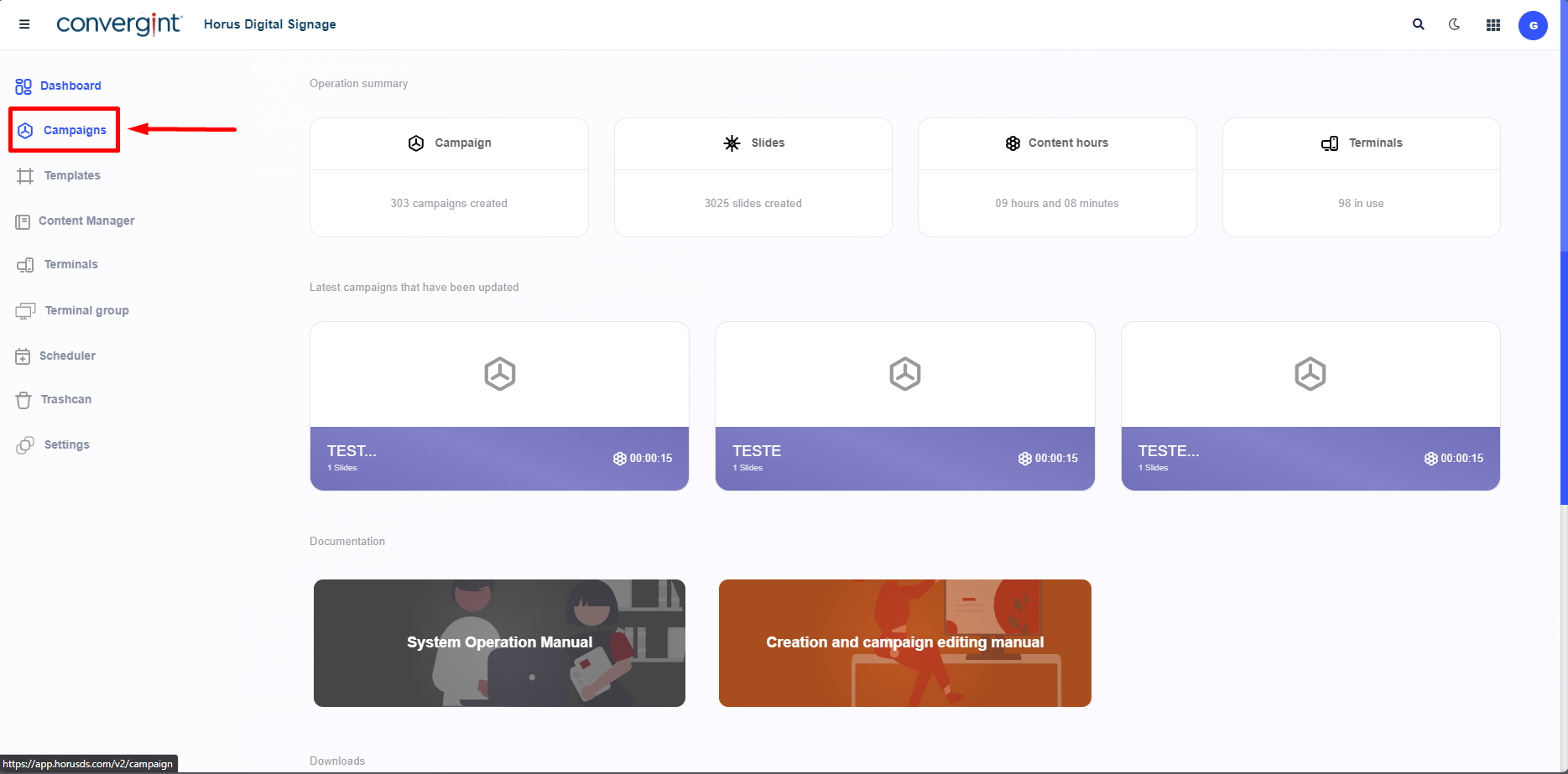
The first step to copying a slide is to access the "Campaigns" tab. This function allows for the creation of campaigns that involve adding slides for a customized display or presentation in Horus Digital Signage.
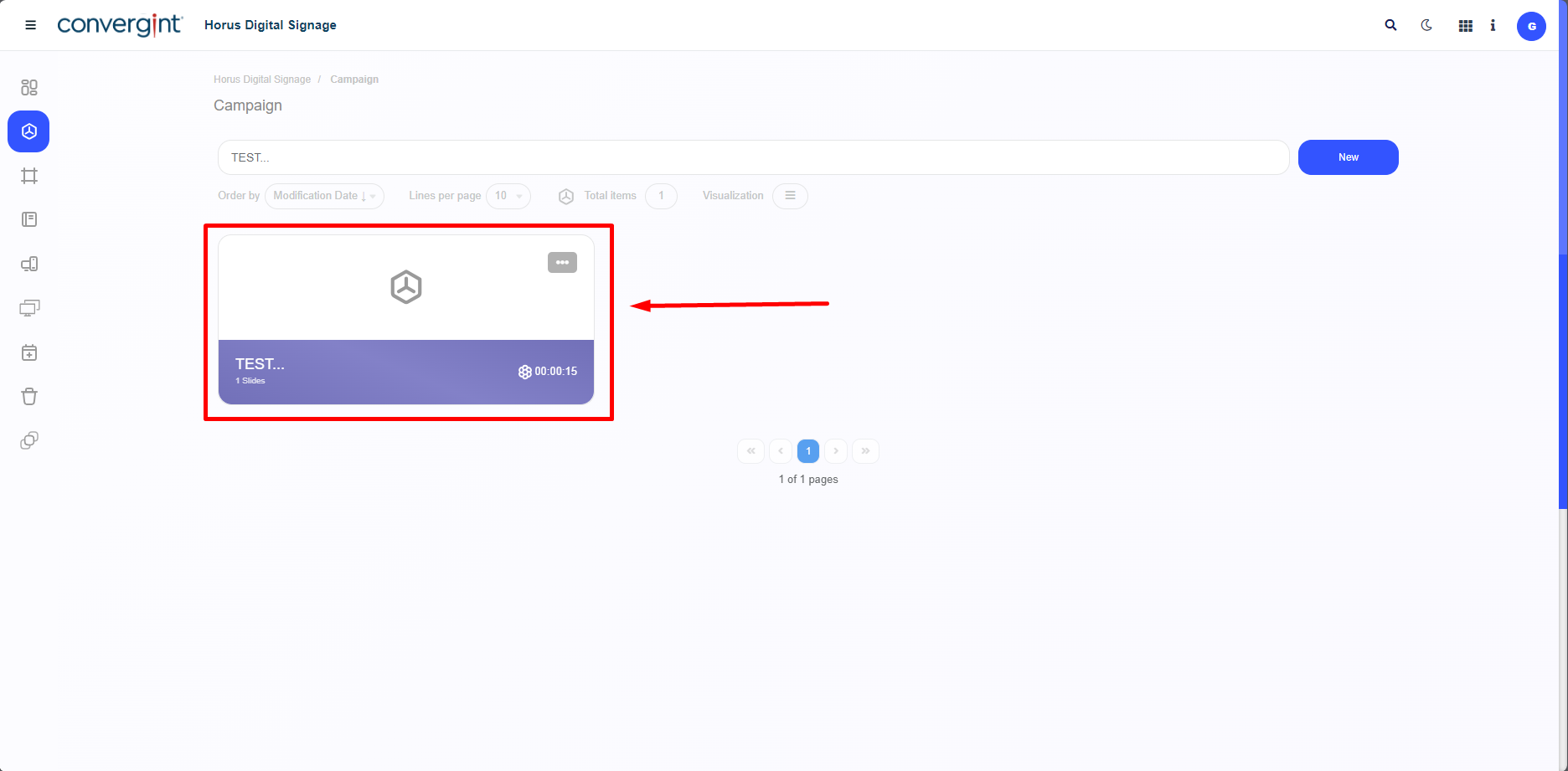
After following the steps described earlier, the campaign will be registered. To copy a slide from the campaign, you need to access a previously created campaign that contains the slide you wish to copy.
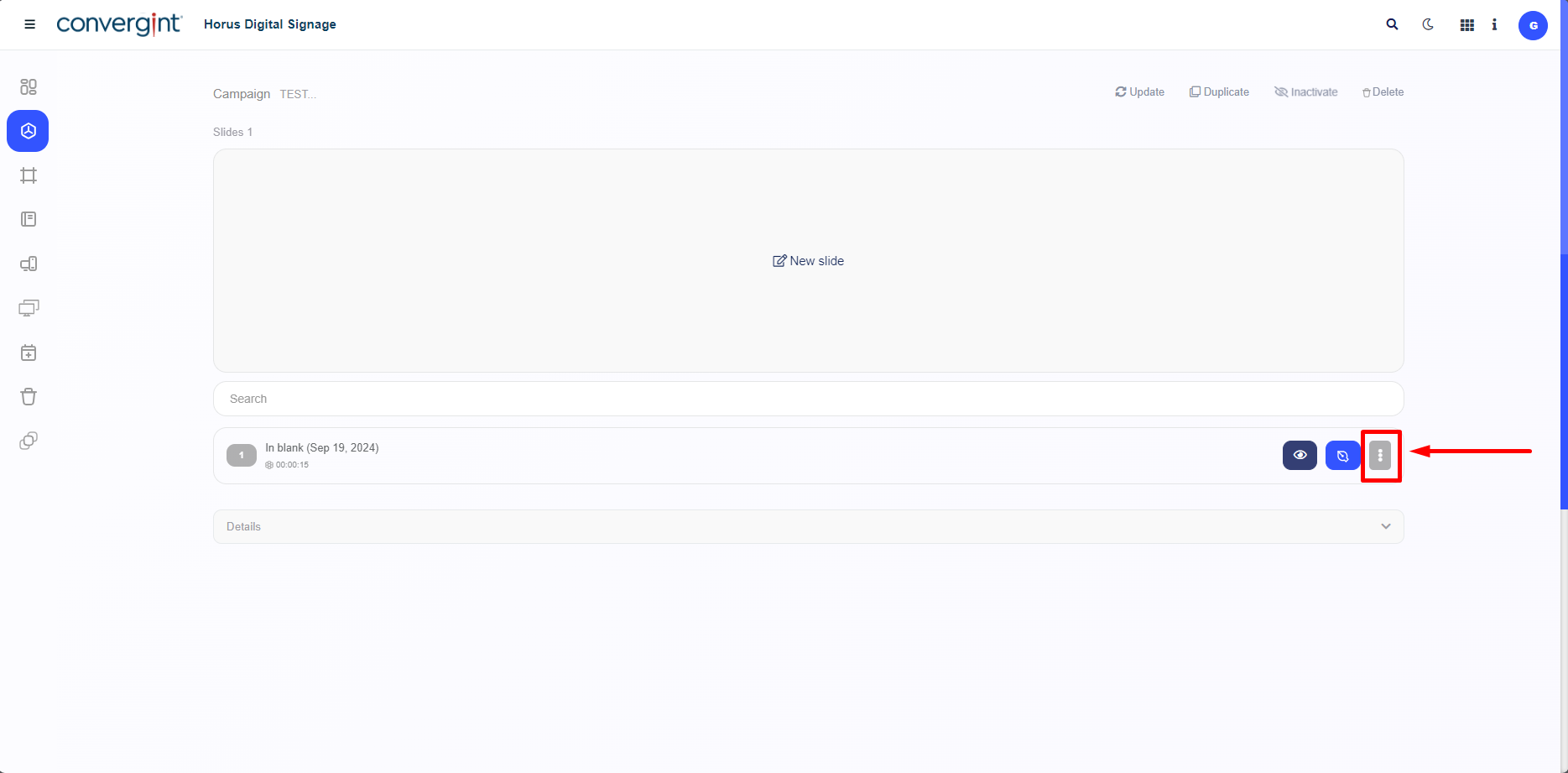
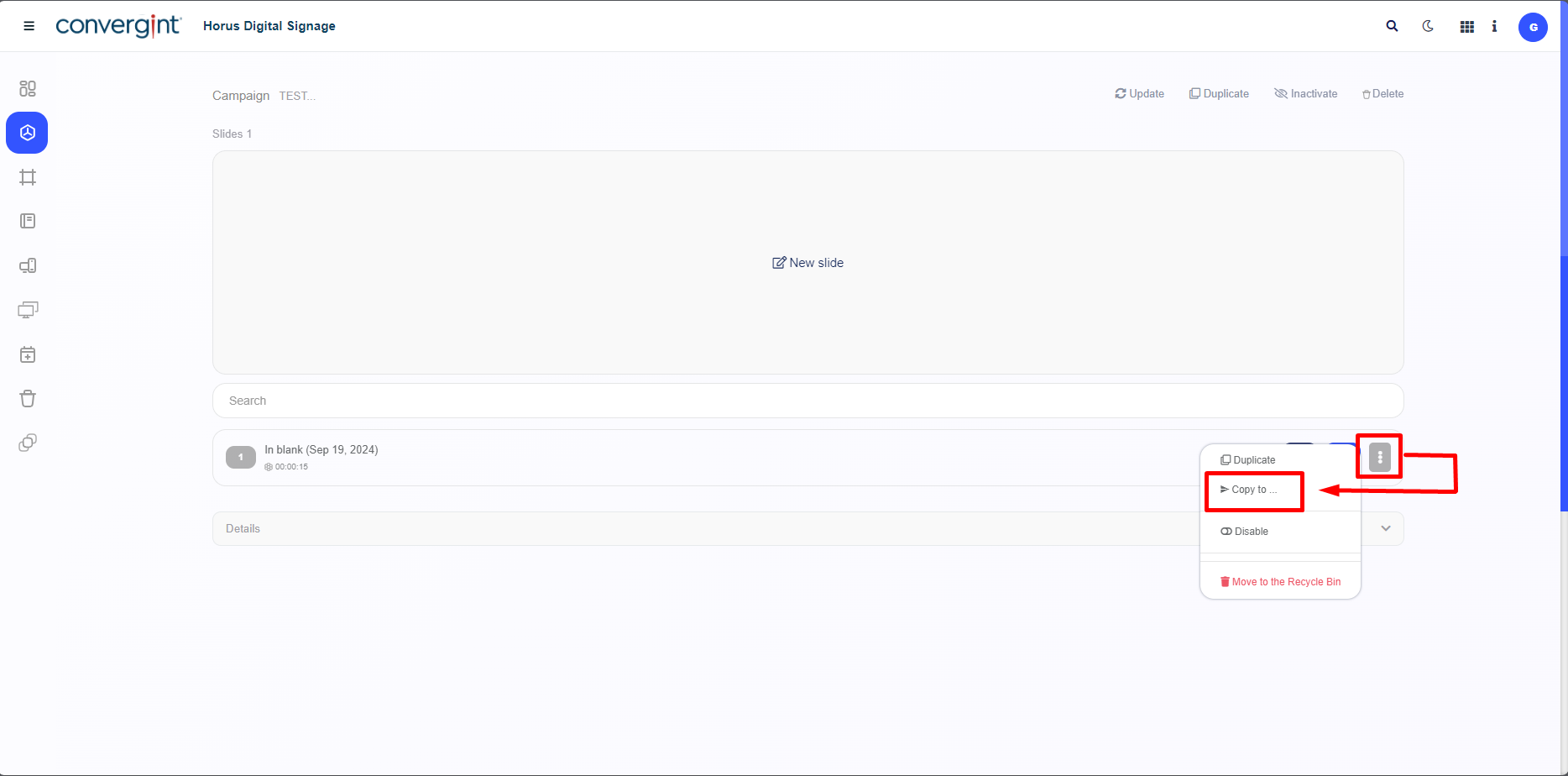
After accessing a campaign, the system will display the campaign interface, where you can copy a slide by clicking the highlighted "three dots" button.
After clicking the highlighted "three dots," you will need to select the option "Copy to..." to transfer the slide to a specific campaign or even to the same campaign you are using.
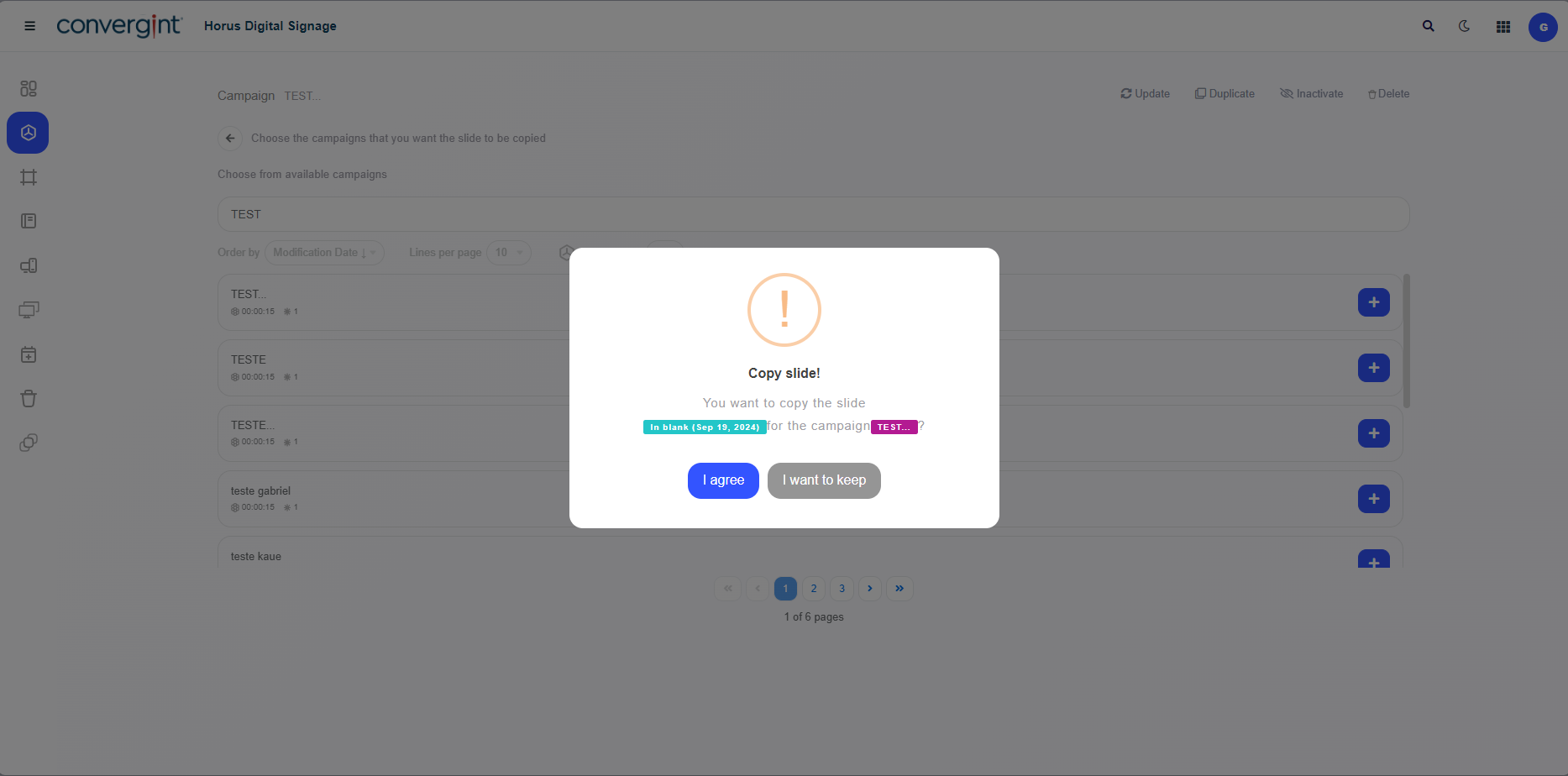
When you click on this option, simply select the desired campaign to insert the slide, providing notable flexibility and ease in adding slides with a similar appearance or purpose by clicking the “+” symbol.
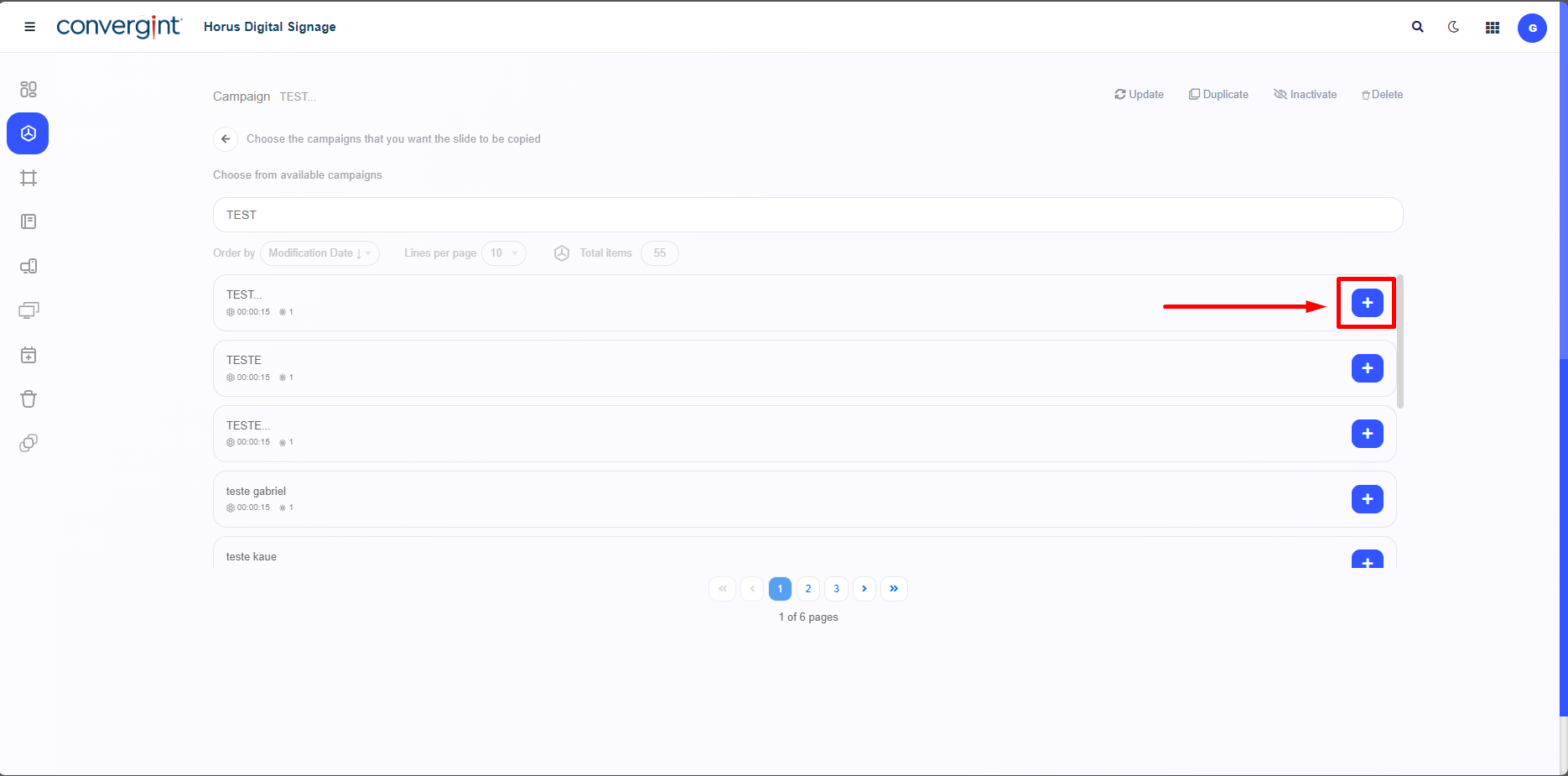
After selecting your preferred campaign, the system will display a pop-up requesting confirmation for the transfer of the slide to the chosen campaign.