Slide Creation
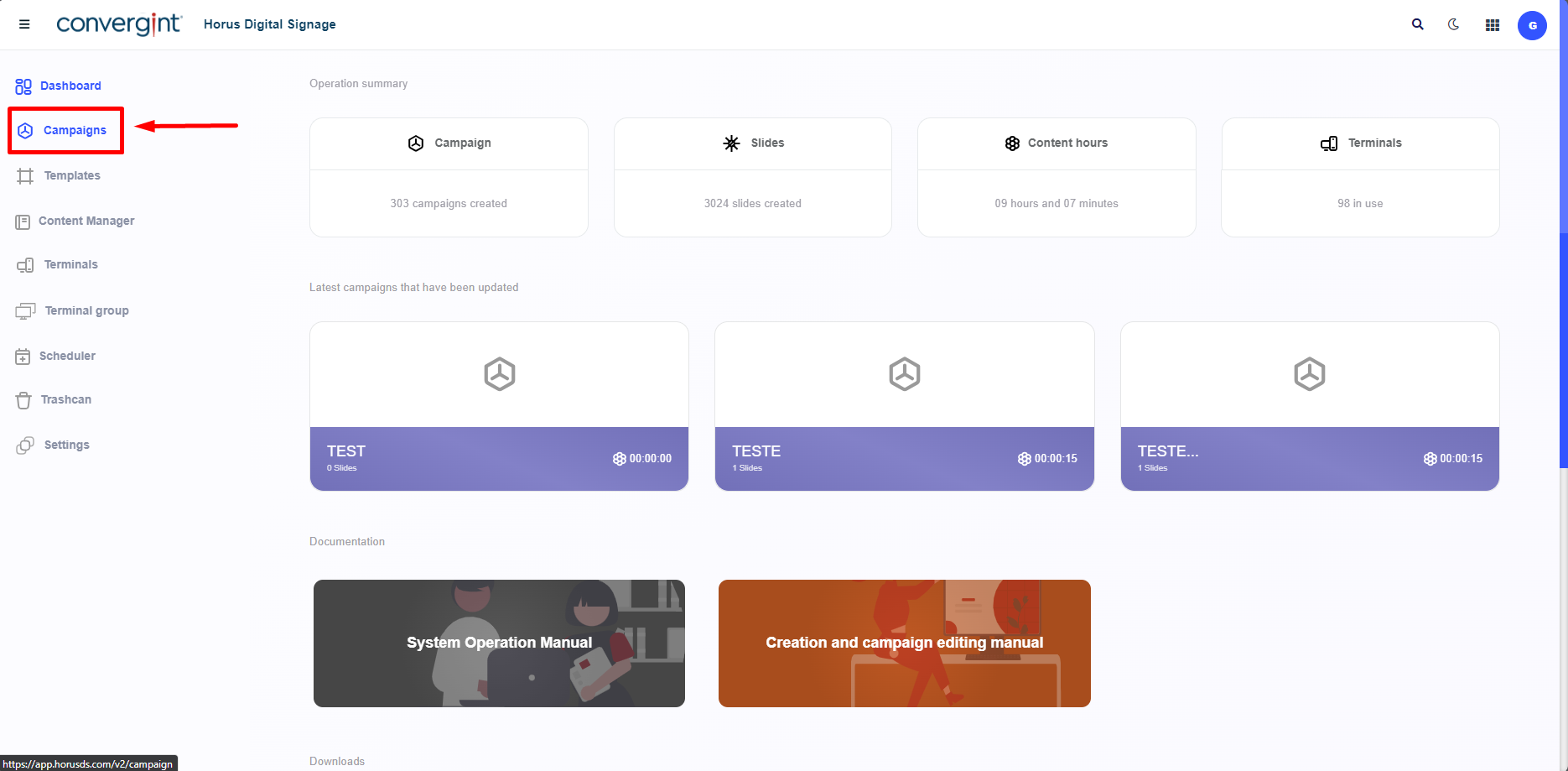
The first step for editing a slide is to access the "Campaigns" tab. This function allows for the creation of campaigns that involve adding slides for a customized display or presentation in Horus Digital Signage.
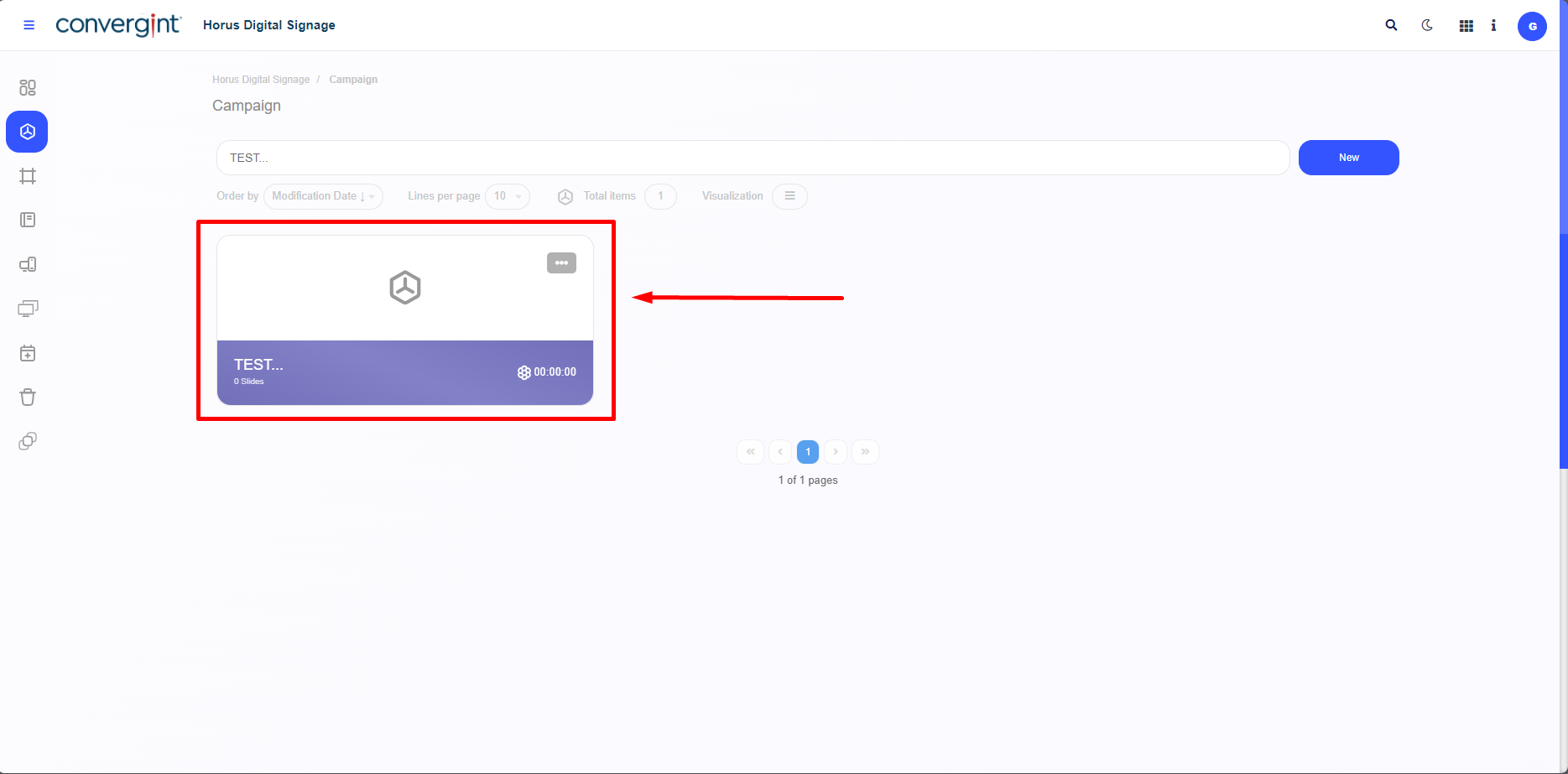
After following the steps described earlier, the campaign will be registered. To add or create a slide in the campaign, you need to access a previously created campaign where you want to include the slide.
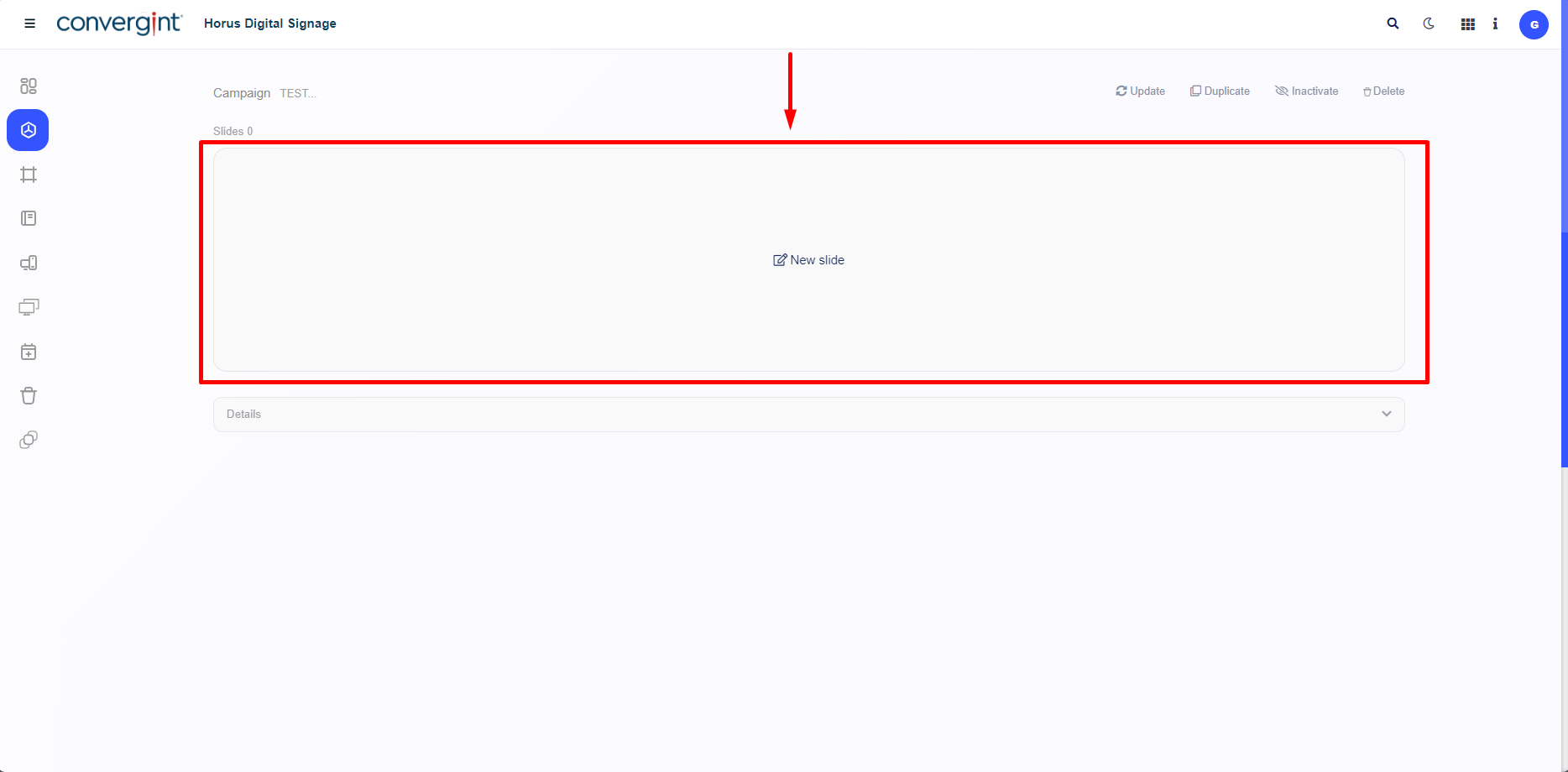
After creating or accessing a campaign, the system will display the campaign interface, where it will be possible to add a new slide by clicking the "New Slide" button.
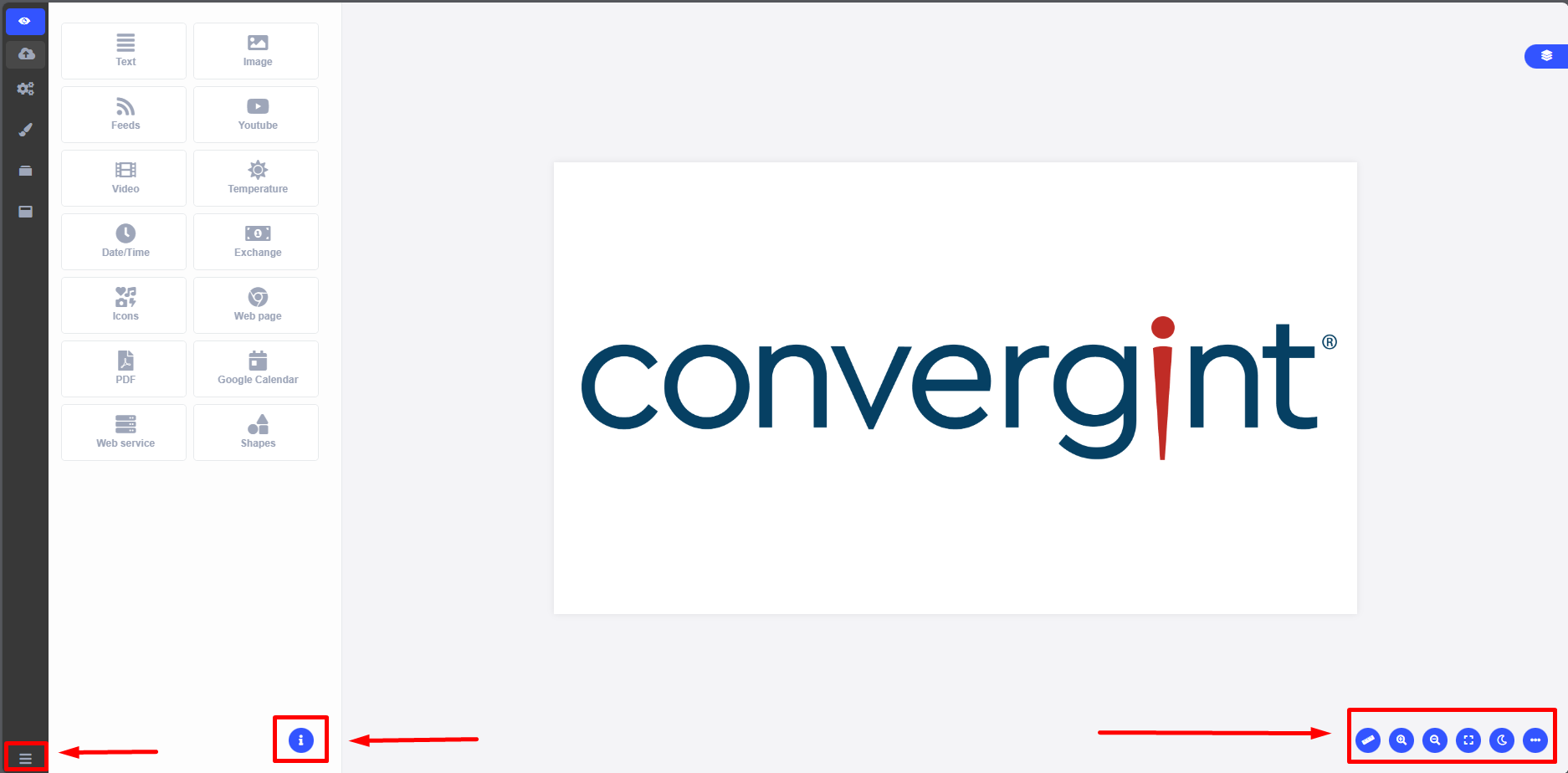
After clicking on "New Slide," the "Slide Editor" screen will be displayed, offering a variety of templates that can be used and inserted into the desired slide. Among these templates are options such as "Web Page," "Video," "Feeds," "YouTube," and many others. Additionally, it is possible to standardize the template, style, and presentation duration of the slide according to the user's preferences.
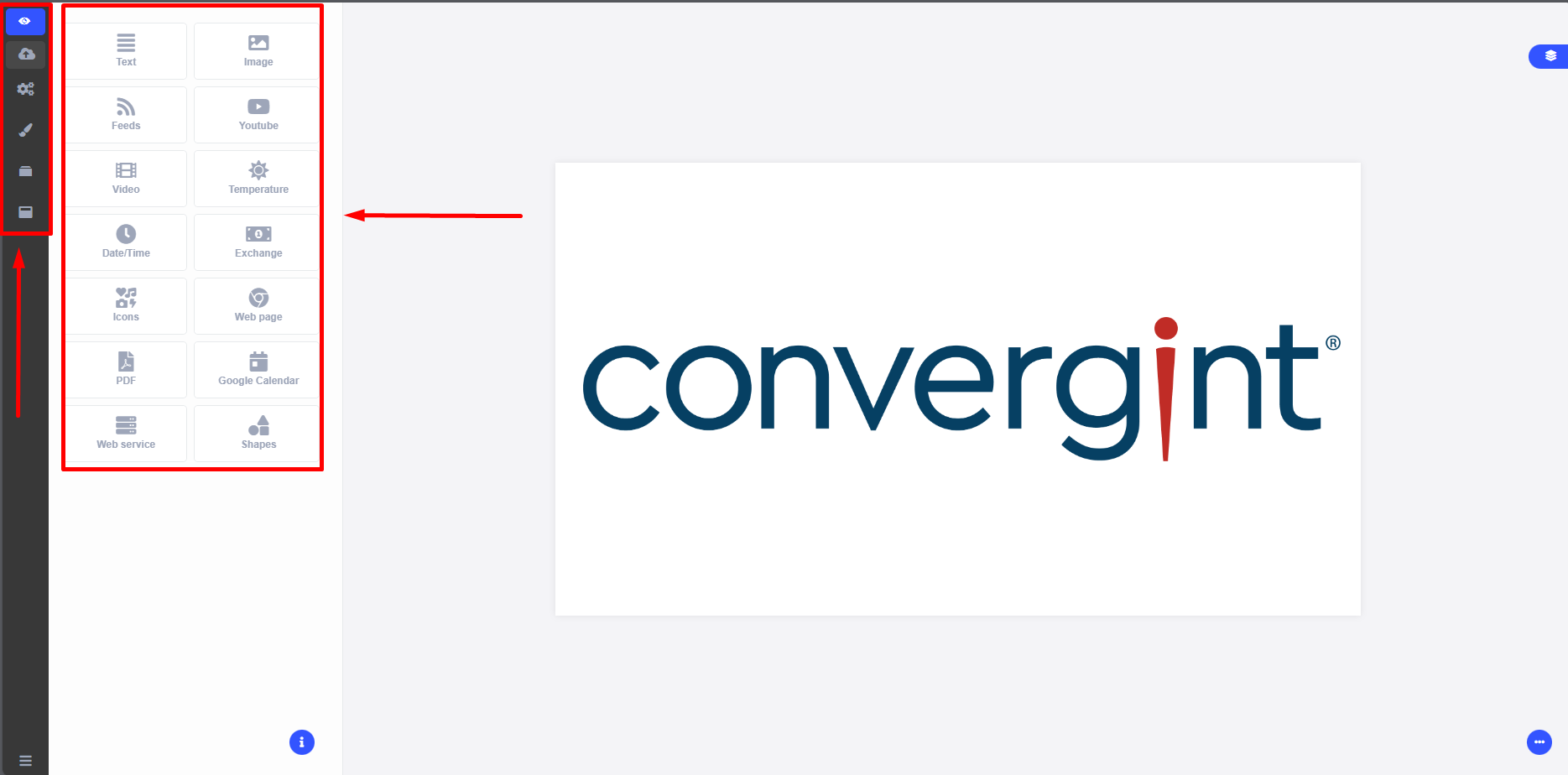
That's it! Now just customize the slide according to your preferences. After editing, click the "Save" button (highlighted) to save the slide.
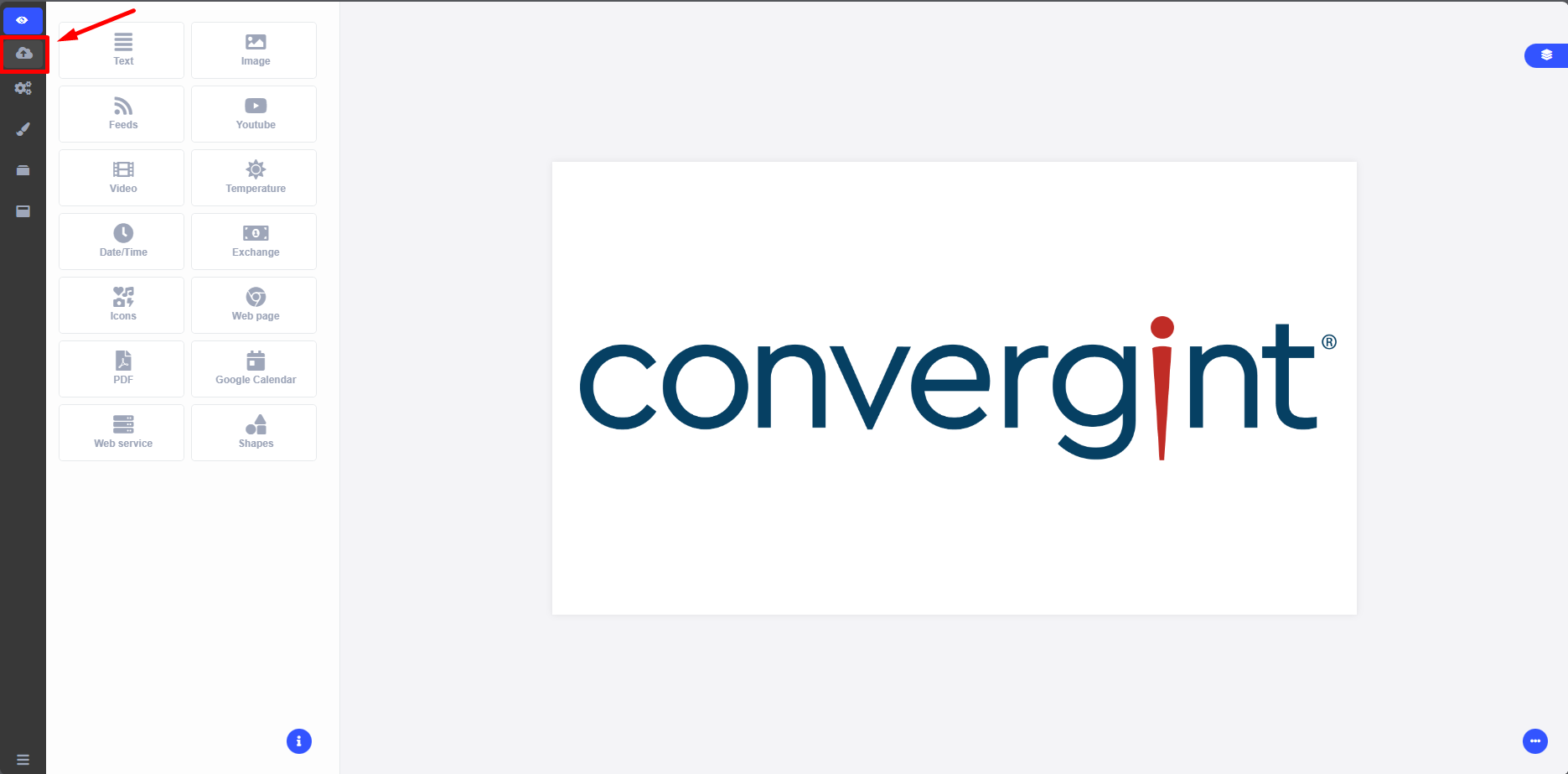
Within the slide, there are various functionalities, such as the information icon, a menu that displays the platform tabs, and additional options in the bottom right corner of the screen. By clicking on the "Three Dots," icons will be displayed for zooming in or out, toggling between dark and light themes, full screen, and a ruler.