Template Creation
As a first step towards creating a Template, access the “Templates” tab. This function will make it easier to create future Slides.
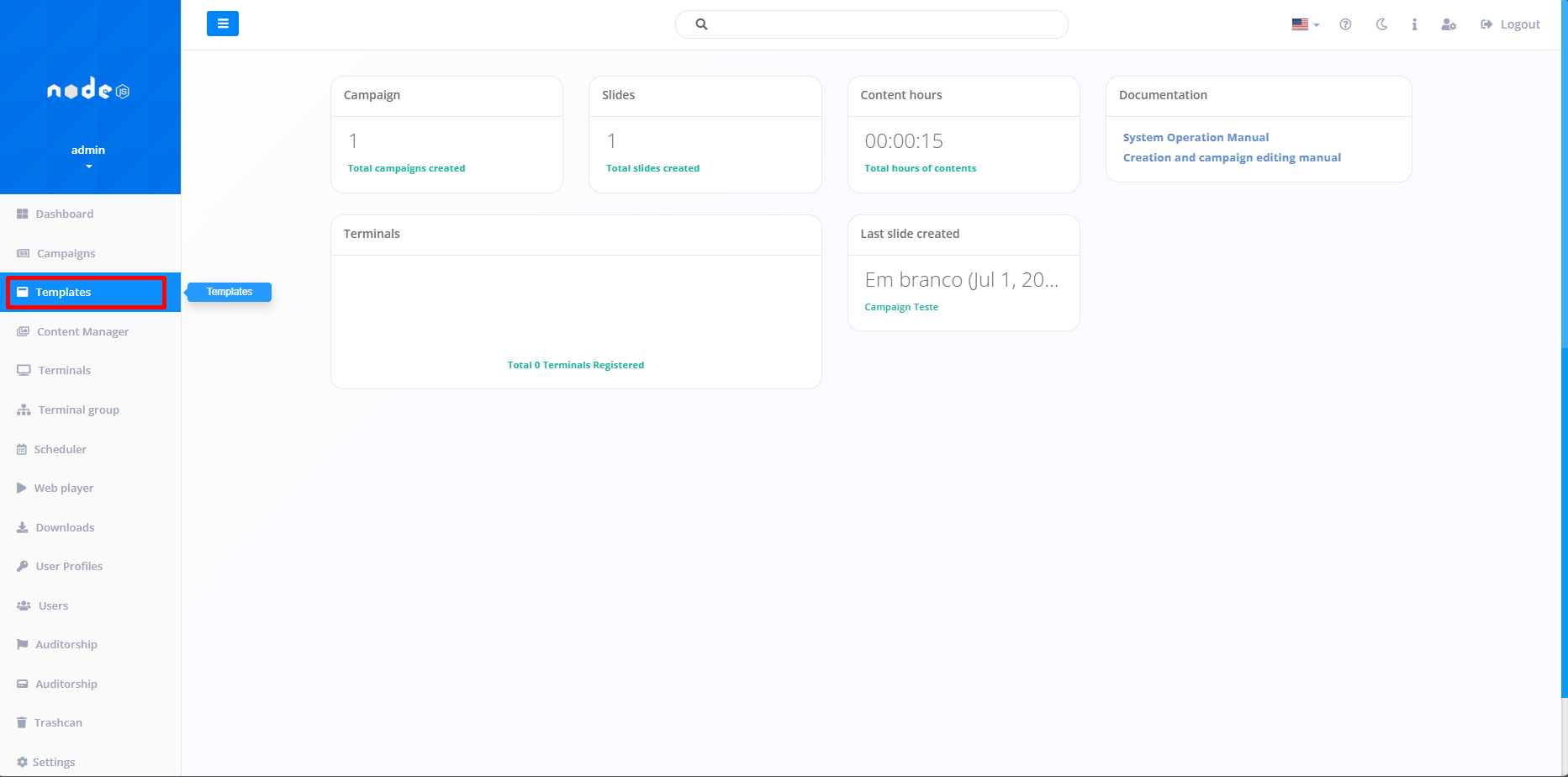
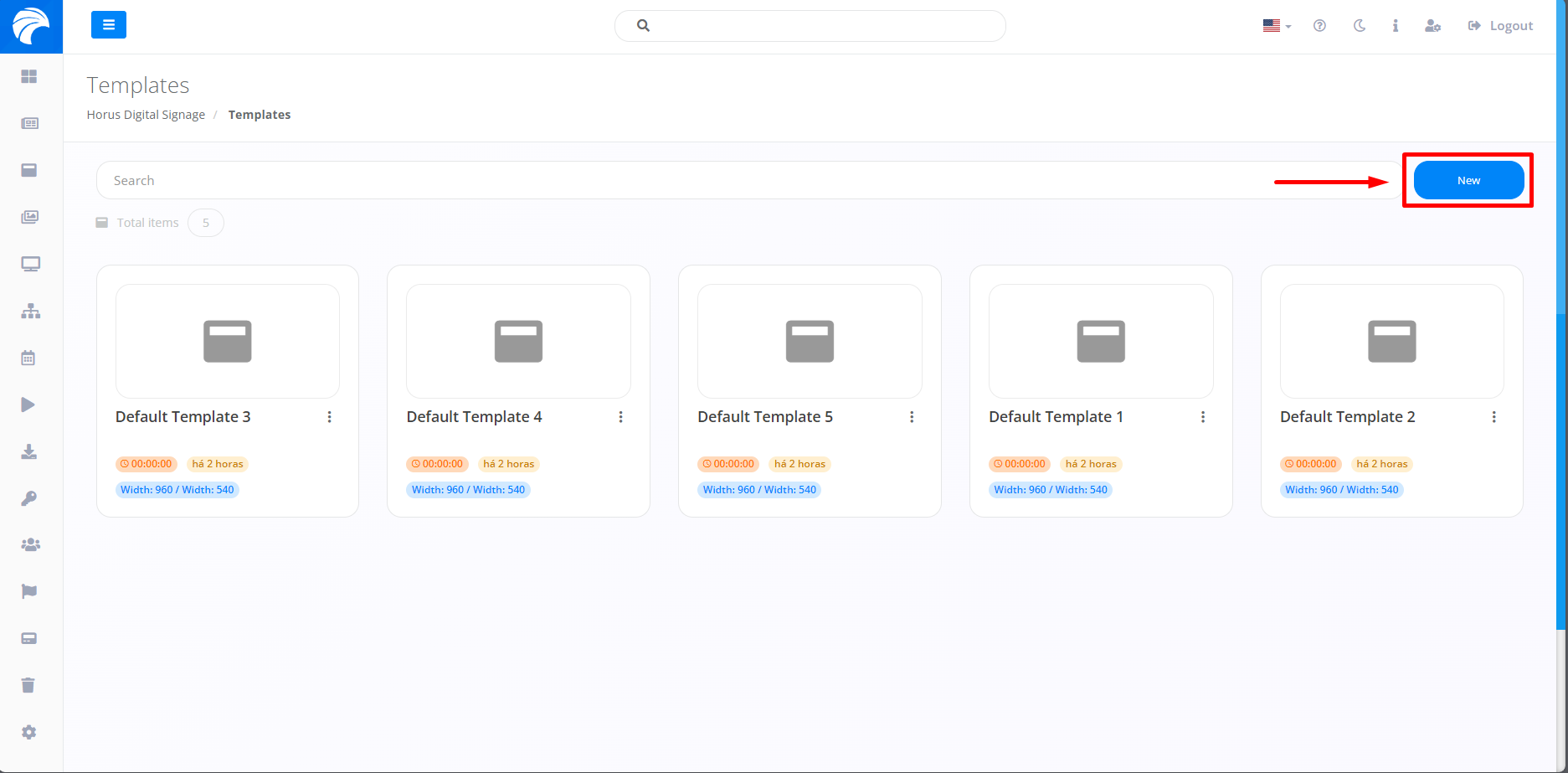
After clicking on Templates, the system will open the screen, where we will first define it by clicking on “New” which, if you already have a previously created Template, should be listed just below the search bar.
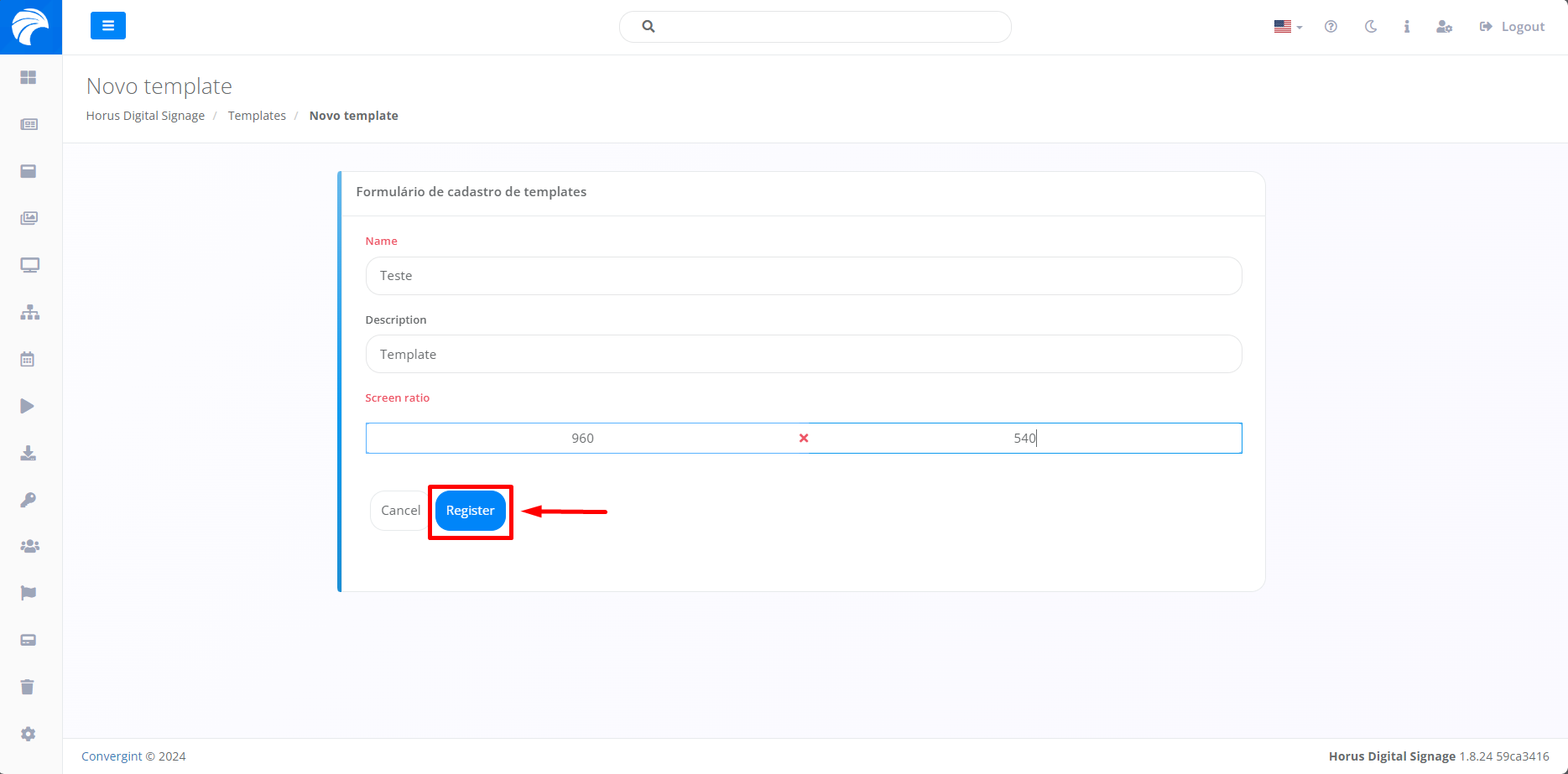
When clicking the New Template button, you will need to enter a name for the new Campaign. If you need a description, there is a field available just below the “name” option. Additionally, you will need to indicate the desired screen aspect ratio for a specific situation. After completing the previous steps, click the Register button, consequently registering the Template presented below with your appropriate choices.
After completing the previous step, you will be redirected to the “Slide editor” screen, offering a variety of Templates that can be used and inserted into the specific Slide (Templates). Among these models are options such as “Web page”, “Video”, “Feeds”, “Youtube” and many others. Furthermore, it is possible to standardize the Slide Template and style according to the User's preferences.
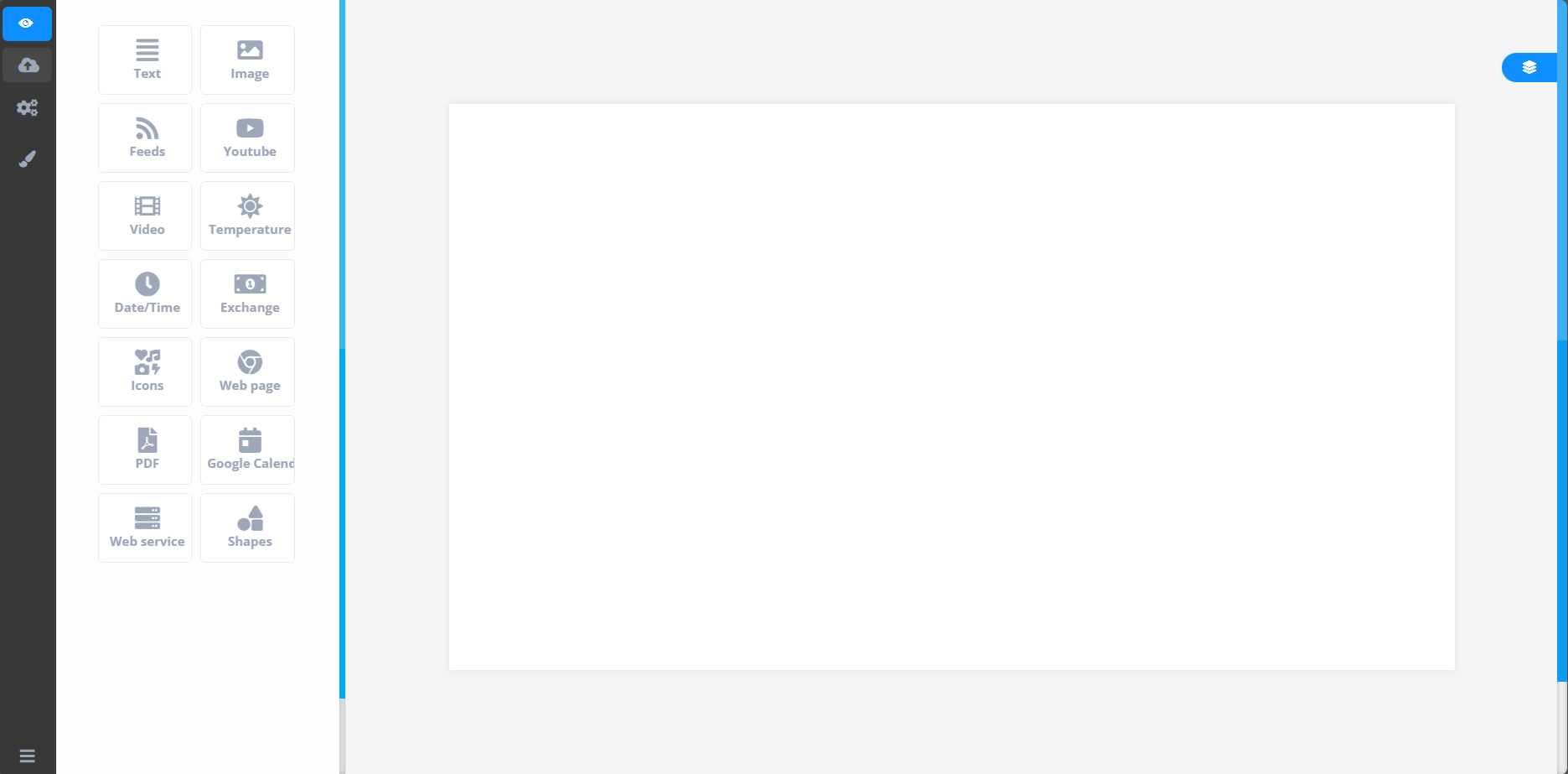
Ready! Now just customize the Slide according to your preferences. After editing, simply click on the cloud button to save the specific Slide, as shown in the image above.