Download the Player
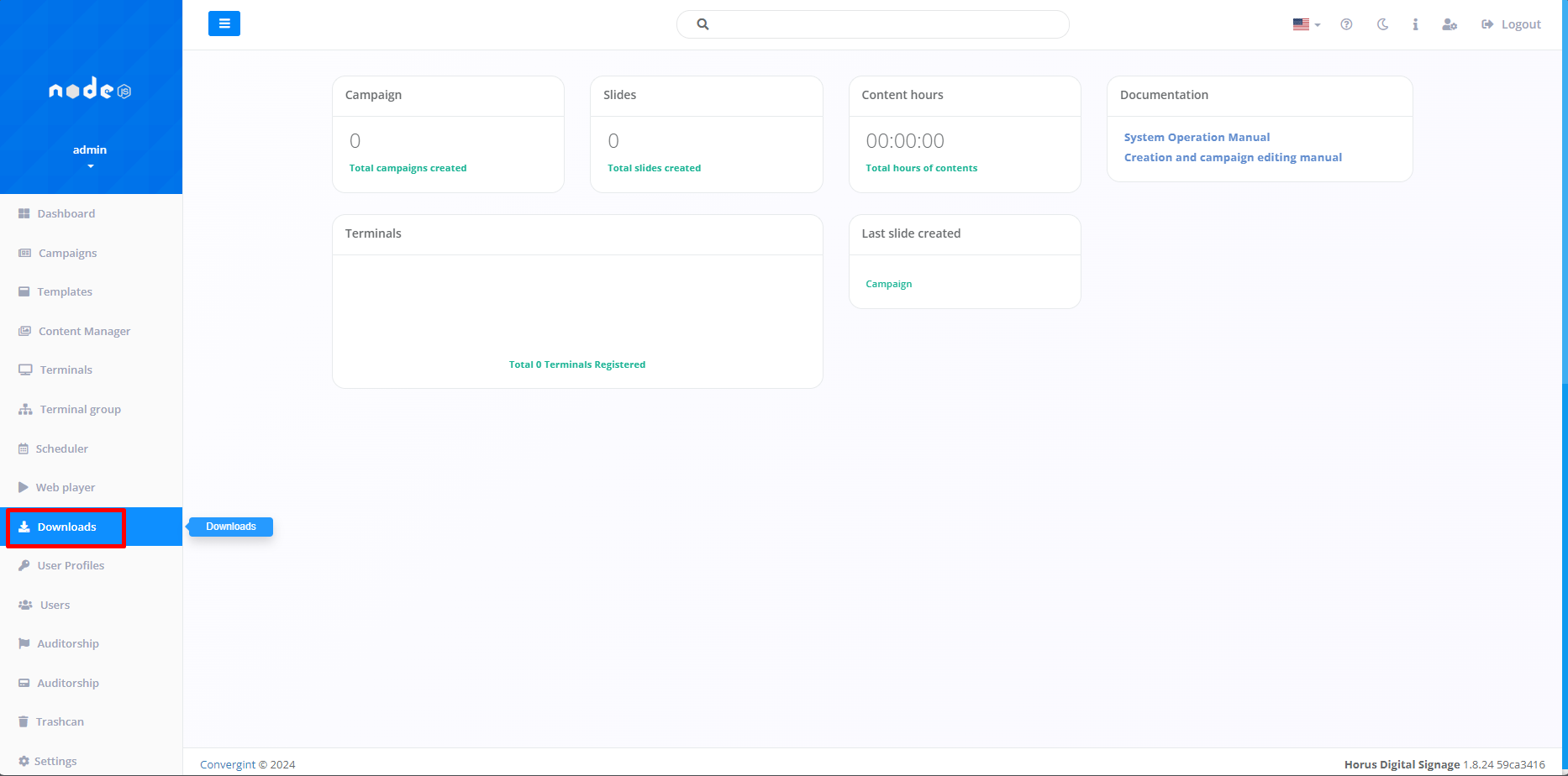
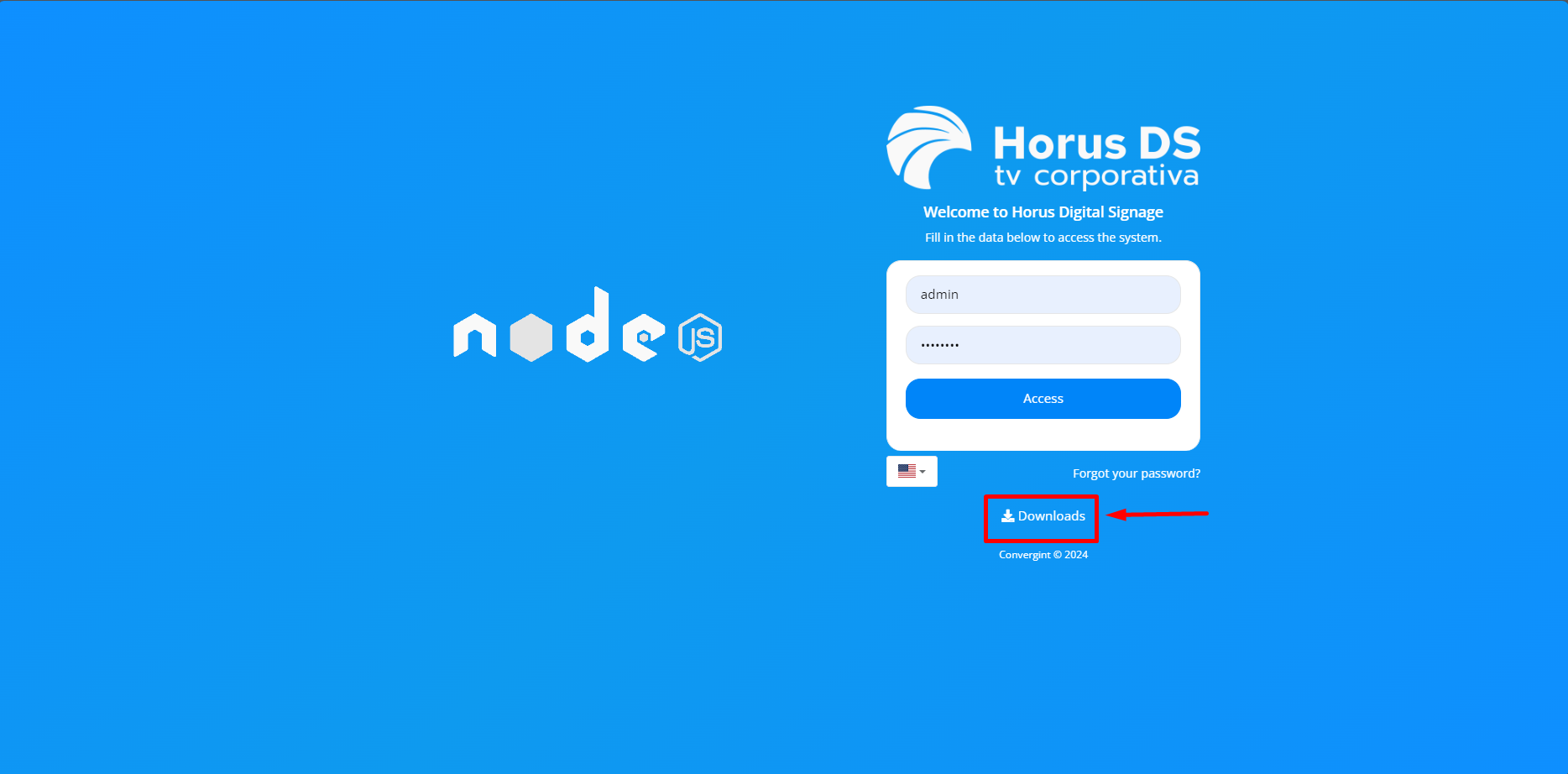
The first step in Downloading is accessing the "Downloads" tab within the DS interface or in the login interface by clicking on "Downloads". This functionality makes it possible to download and install the content playback software (Player), which enables the display of Campaigns and offers synchronization between the Player and Horus DS remotely via the code generated and provided by the platform.
Download by accessing the "Downloads" tab:
Download via the platform's login interface:
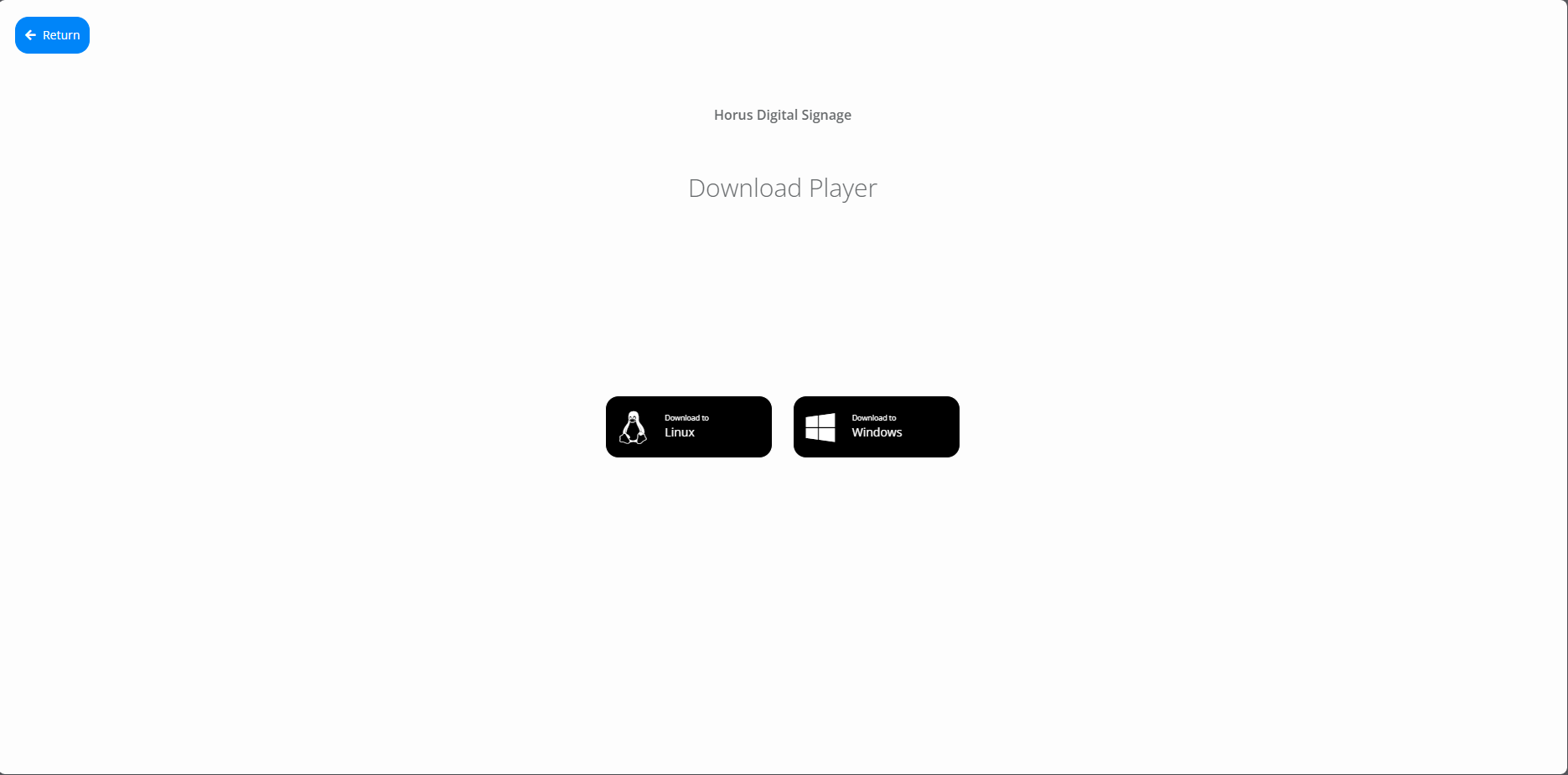
With both download options selected, the system will update the download selection screen, differentiating between the operating systems provided by the platform (Linux and Windows). To download the Player, you will need to select the desired operating system.
After selecting the operating system of your choice, the Player installation file will be downloaded. To finish installing the Player, you will need to access the file.
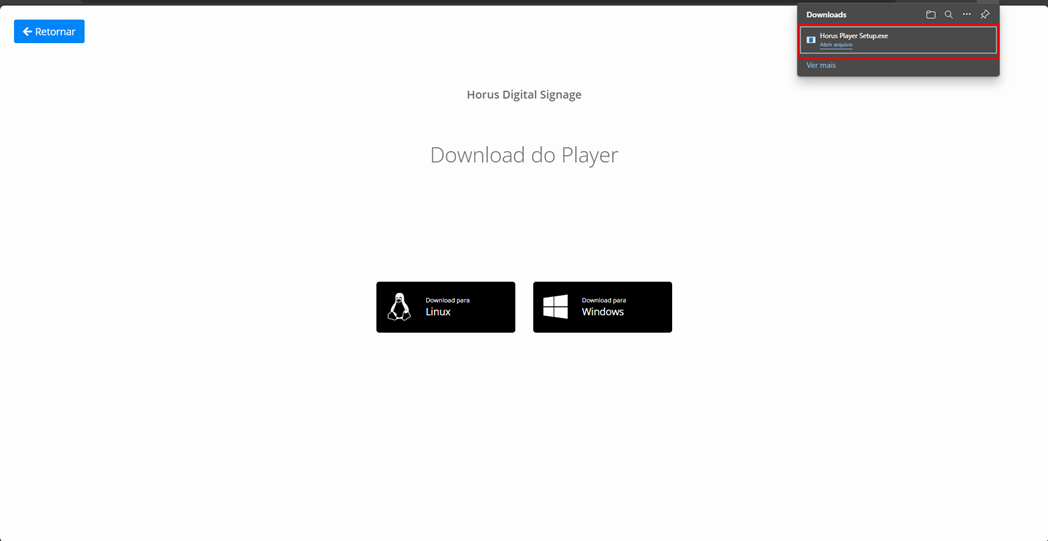
Once you have selected the installation file, you need to run it and configure the Player installation according to your preferences.
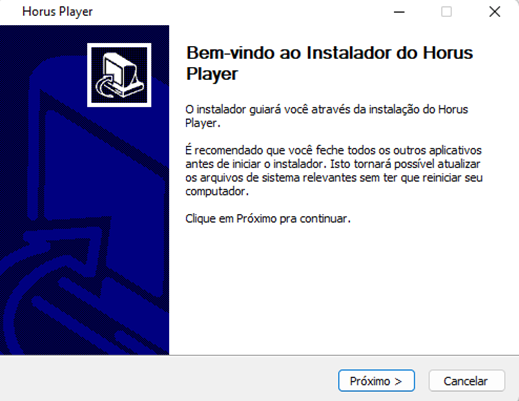
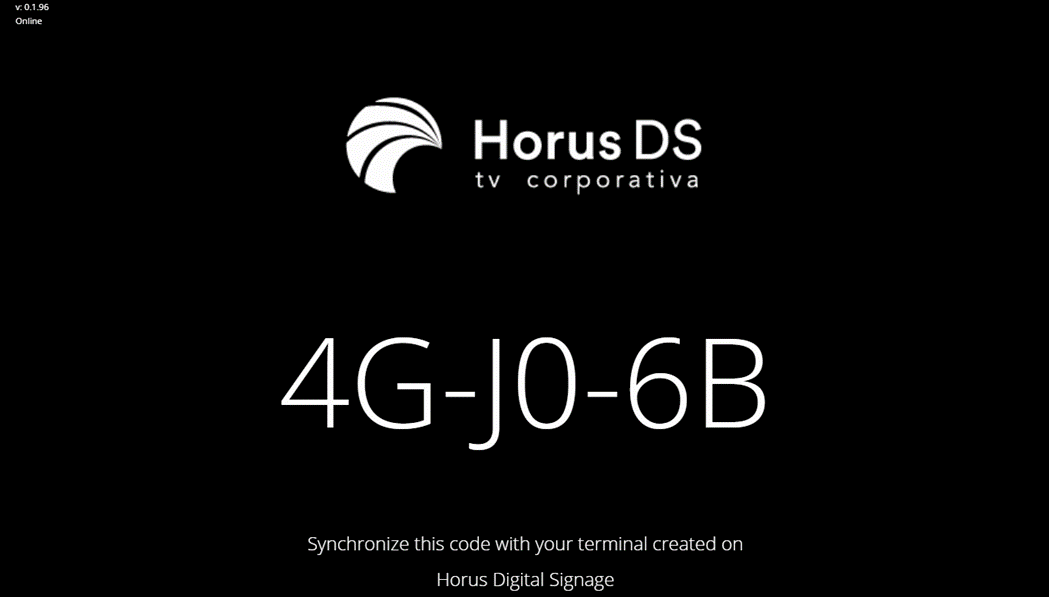
After running it and configuring it to your liking, you will have access to the Horus Player. This will allow you to view the Player's Interface and obtain the code needed to synchronize it with the Horus DS.
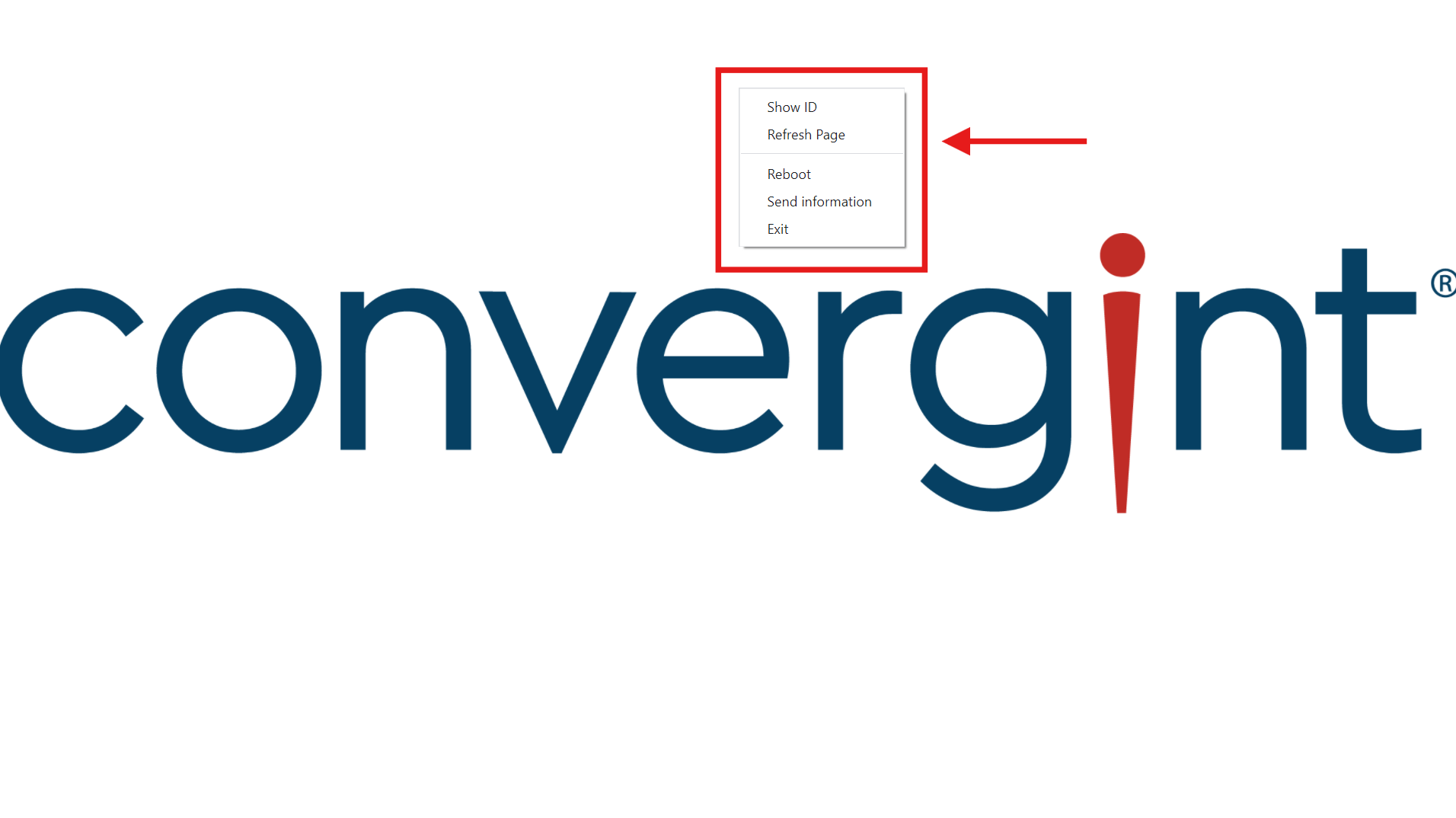
To access more of the player's features, right-click. After clicking, you can view the code generated by the system in the top right corner, refresh the page, restart the system, send information to the interface and exit or close the system, respectively.
Note: To synchronize the Terminals with the previously installed Player, check the "Terminal" topic.