Enabling Two-Factor Authentication
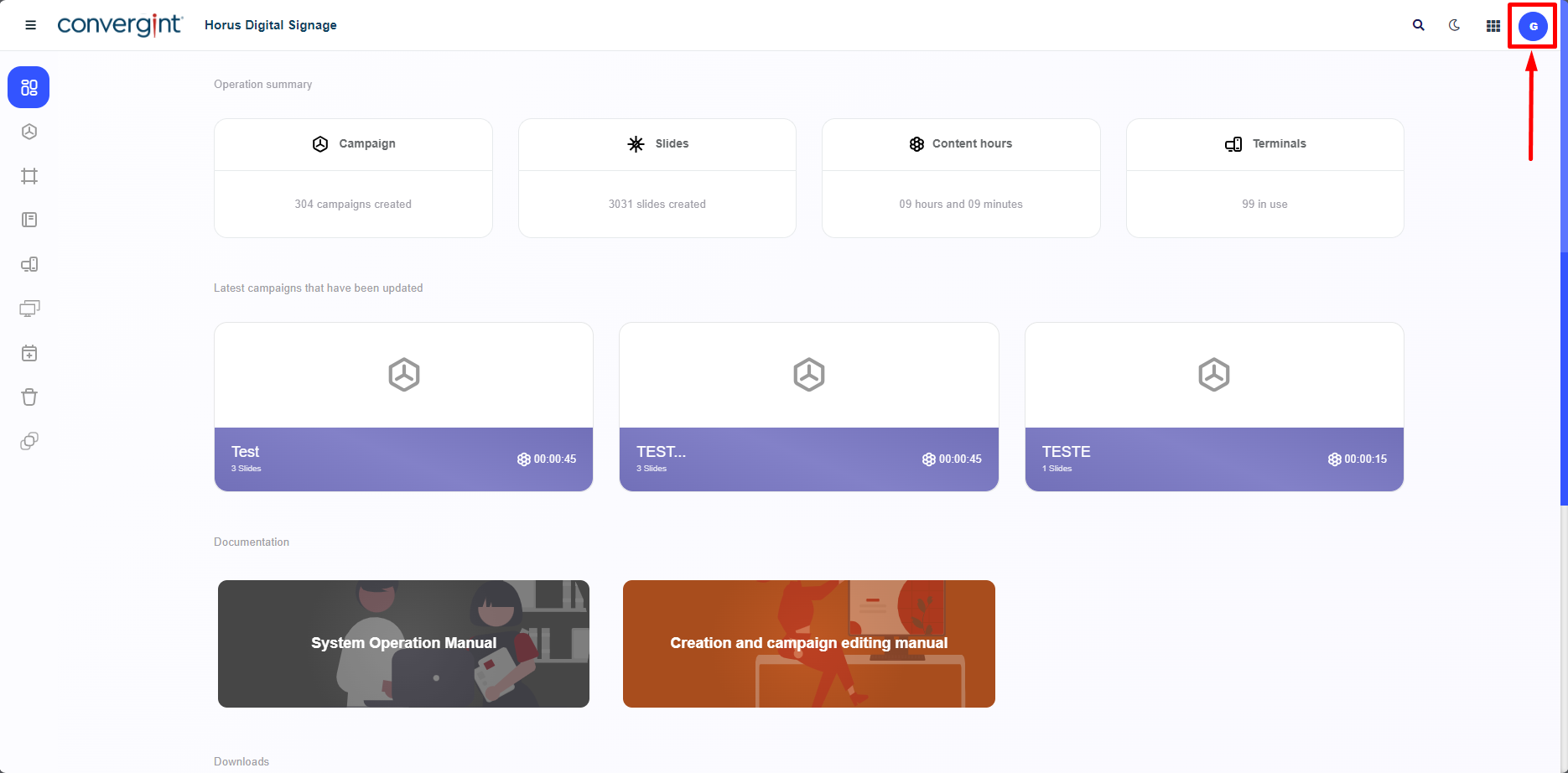
As a first step to enable Two-Factor Authentication, access your Profile. In this section, the platform offers the option to change the language, view detailed information about the logged-in user, and also the option to log out if you wish to exit the platform.
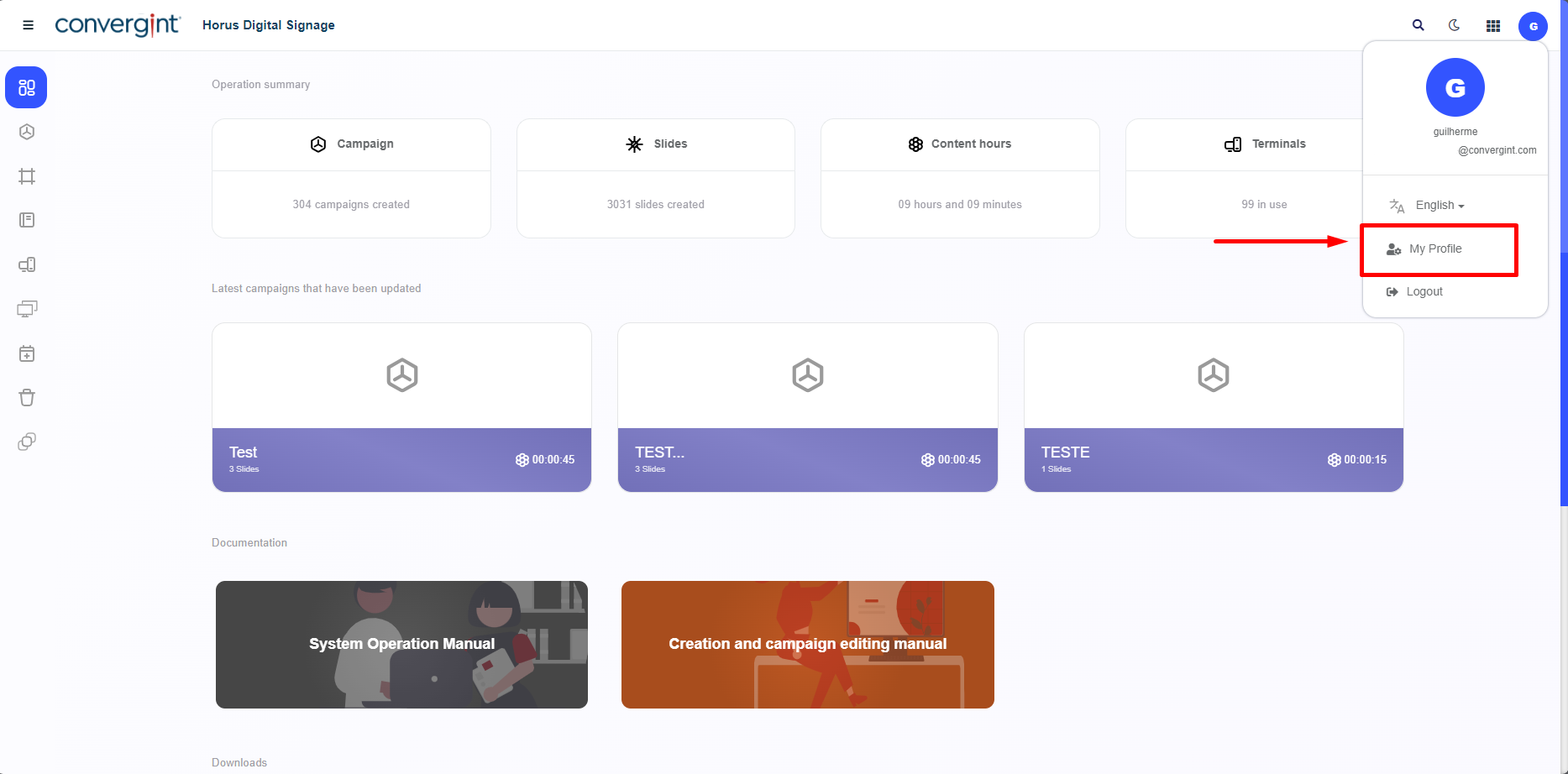
Upon accessing your profile, click on "My Profile" to access the security section related to the logged-in user. This will allow for better management of your login on the platform.
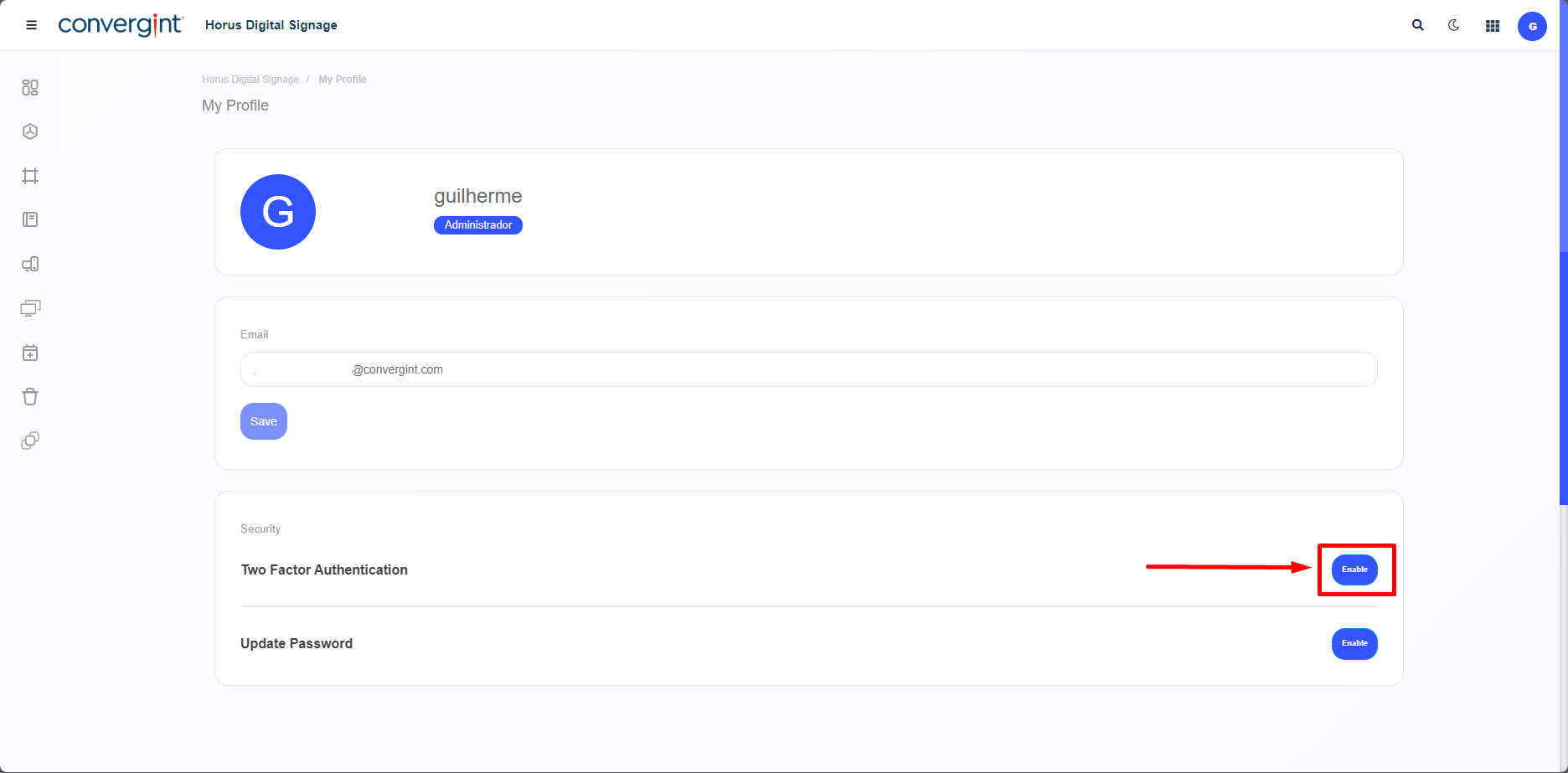
Accessing the option, you need to click on "Enable" in the "Two-Factor Authentication" field to subsequently enable Two-Factor Authentication. This is aimed at confirming the identity of the user who will be logging in later.
Next, the system will request the scanning of a QR code using apps that implement two-step verification services, such as Google Authenticator, Microsoft Authenticator, and various other apps that offer this functionality.
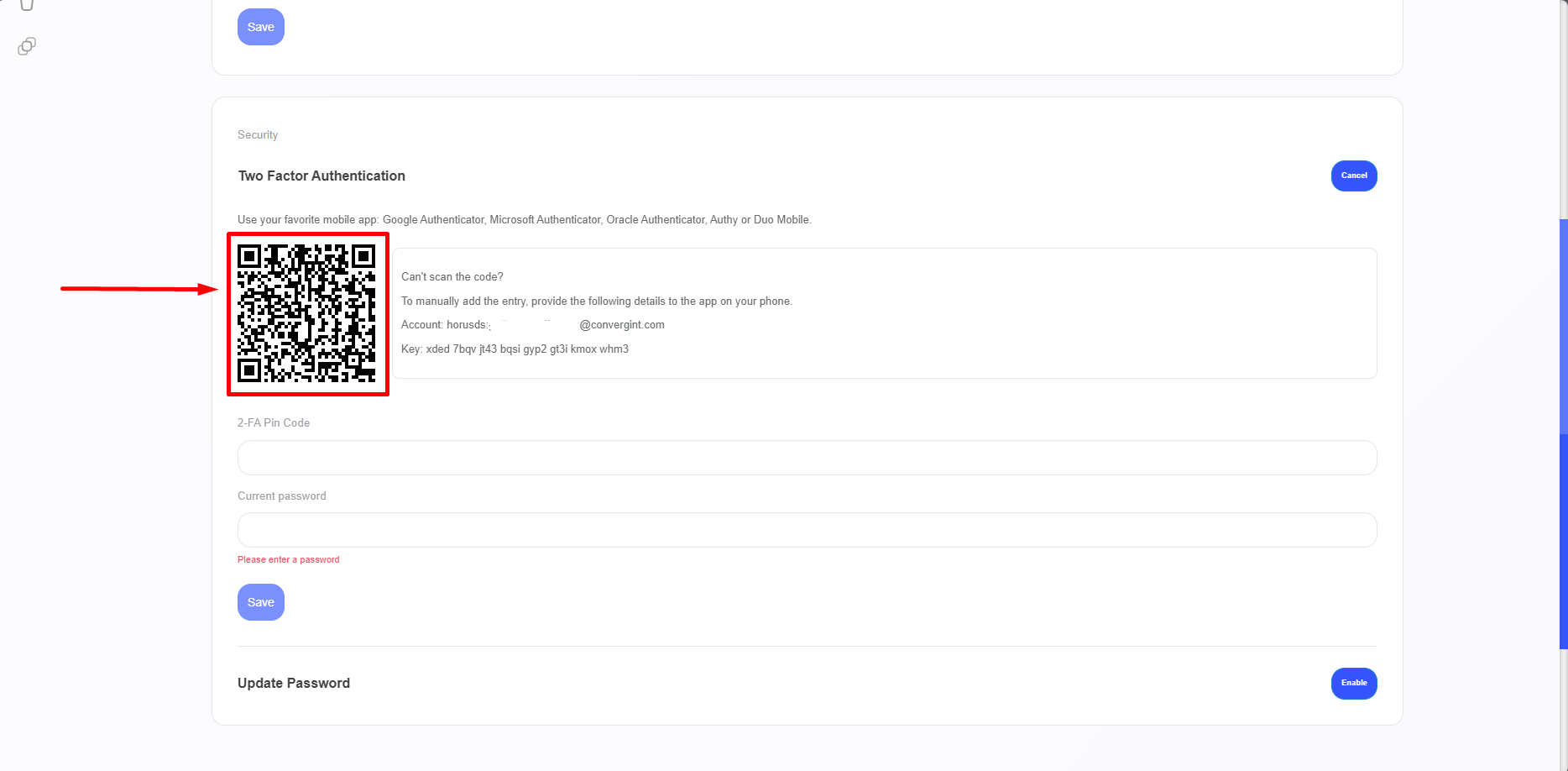
By scanning the QR code requested by the platform using a verification app, you will receive a FA PIN code in the corresponding section. This PIN code will be used to link the app to the Horus Digital Signage platform.
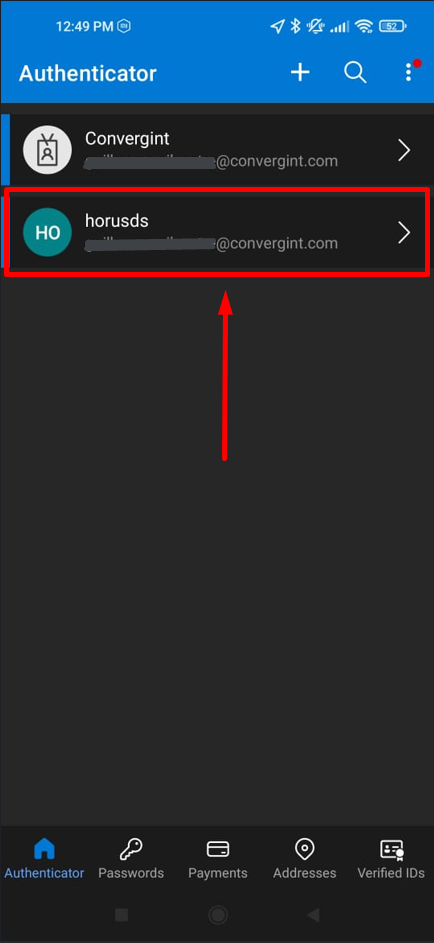
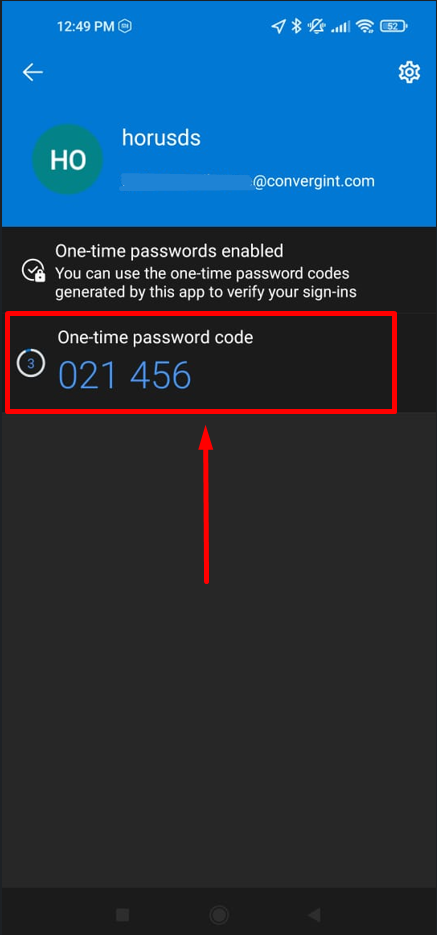
After obtaining the code, you should enter it in the "FA Pin Code" field. Then, type your Current Password in the appropriate field to ensure the security of your access. Once you have filled in the information, click the "Save" button to confirm the link between the app and the Horus Digital Signage platform.
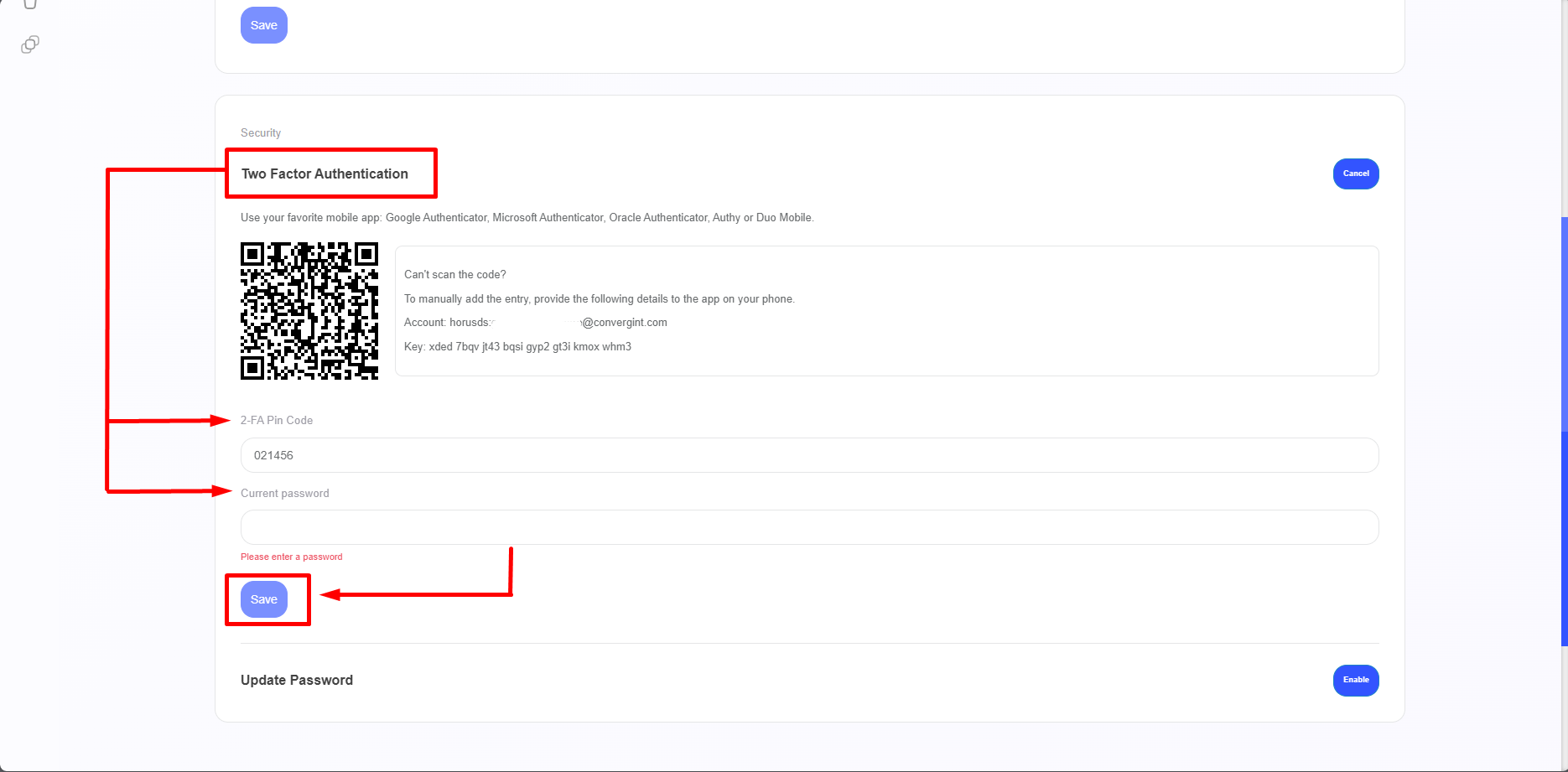
By clicking "Save," the functionality will be enabled. From then on, every time you perform the first part of the login on the Horus Digital Signage platform by entering your username and password, the system will direct you to the second part, where the FA PIN Code will be requested. This code will be stored in the verification app of your choice. Remember that the code is changed periodically for security reasons.

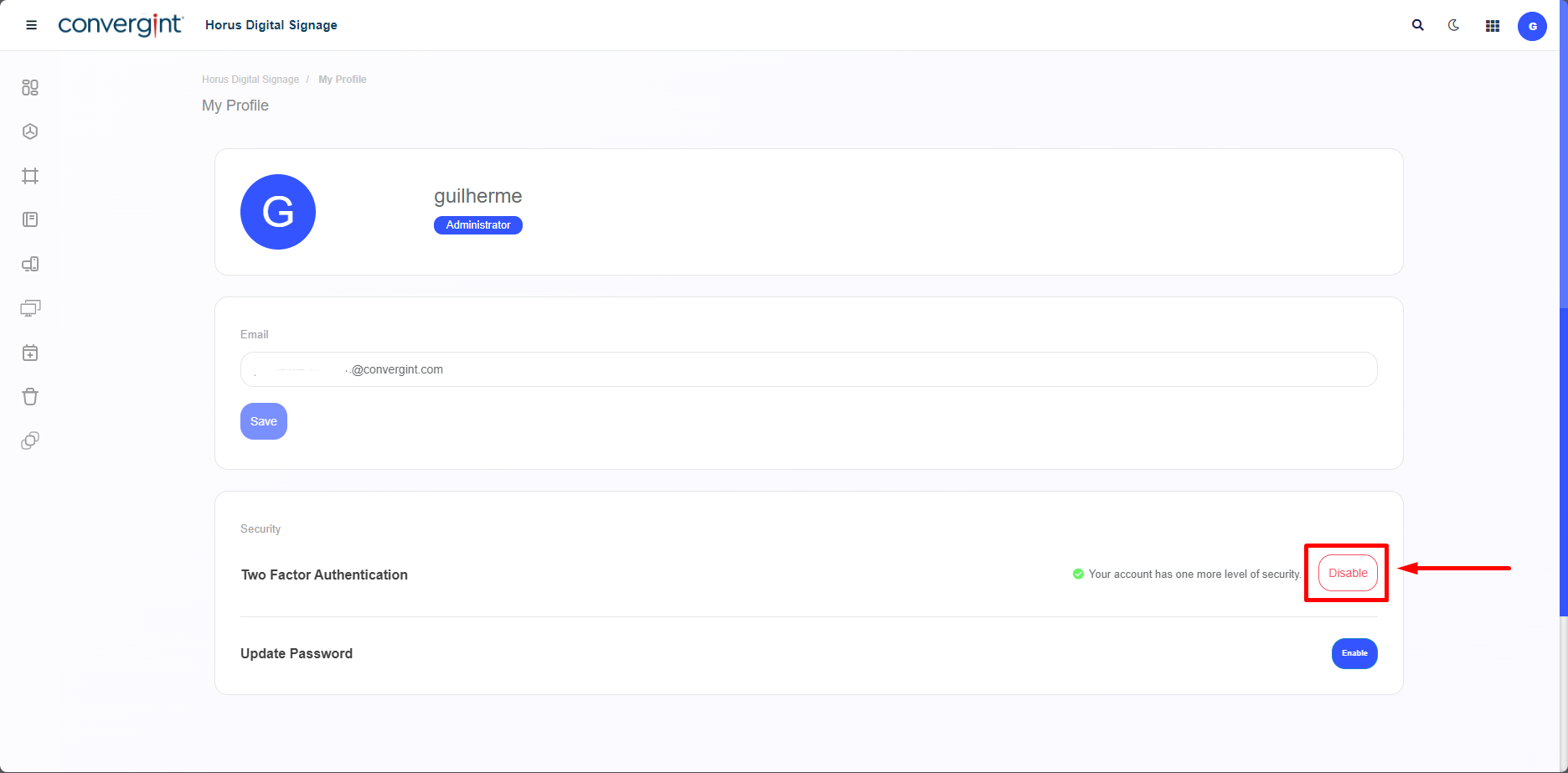
To deactivate the functionality, simply access your user profile and navigate to the "Two-Factor Authentication" section. Then, click "Disable" to deactivate the feature.