Accessing and Making Settings
To Configure Horus Digital Signage, you need to access the "Settings" tab. This function allows you to configure the system based on your choices, assigning necessary and additional information according to your preference.
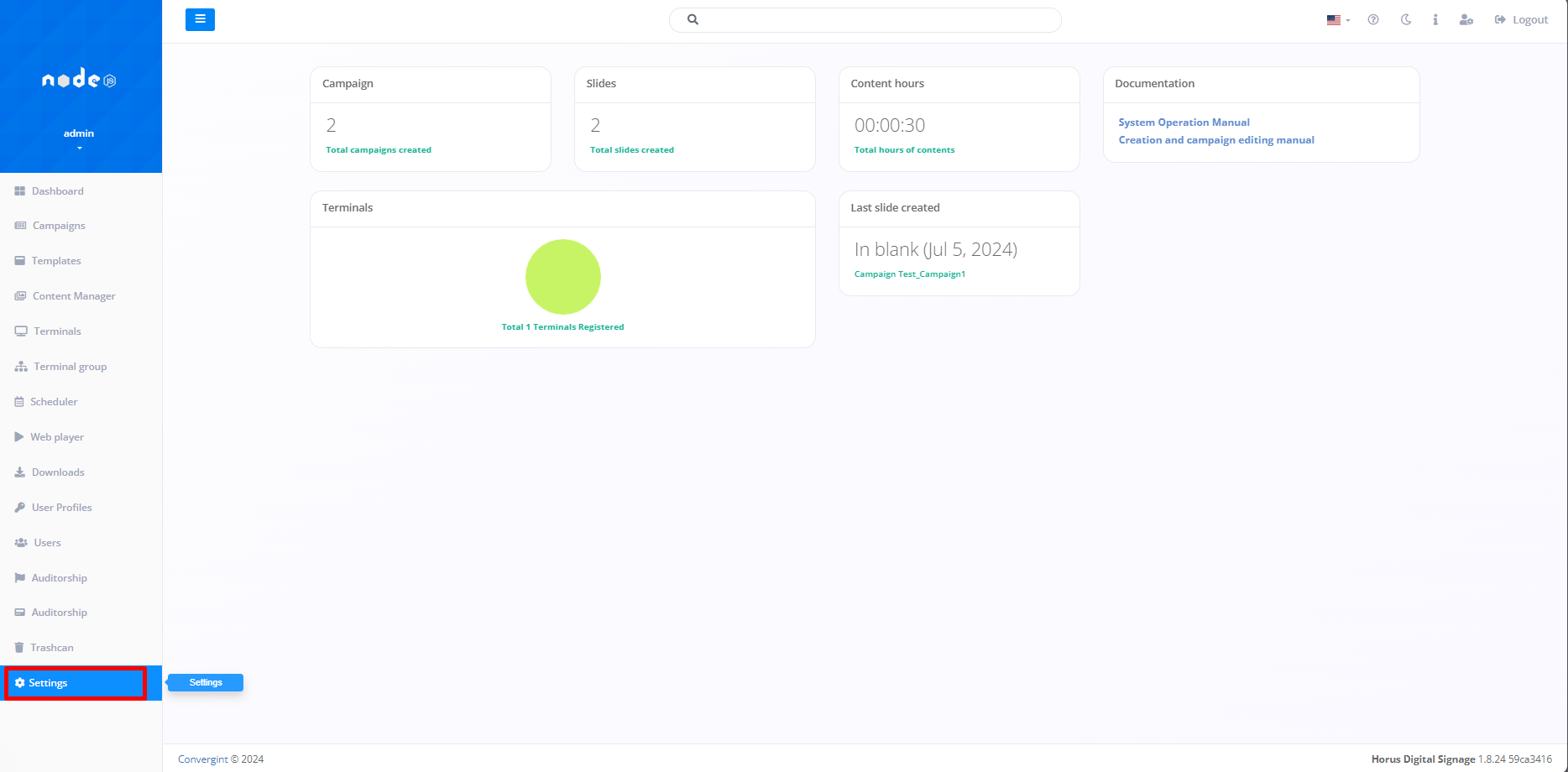
• Configurations part 1 and 2
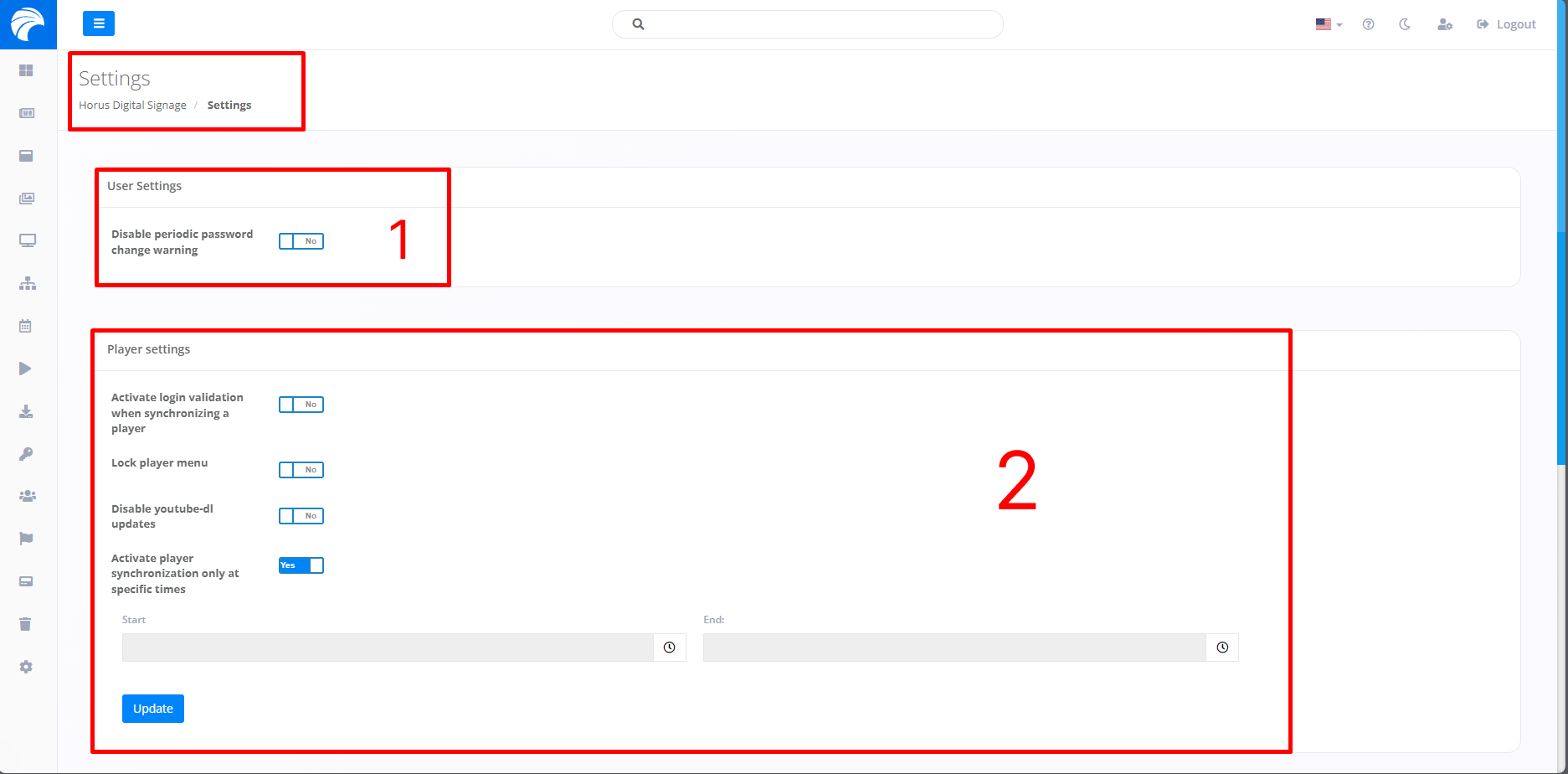
| Item | Configuration | Function | How to Configure |
|---|---|---|---|
| 1 | User Settings | Warns or does not warn the user to change the password periodically | Activate or deactivate |
| 2 | Player Settings (1) | The system validates the User's login before allowing synchronization with the Player. | Activate or deactivate |
| 2 | Player Settings (2) | Blocks the function and display of additional options within the Player. | Activate or deactivate |
| 2 | Player Settings (3) | Prevents updating the youtube-dl component | Activate or deactivate. |
| 2 | Player Settings (4) | Set a period of your choice for the Player to synchronize. | Activate or deactivate (If you activate it, set a period of your choice, then click on "Update"). |
• Configurations part 3 and 4
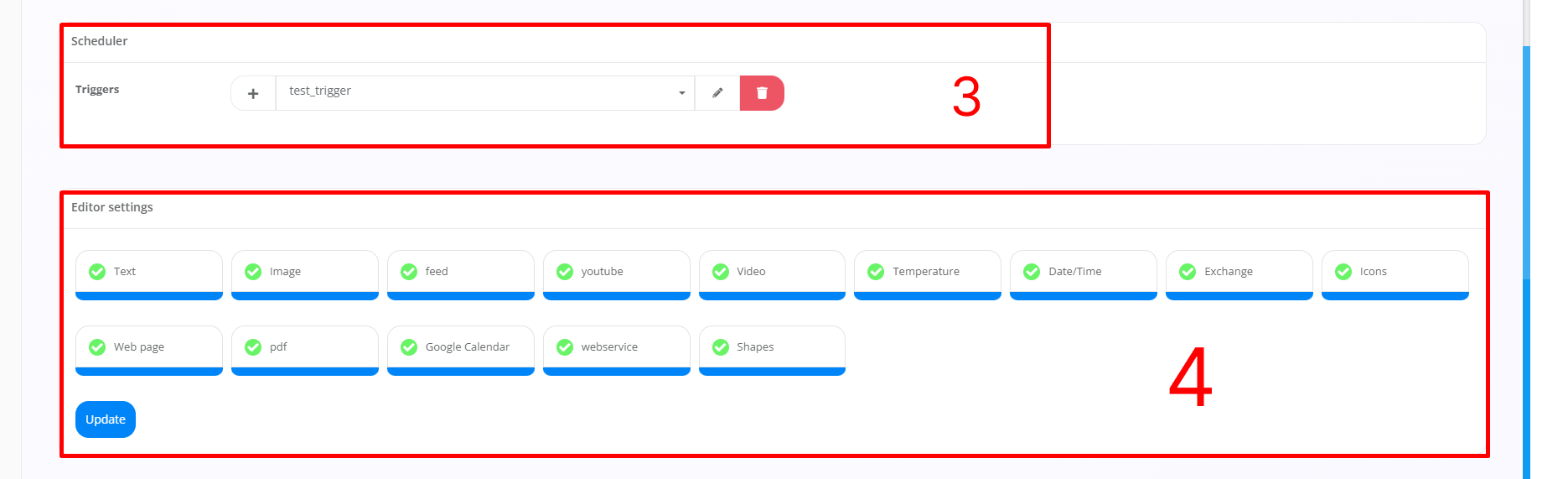
| Item | Configuration | Function | How to Configure |
|---|---|---|---|
| 3 | Scheduler | It allows you to create new Triggers according to your preference and to select previously created Triggers. | Go to the topic "Creation triggers". |
| 4 | Editor Settings | It allows you to select the components in the editor that you want to include in the Slide. | Select the topic you want or don't want to use in the editor, then click on "Update". |