Changing the User's Password
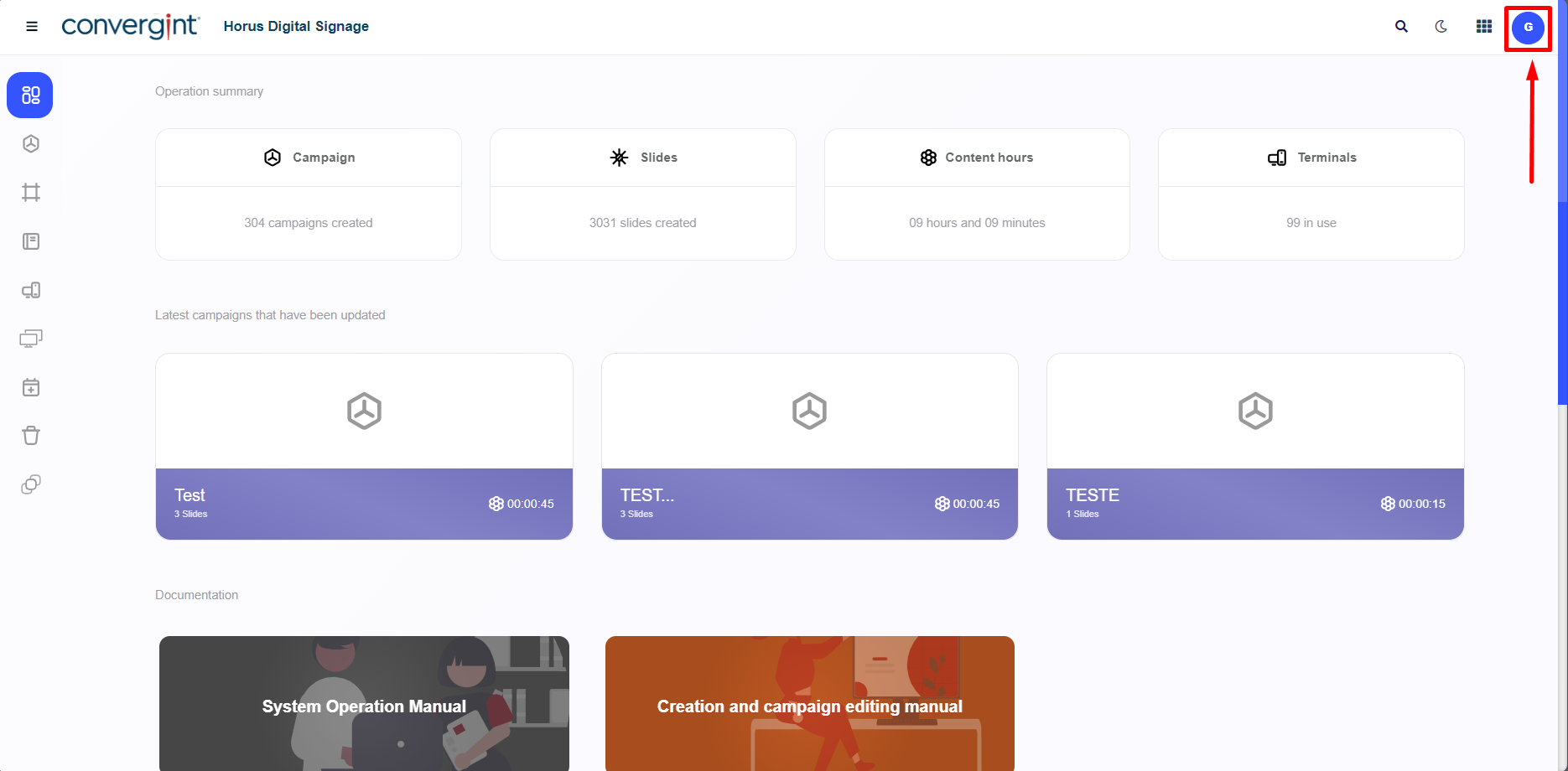
The first step to changing a user's password is to access their profile. In this field, the platform offers the option to change the language, view detailed data on the logged-in user and also the option to log out, should you wish to leave the platform.
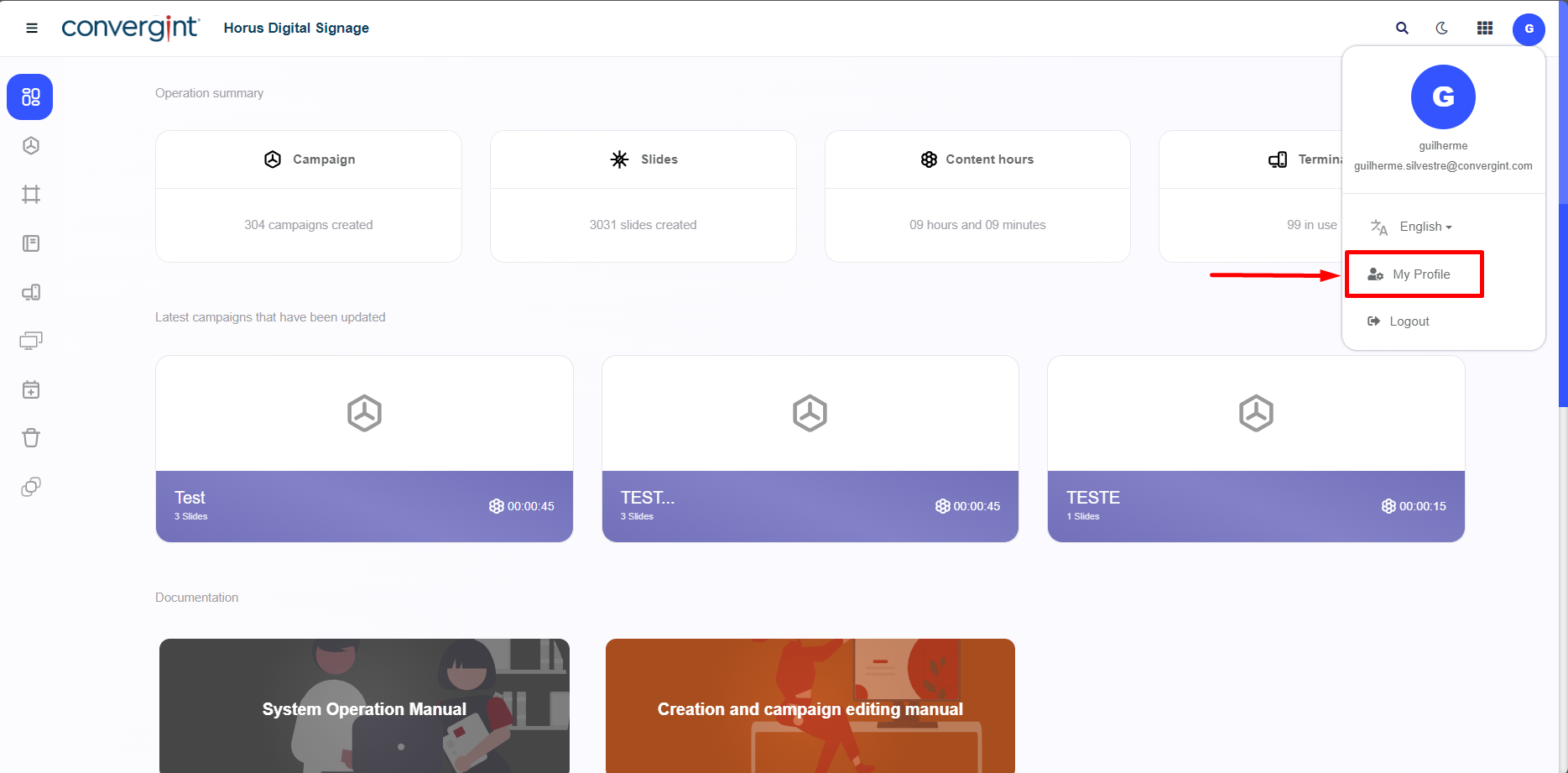
When accessing your profile, click on “My Profile” to access the security section relating to the logged-in user. This will allow you to better manage your login on the platform.
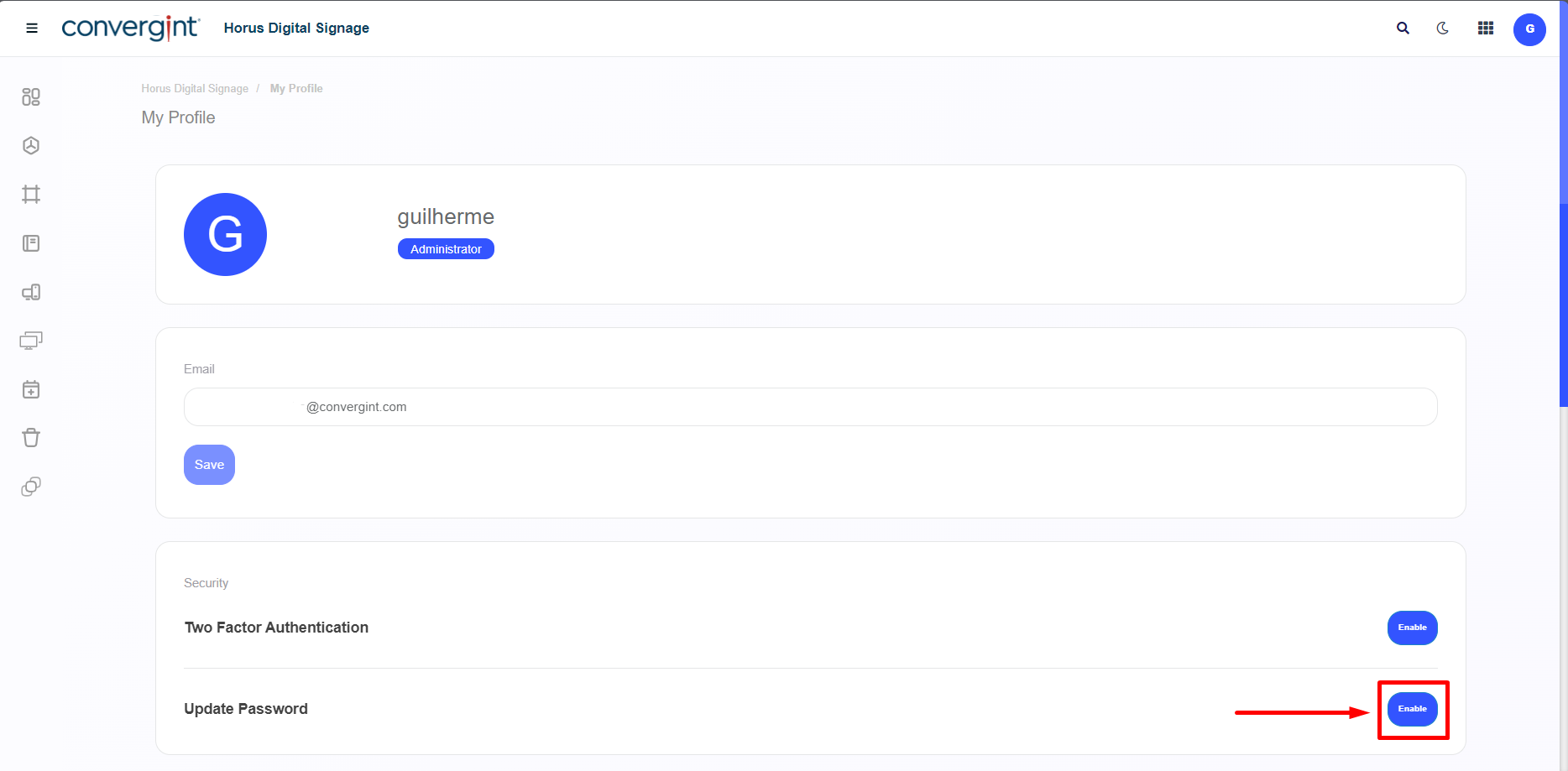
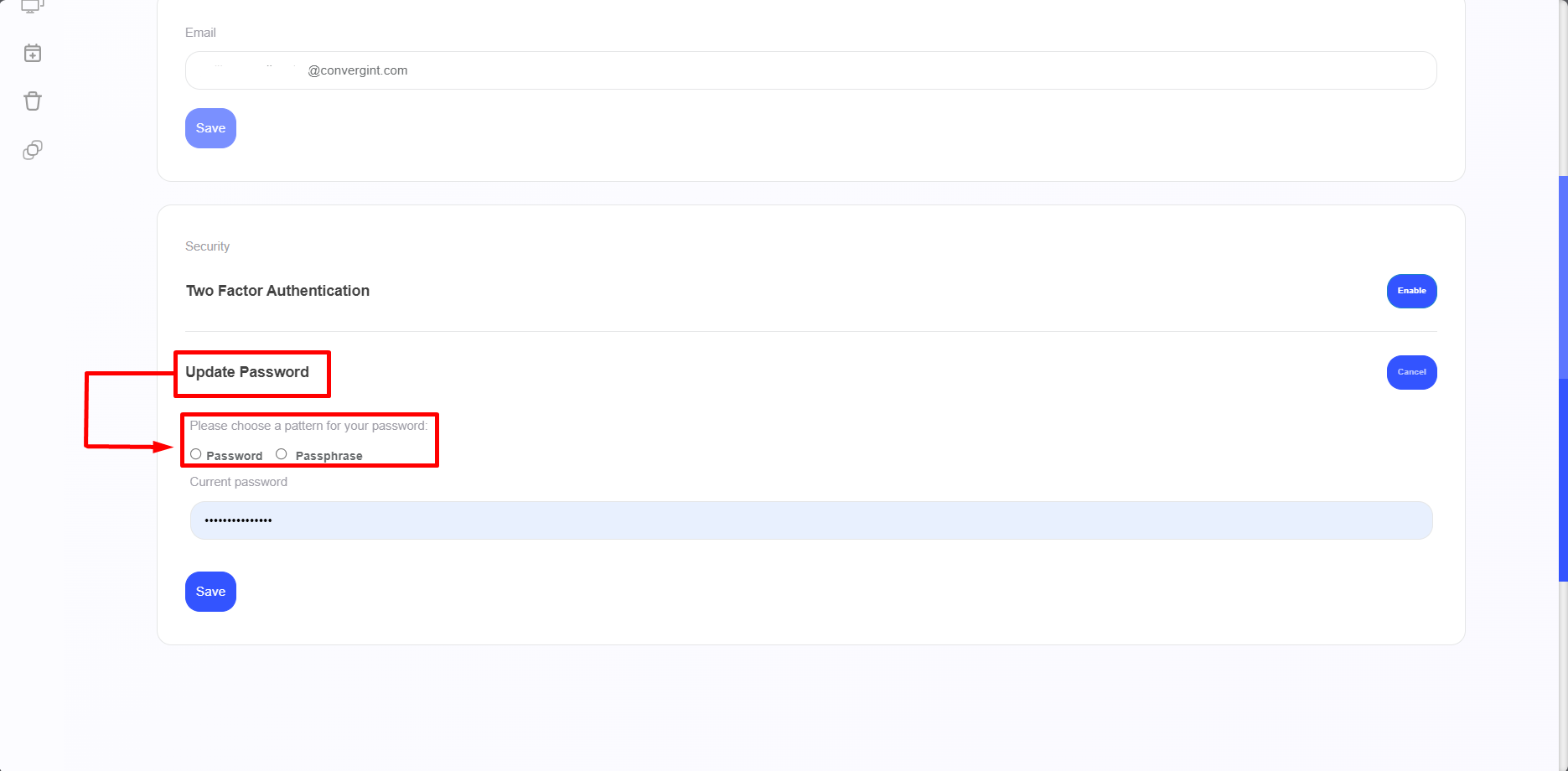
Once you have accessed the option, you need to click on “Enable” in accordance with the “Update Password” field so that you can then change your password according to your preference.
Next, the system will ask you to choose a pattern for your password, with the option of “Password” and “Passphrase”. The main difference between these options is that the password is a random sequence of characters, based on your choice, while the Passphrase is a sequence of randomly generated or declared words, depending on your preference.
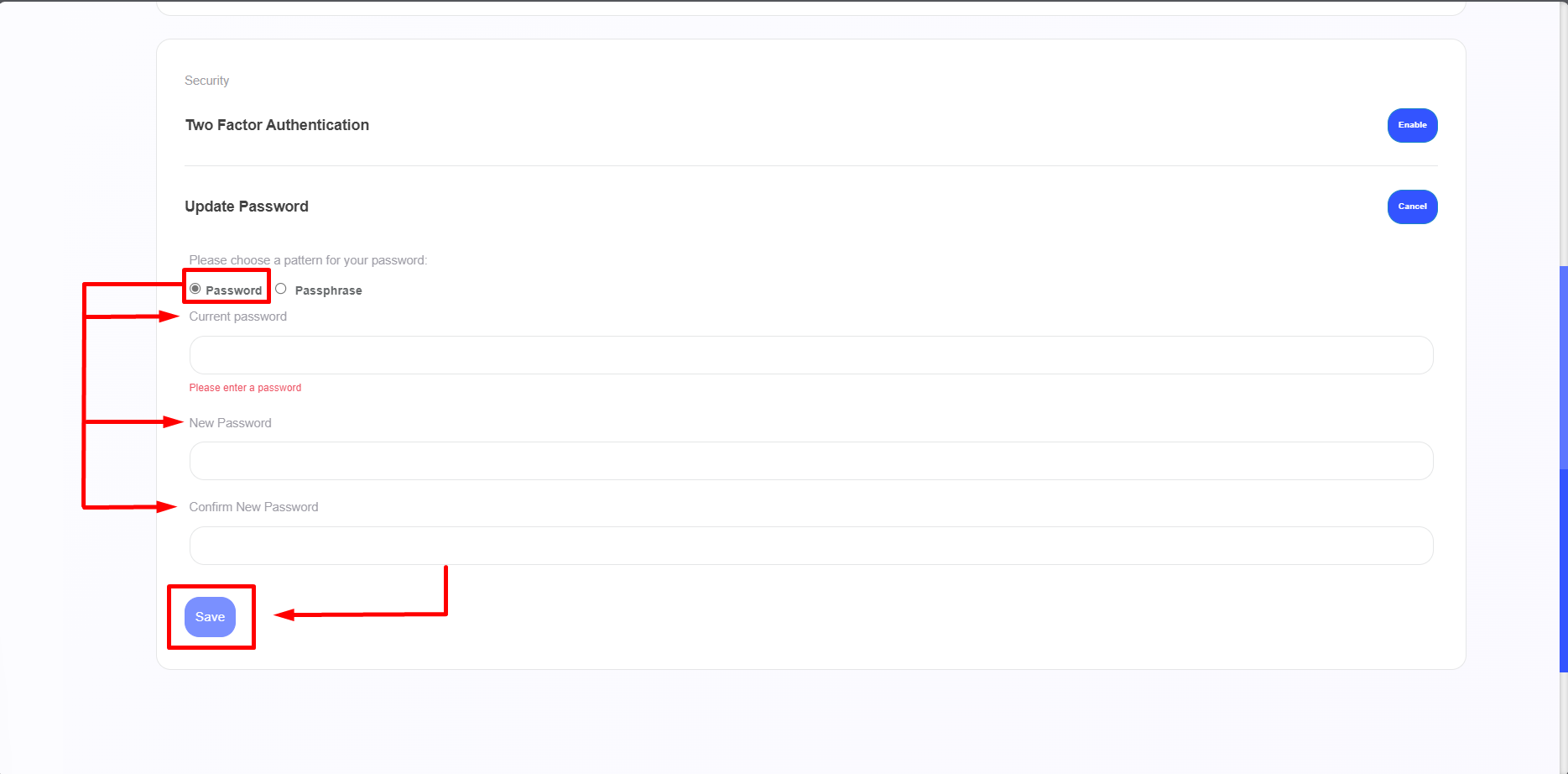
When you select the “Password” option, you must enter your Current Password. Then enter your New Password and confirm it. After filling in all the information, click on “Save” to complete the change.
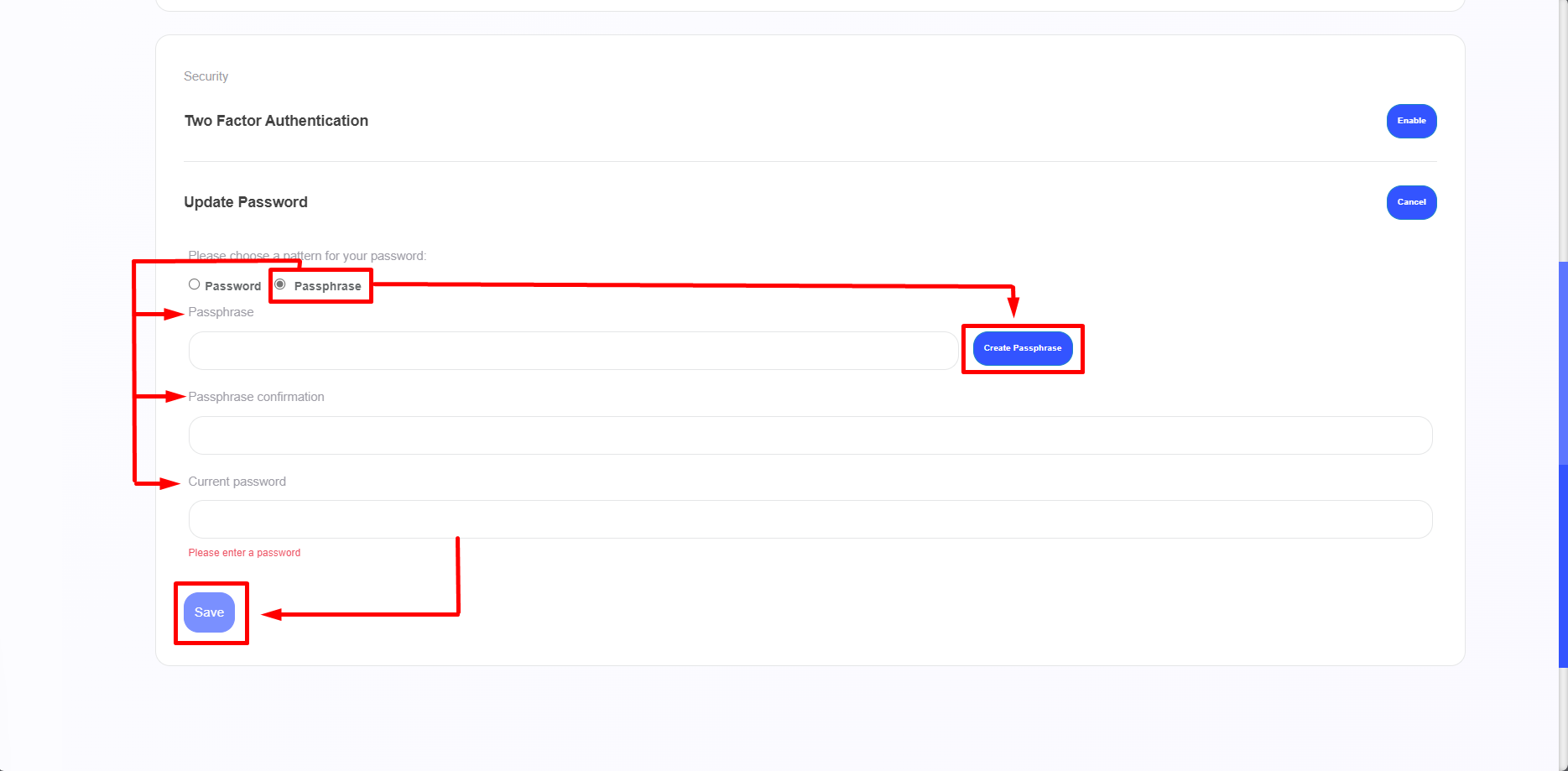
By selecting the “Passphrase” option, you can enter a sequence of words according to your preference, or click on “Generate Passphrase” to randomly generate a new password, then confirm it and enter your Current Password. After filling in all the necessary information, click on “Save” to complete the change.
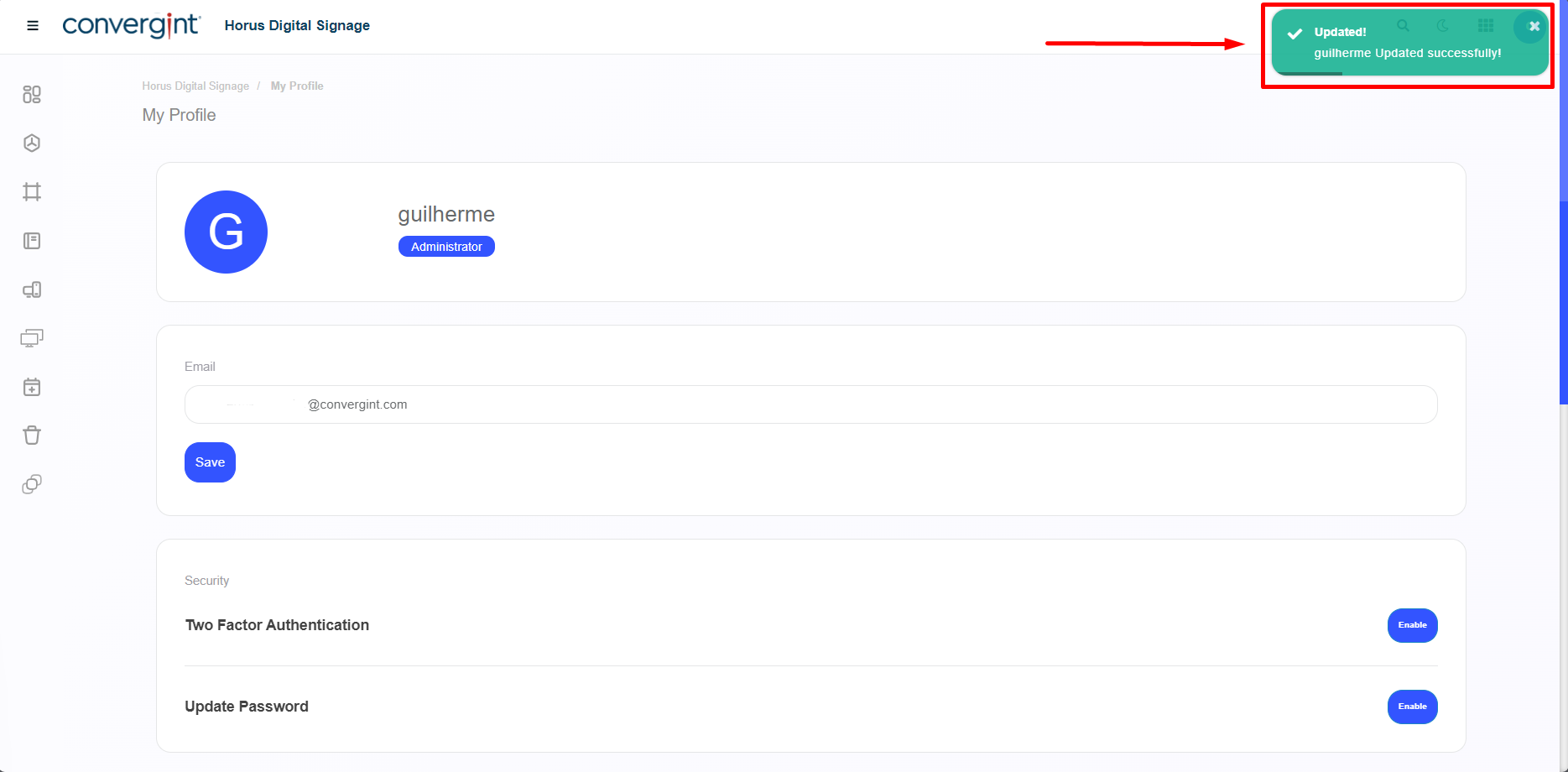
After configuring the password according to your preference, it will be updated.