Quick Tour (Home page)
-
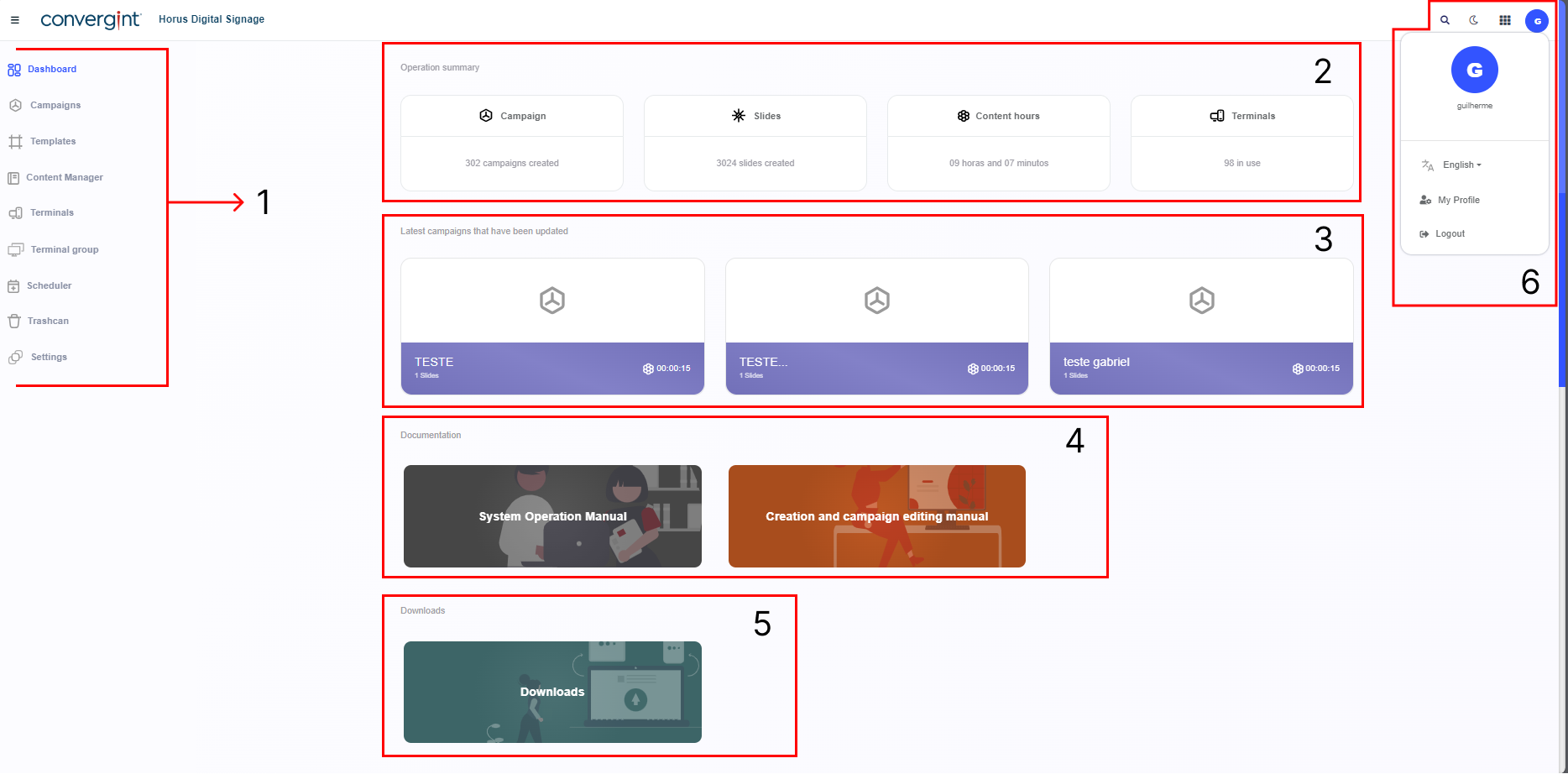
Through the Sidebar, you can access the various features that the platform offers.
-
The Operation Summary section allows you to view the total records of the various tabs provided by the system, such as campaigns, slides, Content Hours and Terminals. In this way, the user does not have to navigate the platform to check these records manually, but can directly consult the data presented on the Home Page.
-
Through the Latest campaigns that have been updated section, it is possible to check the campaigns that have recently been updated, allowing direct access to these campaigns without having to navigate the platform to view them.
-
In the Documentation field, the platform allows you to access the documentation system which contains the platform's manual, allowing the user to gain a greater knowledge of the platform and the functionalities it provides.
-
Through Downloads it is possible to access the Horus Player installation file, which will later be used to display the slides (presentations) in the environment. To find out more about Horus Player, go to “Player”.
-
6.1 The function of the Search Bar is to search for Campaigns, Terminals, Terminal Groups, and other records or registrations previously made in the system.
6.2 In Style Change, it is possible to change the theme of the style within the system.
6.3. Through the Additional Information, you will be able to check the changelog and the open source of the platform. This allows you to verify all significant changes made in each version and view the platform's source code.
6.4. By accessing your Profile, you can change the platform's language, view detailed user data such as Email, and manage the platform's security. Additionally, you can log out of the platform by clicking the "Log Out" button.